












What a shared inbox is, how it works, which teams need one, and how to choose between Drag, Hiver, Gmelius, Front, and the other leading tools in 2026.
Key takeaways
- A shared inbox is one email address (like support@ or sales@) a whole team works from together, with assignment, status, and internal notes replacing forwarding and CC.
- It is not a distribution list or a Google Group: those forward copies, while a shared inbox keeps one thread the team owns, with visibility into who is handling what.
- The right tool depends on where you work: Gmail-native tools like Drag ($12 to $24 per user per month, no free plan) fit Google Workspace teams; standalone platforms fit teams leaving Gmail.
Table of contents
- What is a shared inbox?
- Shared inbox vs. distribution list: what is the difference?
- How does a shared inbox work?
- Free ways to set up a shared inbox (and where they break)
- Key features to look for in a shared inbox tool
- Who needs a shared inbox?
- 7 signs your team needs a shared inbox
- How to set up a shared inbox for your team
- Shared inbox tools compared: which one is right for your team?
- What does a shared inbox cost in 2026?
- Shared inboxes in the AI era
- Shared inbox best practices
- Start managing your team email the right way

Founder’s Take
A personal note from Nick, co-founder of Drag
Clicks are dying. AI is reshaping how teams use their inboxes, and everyone in this market knows it. But shared inboxes are still the traditional, and still mainstream, way teams collaborate on email: resolving support tickets, closing sales, keeping a group address from dropping things. The demand is still there, and for most teams a shared inbox is still a core requirement.
This page covers the key players in the market, and the ones I think will stay ahead as the industry changes.
I will always bet on our own product, Drag, because of the velocity we deploy at. But there are some great others out there. See for yourself.






A shared inbox is a single email address that multiple team members can access, manage, and respond to from one unified workspace. Instead of forwarding messages or CCing colleagues, everyone sees the same conversations, who owns each one, and what has been said, without leaving their inbox.
If your team runs on shared addresses like support@, sales@, or info@, you already know the failure modes: emails get lost, two people reply to the same customer, nobody knows who is handling what, and forwarding threads back and forth wastes everyone's time. A shared inbox fixes that. This guide covers what a shared inbox is, how it works, when your team needs one, and how to choose the right tool for your workflow.
What is a shared inbox?
Common examples include support@, sales@, info@, or billing@. Unlike a personal inbox, where one person sees each message, every team member with access sees every conversation, can assign it, track its status, leave internal notes, and collaborate on the reply without forwarding or CCing. The result: no lost emails, no duplicate replies, no guessing who owns what. "Shared inbox" is the umbrella term: it covers Microsoft 365's built-in shared mailboxes, Google Groups set to collaborative inbox, and the dedicated tools that add a full workflow layer on top of either.
Shared inbox vs. distribution list: what is the difference?
A distribution list (like a Google Group set to forward) sends a copy of every email to each person's inbox, with no shared workspace and no way to see who replied or whether the issue is resolved. A shared inbox keeps the whole conversation in one place the team works from together, with assignment, status, and collaboration built in. Think of a distribution list as photocopying a letter and handing it to five people, and a shared inbox as putting that letter on a shared desk where everyone sees who picks it up and what happens next. We cover the full comparison, including how a shared mailbox fits in, in our distribution list vs shared mailbox guide.
How does a shared inbox work?
The mechanics behind a shared inbox are straightforward. An email arrives at a shared address, and the system makes it visible to every team member who has access. From there, features like assignment, status tracking, and internal notes turn a simple inbox into a full workflow engine.
Here is a typical flow. A customer emails support@yourcompany.com with a billing question. The message appears instantly for the entire support team. A manager assigns it to the billing specialist. The specialist adds an internal note asking the finance team for clarification, drafts a reply, and marks the conversation as resolved once the customer confirms. Every step is visible to the team, and the customer only ever sees the final reply.
Most shared inbox tools add layers of functionality on top of this basic flow. Collision detection prevents two agents from drafting a reply to the same message at the same time. Automation rules can assign conversations based on keywords, sender domains, or round-robin distribution. Analytics dashboards track response times, resolution rates, and individual workload.
Drag · with Varley
The inbox your team and Varley work in together
Shared inbox and live chat for Gmail teams, with Varley, Drag’s AI, included from $18. Plus an MCP server your own AI tools can drive.
Free ways to set up a shared inbox (and where they break)
You do not need a paid tool to start. There are four common free routes, each with a real ceiling.
Gmail delegation lets a teammate read and send from your inbox without sharing your password. It is quick to set up and fine for an assistant managing one person's mail, but there is no assignment, no statuses, and it does not scale past a one-to-one arrangement. Google's own caps: a personal @gmail.com account allows up to 10 delegates, and Google Workspace accounts support up to 1,000 when an admin allows it, though only about 40 people can work a delegated mailbox at the same time. On Microsoft 365, delegate access works the same way, with the same ceiling.
A Google Group set to collaborative inbox gives a shared address where members can assign conversations and mark them resolved. The setup takes three steps: create the group, turn on Collaborative Inbox under the group's settings, and add members with the right permissions. It is genuinely free and works for a basic alias, but there are no internal notes, no collision detection, no analytics, and the team works in a separate interface rather than their own inbox. The Microsoft equivalent is a built-in shared mailbox in Outlook, which shares the same ceiling: shared access without workflow.
Shared labels and filters can mimic a shared workflow inside Gmail itself. Small teams make this work for a while, but it depends on everyone applying labels consistently, and it breaks down as volume grows. Outlook's categories and rules hit the same wall.
Password sharing is the route to avoid: it fails most security policies, breaks two-factor authentication, and gives you no record of who did what.
If your team is small and volume is low, start with a Google Group or a Microsoft 365 shared mailbox. The signs it is time to move to a dedicated tool are the same seven signs above.
Key features to look for in a shared inbox tool
Not all shared inbox solutions are built the same. When evaluating tools for your team, these are the features that separate a basic shared mailbox from a real collaborative workspace.
- Email assignment and ownership: Every conversation should have a clear owner. The best tools let you assign emails manually or automatically using rules, round-robin distribution, or load balancing
- Collision detection: When two people start replying to the same email, things get messy. Collision detection alerts team members in real time so they do not send duplicate or conflicting responses
- Internal notes and mentions: Teams need a way to discuss emails without the customer seeing the conversation. Internal notes, combined with @mentions, let you loop in colleagues right inside the email thread
- Shared drafts: Before sending a critical reply, your team should be able to collaborate on the draft. Shared drafts let multiple people review and edit a response before it goes out
- Status tracking and workflow views: Being able to see which conversations are open, pending, or closed at a glance saves hours of manual checking. Kanban board views let teams visualize their pipeline and drag conversations between stages
- Automation rules: Manual triage does not scale. Look for tools that let you create rules to auto-assign, auto-tag, auto-close, or auto-escalate emails based on conditions like keywords, sender, subject line, or time since last reply
- Analytics and reporting: The right shared inbox tool provides reports on response time, resolution time, conversation volume, team workload, and customer satisfaction
- AI capabilities: Modern shared inbox tools increasingly include AI features like smart drafting, automatic categorization, sentiment analysis, and conversation summarization
Who needs a shared inbox?
Shared inboxes are not limited to customer support teams. Any group that collaborates around email can benefit from a shared inbox setup.
Customer support and service teams are the most obvious use case. When customers email support@, the team needs to triage, assign, and track every conversation to ensure nothing slips through the cracks.
Sales teams that manage inbound leads through a shared address like sales@ or leads@ use shared inboxes to distribute inquiries, track follow-ups, and ensure every prospect gets a timely response. Some teams even use kanban views to manage their entire sales pipeline inside the inbox.
Finance and operations teams that handle invoices, vendor communications, and procurement through shared addresses benefit from the assignment and tracking features to keep processes moving.
HR teams managing recruitment pipelines, employee inquiries, and onboarding communications through shared addresses can organize their workflows far more effectively.
Agencies and consultancies that manage client communications across multiple accounts can use shared inboxes to centralize everything and ensure no client request gets missed.
7 signs your team needs a shared inbox
Not sure if your team is ready for a shared inbox? Here are the most common signs that your current email setup is holding you back.
- Emails are falling through the cracks. If customer messages regularly go unanswered or take days to get a reply, your team does not have visibility into who is handling what
- Customers are getting duplicate replies. Two team members replying to the same email with different answers damages credibility and wastes everyone's time
- You are forwarding emails constantly. If your workflow involves forwarding emails between team members to hand off tasks, you are creating a chain that is nearly impossible to track
- You have no idea how your team is performing. Without analytics on response times, resolution rates, and conversation volume, you are managing blind
- Onboarding new team members is chaotic. When a new hire needs to get up to speed on ongoing conversations, there is no shared history for them to reference
- Your team relies on CC and BCC for collaboration. This creates bloated threads, confusion about who is responsible, and no real workflow management
- You have outgrown your current tools but are not ready for a full helpdesk. If free shared mailboxes in Google Groups or Outlook feel too basic, but enterprise helpdesks like Zendesk feel like overkill, a shared inbox tool is the sweet spot
How to set up a shared inbox for your team
Setting up a shared inbox does not have to be a complex migration project. With the right tool, you can be up and running in minutes.
Step 1: Choose your shared inbox tool. Evaluate options based on where your team already works. If your team lives in Gmail and Google Workspace, a Gmail-native tool will minimize friction and speed up adoption. If your team lives in Outlook, a tool that connects to Microsoft 365 shared mailboxes does the same.
Step 2: Connect your shared email addresses. Link addresses like support@, sales@, or info@ to the platform. Most tools connect via OAuth or your Google Workspace or Microsoft 365 admin settings, which means no passwords to share and no emails to migrate.
Step 3: Invite your team. Add team members and set their roles and permissions. Decide who can view, assign, and reply to conversations in each shared inbox.
Step 4: Set up automation rules. Configure auto-assignment, auto-tagging, and SLA rules to reduce manual triage from day one. Even simple rules like assigning billing questions to the finance team can save hours per week.
Step 5: Create templates and canned responses. Build a library of shared templates for common questions. This ensures consistency across the team and speeds up response times dramatically.
Step 6: Establish workflow stages. Set up status labels or kanban board columns that reflect your actual workflow. Common stages include Open, In Progress, Waiting on Customer, and Resolved.
Shared inbox tools compared: which one is right for your team?
The shared inbox market offers several options, each with different strengths. Here is how the leading tools compare; for a deeper best-tool ranking, see our shared inbox guide. Every price below is the vendor's own published figure.
The right tool depends on where your team already works. If you run on Gmail and Google Workspace, the Gmail-native tools, Drag, Hiver, and Gmelius, work inside the inbox you already have. If you run on Outlook and Microsoft 365, Front, Missive, and the helpdesk platforms connect to your existing mailboxes. If you want one tool across mixed providers, Missive and the helpdesks are built for that.
| Tool | Works in | Standout | Honest fit | Price |
|---|---|---|---|---|
 Drag Drag | Gmail | Kanban boards + AI, Gmail-native | Google Workspace teams wanting power without leaving Gmail | $12 to $24/user/mo (AI at $18) |
 Hiver Hiver | Gmail + Outlook | Help-desk depth + SLAs | Larger Gmail support teams wanting the traditional ladder | from about $25/user/mo |
 Gmelius Gmelius | Gmail | Automation + Meli AI assistant | Gmail teams wanting shared inboxes plus sales automation | from $19/user/mo |
 Front Front | Outlook + Gmail | Omnichannel + polished collaboration | Teams ready to leave Gmail for a dedicated app | from about $19/user/mo |
 Missive Missive | Any provider | Multi-provider + chat-style collaboration | Teams not on Gmail, or mixing providers | Free (3 users); paid from $14/user/mo |
 Zendesk Zendesk | Any provider | Full ticketing, phone, chat, KB | Larger teams with dedicated support ops | Suite from about $55/agent/mo |
 Freshdesk Freshdesk | Any provider | Full help desk, cheaper than Zendesk | Teams wanting a platform on a budget | Free (2 agents); paid from about $19/agent/mo |
 Google Groups Google Groups | Google Workspace | Free collaborative inbox | Tiny teams testing the idea at zero cost | Free with Workspace |
Drag: shared inbox built natively inside Gmail
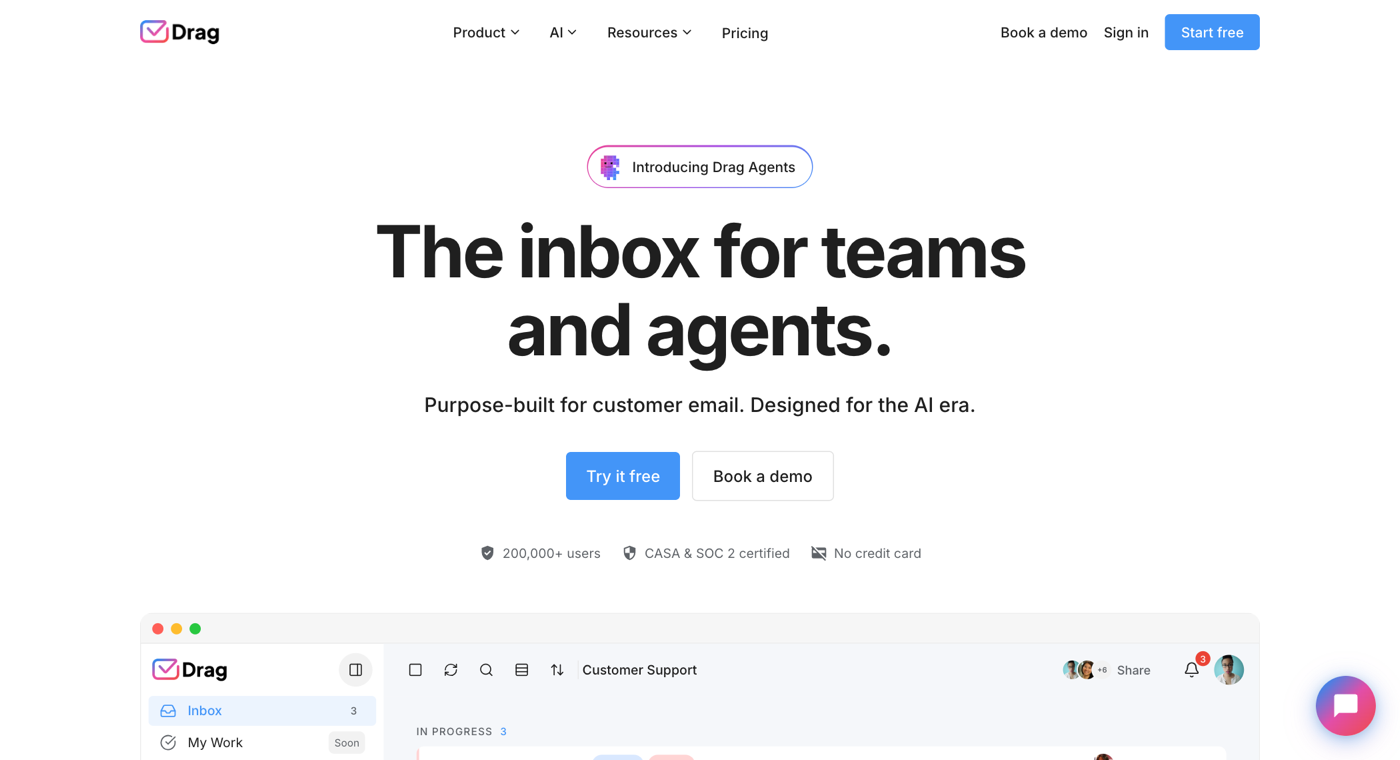
Drag turns your existing Gmail into a shared workspace, with kanban boards, email assignment, automation rules, shared drafts, collision detection, AI-powered drafting, and analytics. Because it works inside Gmail, teams on Google Workspace adopt it with no migration and no new app to learn. Plans run $12 to $24 per user per month, with AI included at $18, and there is no free plan. It is built for small and mid-size teams who want real workflow power without leaving their email client, and the 7-day trial needs no card.
Hiver
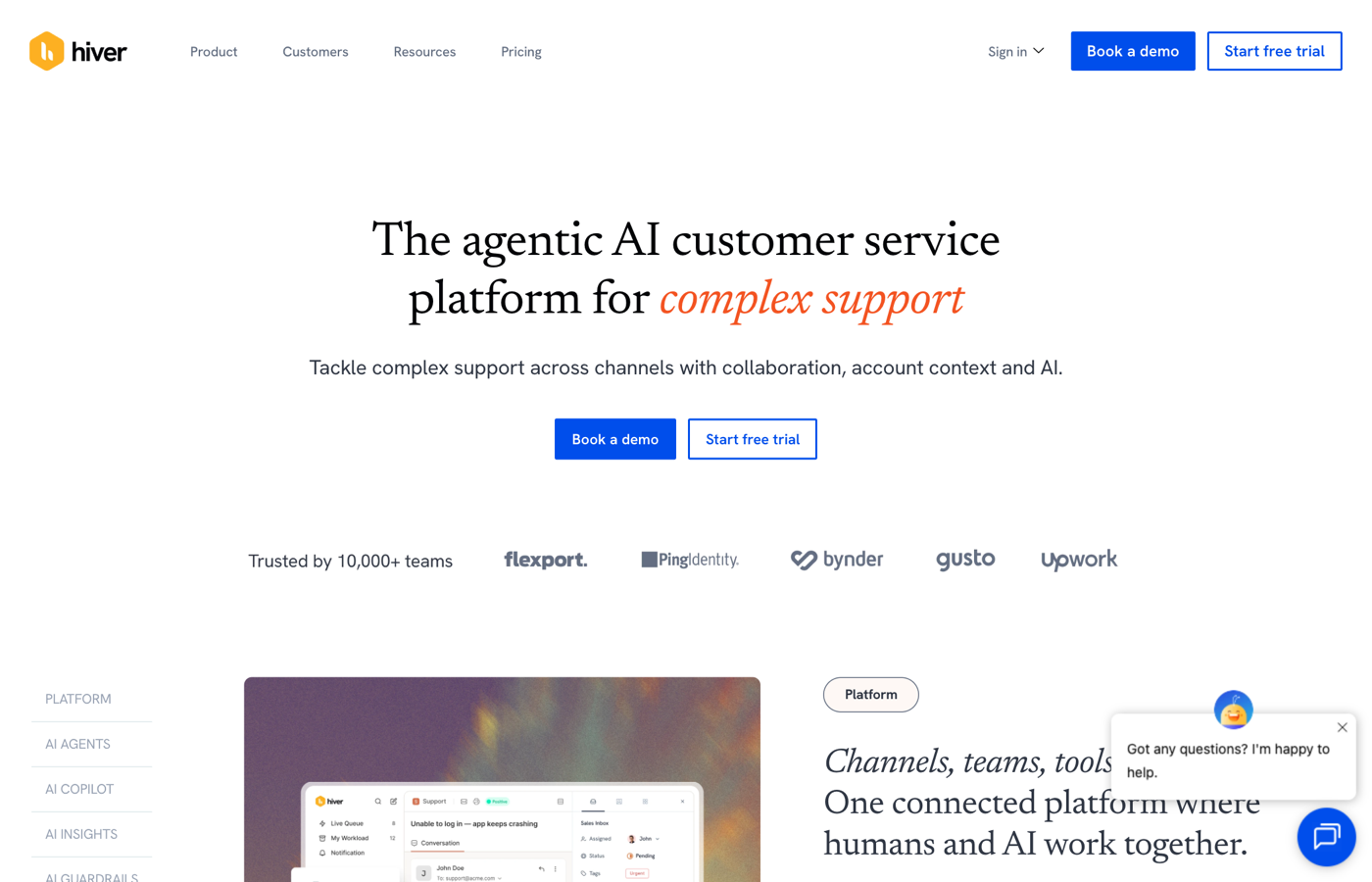
Hiver is a major Gmail-native option that also supports Outlook and Microsoft 365, and it does traditional help-desk depth well: SLAs, analytics, and multi-channel support layered on the inbox. It is the natural pick for larger Gmail support teams that want the full help-desk ladder, and it is one of the most established names in the category. The trade is price, which climbs from about $25 per user per month, with the deepest AI in the upper tiers.
Gmelius
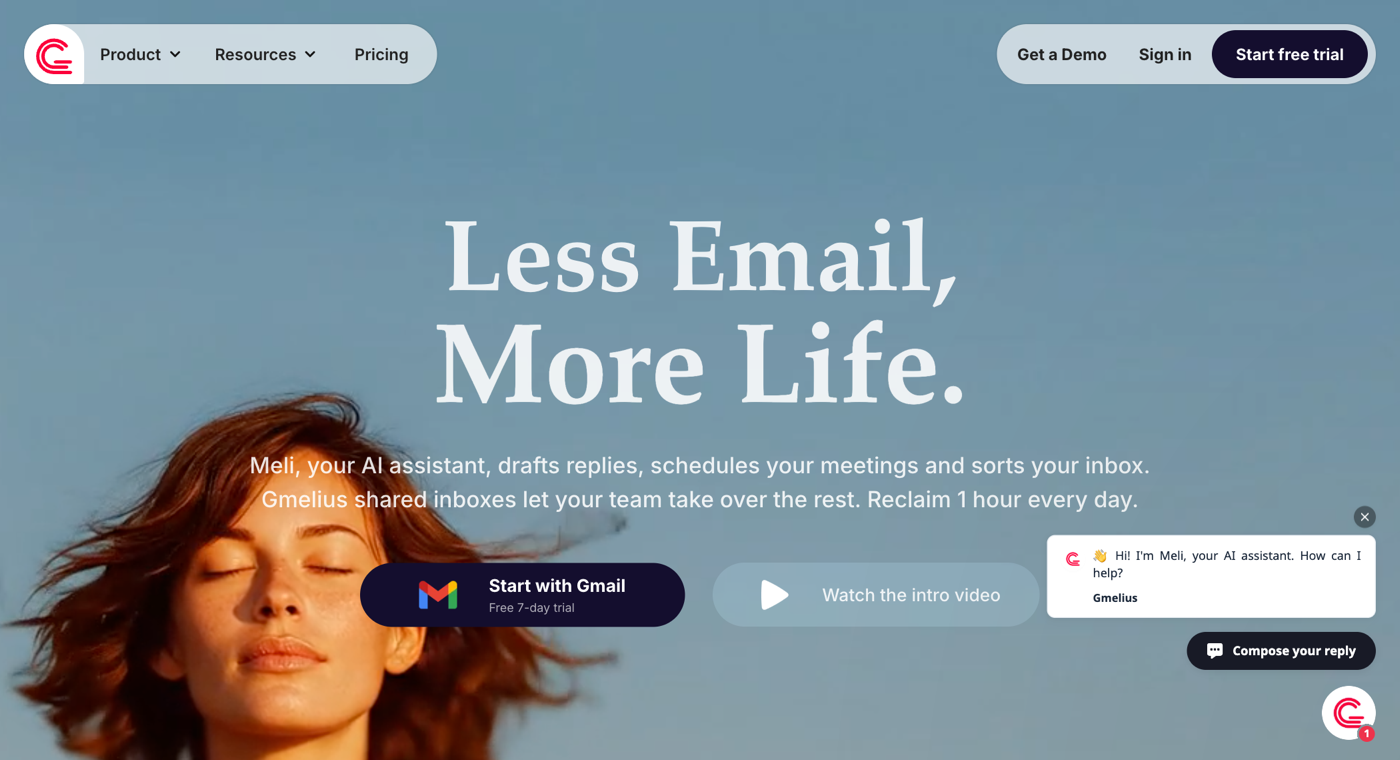
Gmelius pairs Gmail shared inboxes with strong automation and Meli, its AI assistant that drafts replies and sorts the inbox. Teams that want shared inboxes alongside sales-style automation and Salesforce or HubSpot integrations get a lot here. Pricing starts at $19 per user per month for the AI features, with shared inboxes on the Growth tier around $24 to $25, after a 7-day trial.
Front
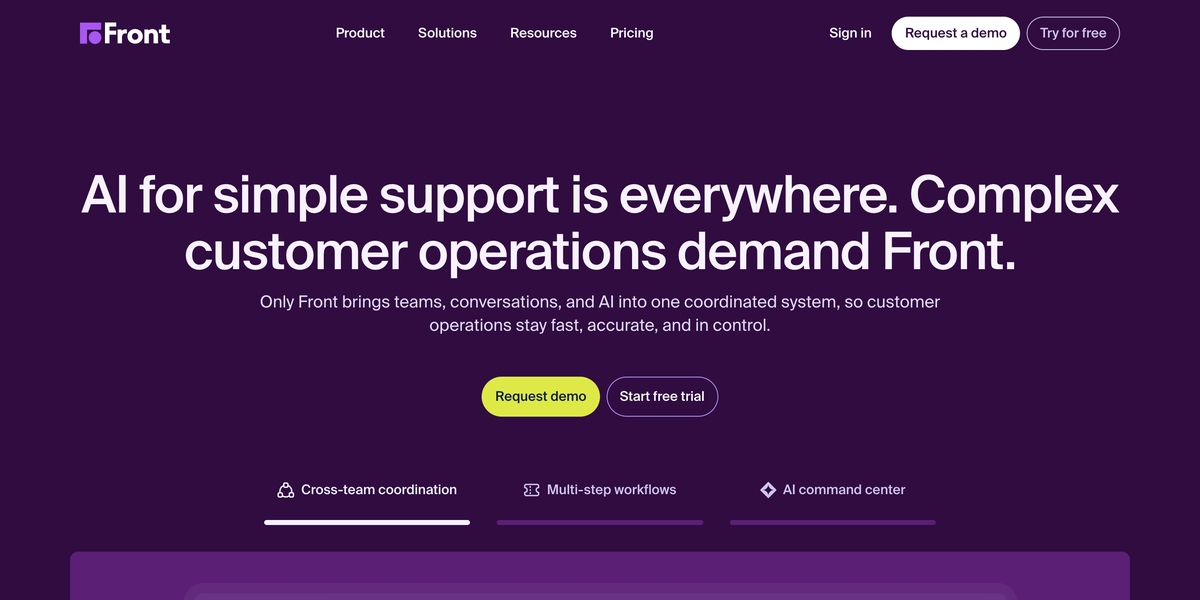
Front is a polished standalone platform rather than a Gmail layer: it brings email from Gmail or Microsoft 365, plus SMS and social, into one collaborative app with powerful rules and analytics. That power comes with a move into a separate client, which is a real adoption cost for teams embedded in Gmail or Outlook. Pricing starts around $19 per user per month. Best for teams ready to leave Gmail for a dedicated hub.
Missive
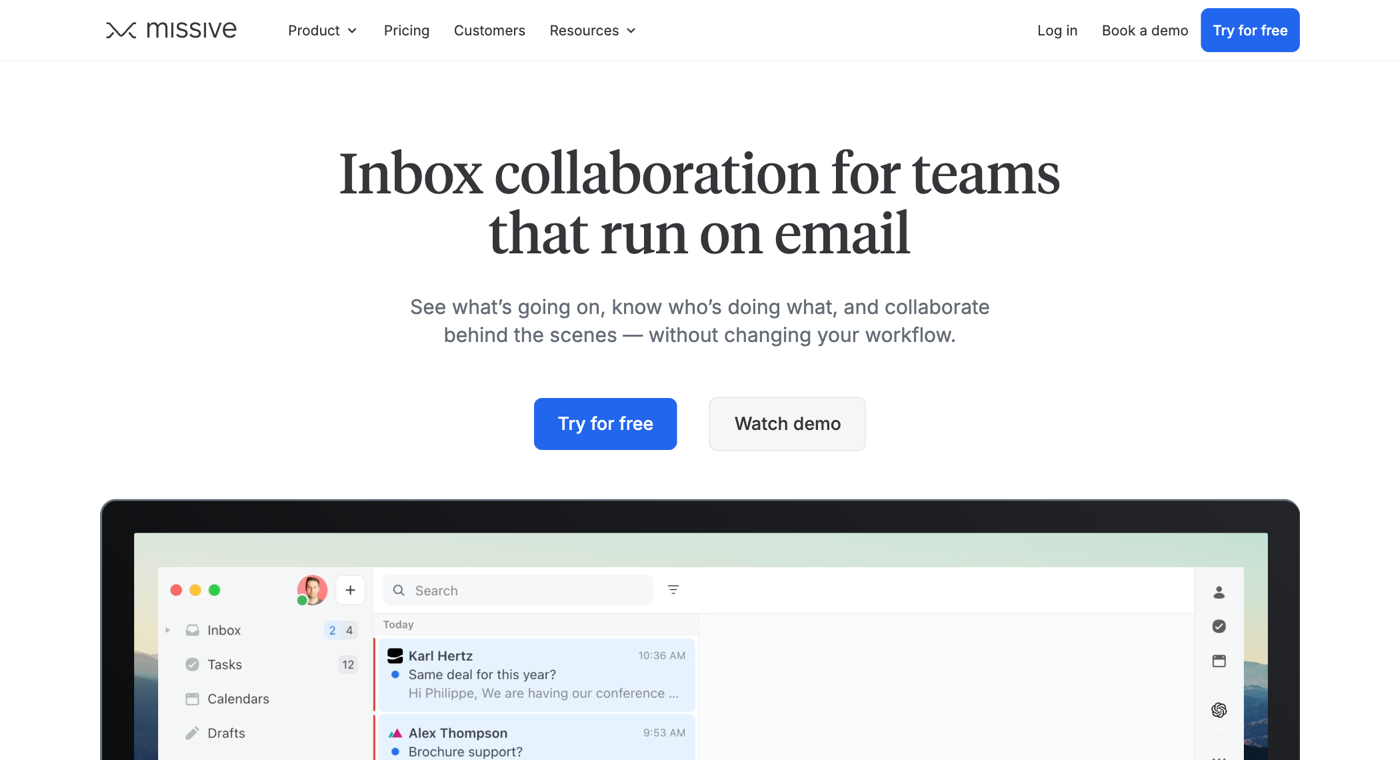
Missive is the strong pick for teams that are not on Gmail, because it works across email providers and adds chat-style collaboration around each thread. It has a genuinely free tier for up to three users, then Starter at $14 and Productive at $24 per user per month. Best for small multi-provider teams, or anyone who wants shared inboxes without committing to Google.
Zendesk
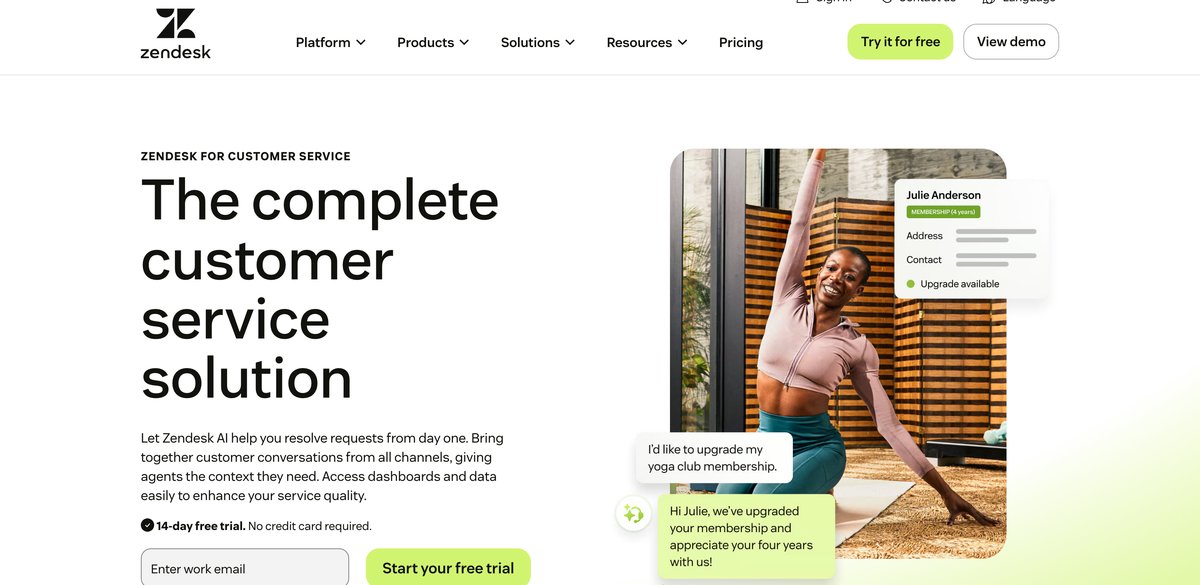
Zendesk is a full customer-service platform: ticketing, live chat, phone, and a knowledge base, built for larger teams with dedicated support operations. For a team that only needs a shared inbox, it is far more than the job requires, and the Suite starts around $55 per agent per month. Best when email is one of many channels and you have the volume to justify a platform.
Freshdesk
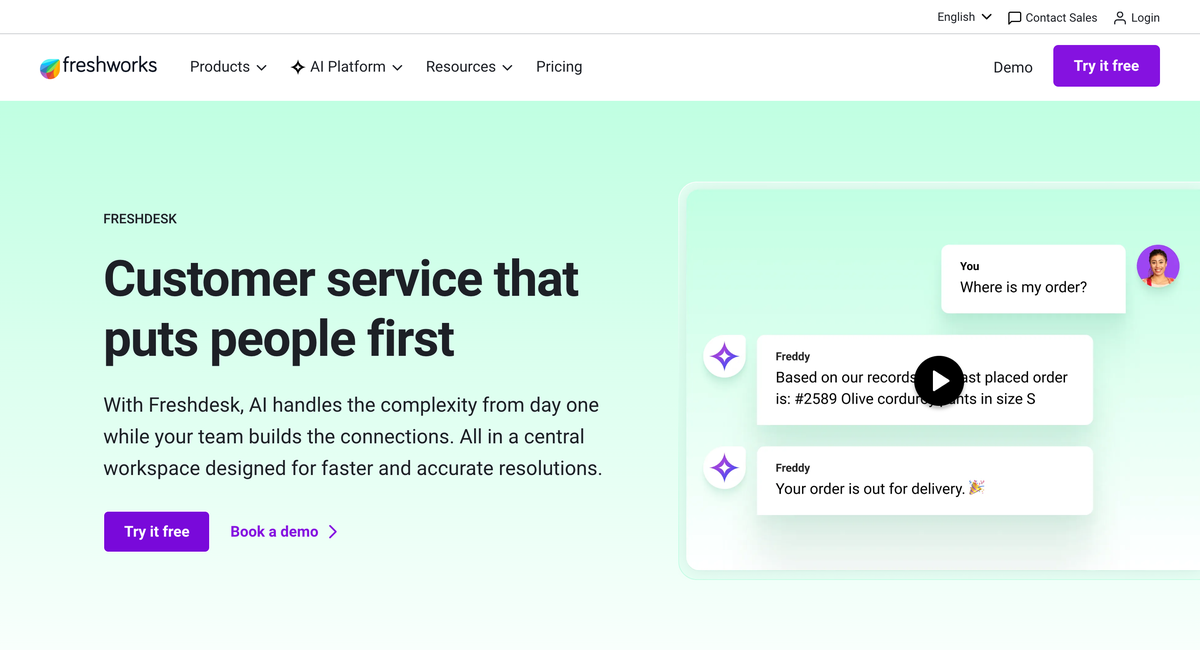
Freshdesk offers the same full-help-desk scope as Zendesk at a lower price, with a free tier for two agents and paid plans from about $19 per agent per month. It still carries the complexity of a support platform that many small teams do not need, but it is the budget route into the full-help-desk category.
Google Groups
Google Groups' Collaborative Inbox is the free baseline: a group address where members can assign, label, and mark emails complete, included with Google Workspace at no extra cost. What it lacks is the workflow layer that defines a real shared inbox, with no private notes, no collision detection, no analytics, and a separate interface from Gmail. It is fine for a tiny team testing the idea, and the signal to graduate is the first time those gaps cost you a dropped conversation.
What does a shared inbox cost in 2026?
The honest range is wide. Free native options (Google's Collaborative Inbox, a Microsoft 365 shared mailbox) cost nothing and lack the ownership features that make shared inboxes work at volume. Dedicated tools run from $12 to over $100 per user per month at the top enterprise tiers; Drag sits at $12 to $24 per user per month billed annually with the AI assistants included from $18, and several competitors add metered AI fees per resolution on top of seats, which means the bill grows with your support load. Each bar below runs from that tool's cheapest published plan to its most expensive, read from the vendor's own pricing page and re-verified through July 2026.
Prices also move. The category's five-year story, traced through dated archive captures of every vendor's pricing page, shows several tools raising or restructuring their prices while others held: worth knowing before you commit to a per-seat contract. The chart tracks each vendor's published pricing since 2021; the full receipts live in our support tool pricing history, and the worked cost scenarios in what a shared inbox really costs.
Shared inboxes in the AI era
The newest shift in the category is not a feature but an interface: shared inboxes that AI assistants can operate directly. Through an MCP server, an assistant like Claude or ChatGPT can read the queue, draft replies in your team's voice, assign owners, and answer "what is still open from yesterday?" in plain language, and you can manage a shared inbox from Claude or ChatGPT today. Not every tool can do this: it requires the vendor to ship an official MCP server, and most have not yet. If you are choosing a shared inbox in 2026, this is the forward-compatibility question to ask, and the MCP-native support stack guide shows how the whole architecture fits together. Full disclosure applies here as everywhere on this page: Drag is our product, and its MCP server (47 tools) ships on every plan.
Shared inbox best practices
Having a shared inbox tool is only half the battle. How your team uses it determines whether it actually improves your workflow. Here are the practices that high-performing teams follow, and our shared inbox management guide goes deeper on running one day to day. If your team uses a plain Outlook or Gmail shared mailbox, start with our 12 shared mailbox best practices.
- Define clear ownership: Every conversation should have one owner. Set up rules so that every incoming email is either auto-assigned or flagged for manual triage within minutes
- Use internal notes instead of forwarding: Forwarding creates parallel threads that fragment the conversation history. Use internal notes and @mentions to bring colleagues into a discussion while keeping everything in one place
- Build and maintain your template library: Templates speed up responses and ensure consistency. Review them monthly to make sure they reflect current policies, product features, and tone
- Set SLA targets and monitor them: Define how quickly your team should respond to different types of messages and use your shared inbox analytics to track adherence
- Review analytics weekly: Carve out 15 minutes per week to review conversation volume, response times, and team workload distribution
- Keep your inbox clean: Archive or close resolved conversations promptly. A cluttered inbox creates the same problem as a cluttered desk: important things get buried under things that no longer matter
Start managing your team email the right way
A shared inbox is not just a tool. It is a better way to work together around email. It eliminates the chaos of forwarded threads, the embarrassment of duplicate replies, and the frustration of lost messages. It gives your team visibility, accountability, and speed. If your team is ready to move beyond basic email and work from a truly collaborative inbox, Drag makes it easy. It works right on Gmail, sets up in minutes, and gives your team everything they need to manage email together. Start a 7-day trial, no card required.
Frequently asked questions
What is a shared inbox and how does it work?
A shared inbox is a single email address that multiple team members can access, manage, and respond to from one unified workspace. An email arrives at a shared address like support@, becomes visible to the whole team, and features like assignment, status tracking, and internal notes turn it into a workflow rather than a pile of forwards.
What is the difference between a shared inbox and a distribution list?
A distribution list forwards a copy of every email to each person's inbox, with no shared workspace and no way to see who replied. A shared inbox keeps the whole conversation in one place the team works from together, with assignment, status, and collaboration built in.
Can I use a shared inbox with Gmail?
Yes. Gmail-native tools like Drag turn the Gmail interface into a shared workspace, so your team manages shared inboxes without leaving Gmail, with no data migration, no new passwords, and no separate app to learn.
Is a shared inbox the same as a Google Group?
No. A Google Group can forward email to several people and its Collaborative Inbox can assign and label, but it has no private notes, no collision detection, and no analytics, and it works in a separate interface from Gmail. A shared inbox tool adds the full workflow layer.
How many people can use a shared inbox?
Most shared inbox tools support teams of any size, from two people to hundreds. The deciding factor is not team size but whether your team collaborates around the same email addresses.
Will customers know we are using a shared inbox?
No. Customers see replies coming from your shared address as usual. The assignment, notes, and tracking all happen behind the scenes, invisible to the person you are helping.
Is a shared inbox secure?
Reputable shared inbox tools use encryption, OAuth authentication, and role-based permissions. With a Gmail-native tool like Drag, the email stays in your own Google account rather than on a third-party server, which adds a layer of data privacy.
Can a shared inbox replace my helpdesk?
For many teams, yes. If your primary support channel is email and you do not need phone support, live chat, or a public knowledge base, a shared inbox provides what you need at a fraction of the cost and complexity of a full helpdesk.
What is the difference between a shared inbox and a shared mailbox?
A shared mailbox is Microsoft's built-in version of the same idea in Outlook and Microsoft 365: one mailbox several people can open and send from. Shared inbox is the broader term, and dedicated shared inbox tools add the workflow layer, assignment, statuses, notes, and analytics, that built-in shared mailboxes lack.
What is the difference between a shared inbox and Google's Collaborative Inbox?
Google's Collaborative Inbox is a free layer on Google Groups: it can mark conversations as taken or resolved, but it lives outside Gmail and lacks assignment rules, collision detection, notes, and analytics. A dedicated shared inbox tool adds those ownership features, which is what keeps a busy team address from dropping emails.
How much does a shared inbox cost?
Free if you use Google's Collaborative Inbox or a Microsoft 365 shared mailbox, and from $12 to over $100 per user per month for dedicated tools. Watch the AI pricing model closely: some vendors include AI in the seat, while others meter it per resolution, which makes the bill grow with your support volume.
Can AI manage a shared inbox?
Increasingly, yes. Tools that ship an MCP server can be operated by assistants like Claude or ChatGPT: reading the queue, drafting replies, assigning owners, and reporting on what is open. AI drafting and triage inside the tool are now common; full operation from your own assistant is the 2026 frontier.
Co-founder
Building Drag for nearly ten years: shared inboxes, boards, and now the AI and agent layer, all on Gmail, plus HeyHelp for the personal inbox. Writes the honest versions of the comparisons.