25 Email Management Best Practices For Gmail Users

Using Gmail for business emails? This post is for you. Here are our top 25 email management best practices to make you fly through your inbox.
Table of contents
- 1\. Declutter your inbox
- 2\. Use aliases to categorize emails
- 3\. Schedule your messages
- 4\. Label everything
- 5\. Use your archive better
- 6\. Manage emails as tasks
- 7\. Disable notifications
- 8\. Don’t bring socials into emails
- 9\. Filter automatically
- 10\. Write better (and fewer) emails
- 11\. Not everything needs a reply
- 12\. Use email templates (canned responses)
- 13\. Consider the OHIO (only handle it once) method
- 14\. Prioritize actual priorities
- 15\. Give yourself a snooze
- 16\. Time block
- 17\. Take extra time for important messages
- 18\. Solve it now, not later
- 19\. Use email management Gmail extensions
- 20\. Inbox zero (or whatever works for you) is your friend
- 21\. Use CC and BCC correctly
- 22\. Delegate, if needed
- 23\. Preview emails to save time
- 24\. Don’t multitask
- 25\. Use shared inboxes
- Wrapping up
Most business owners and managers seem to find themselves with a tedious task: managing their email workflow. With 6 million companies operating in Google Workspace, Gmail is a core email tool that can save you a lot of time if managed efficiently. This is even more essential for a Gmail shared mailbox when you work alongside colleagues. In this article, we’re exploring 25 best practices for email management that you can implement to make your inbox work for you and not the other way around. Follow them to stop wasting time switching between tabs and managing tasks, so you can focus on growing your business. We have also written an article about the best email management software to help you put these tips into practice.
Key Summary
- Declutter your inbox
- Use shared inboxes like DragApp
- Use aliases to categorize emails
- Schedule your messages
- Label everything
- Use your archive better
- Manage emails as tasks with DragApp
- Disable notifications
- Don’t bring socials into emails
- Filter automatically
- Write better (and fewer) emails
- Not everything needs a reply
- Use email templates (canned responses)
- Consider the OHIO (only handle it once) method
- Prioritize actual priorities
- Give yourself a snooze
- Time block
- Take extra time for important messages
- Solve it now, not later
- Use email management Gmail extensions like DragApp
- Inbox zero (or whatever works for you) is your friend
- Use CC and BCC correctly
- Delegate, if needed
- Preview emails to save time
- Don’t multitask
1. Declutter your inbox
The first step is to start clearing out your email mess. This is one of the best email management practices because it helps you set up a working system without being overloaded with emails. To do that, start by unsubscribing to unwanted newsletters, archiving or deleting old conversations and removing all that doesn't belong, such as personal mail on work address and vice-versa. While this doesn't have to be perfect, the more streamlined your inbox is, the better, since a clear view helps you define an email workflow that works for your needs, not the other way around.
2. Use aliases to categorize emails
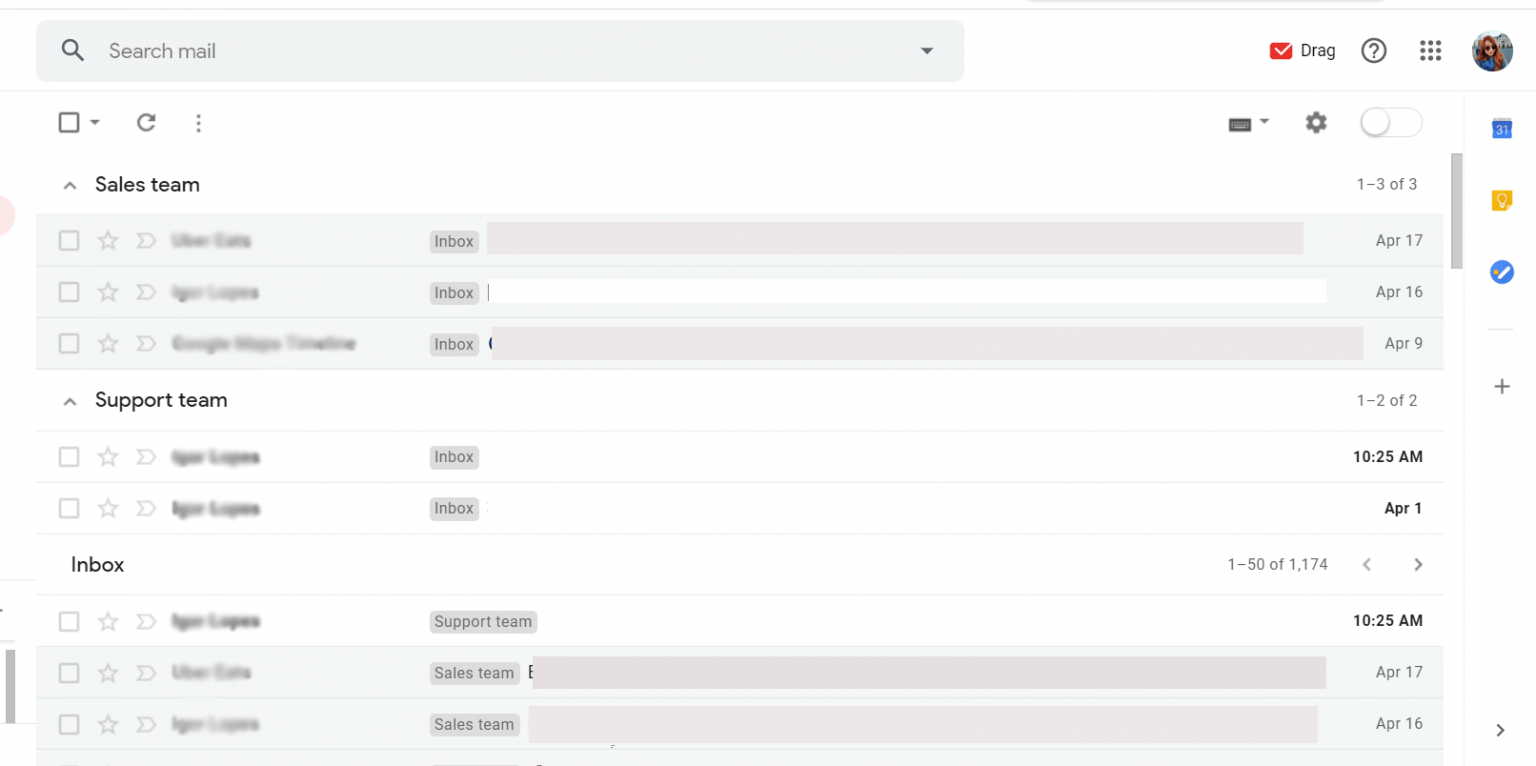
Did you know you can have aliases on Gmail? It allows users to merge multiple Gmail accounts into one inbox. This is really useful when you need to have a specific email address for each part of your work. If you are working on a small business around different departments, you might find it overwhelming to monitor all at once. But if you receive it all in your inbox and just filter it accordingly, you will have a clearer view of everything.
3. Schedule your messages
While there's value to synchronous communication, many companies depend on email management best practices to keep the daily tasks running. If you work overtime to mail your colleagues, your workday won't end and it will impact everyone else's too. For example, if you email a colleague to ask about a non-urgent issue, they put it on top of their priority list and reply quickly, then you feel the need to get back to them quicker, etc. This creates a cycle of messages that pile on your inbox. If you know you will need someone’s full attention instead of a quick response, wait to send the email until you are also ready for the conversation. So the best game plan is to schedule it for the next workday. Gmail allows you to pick a date and time, so you can finish writing and hit send – but your reader will get it the next day.
AI Platform
The inbox your team and your AI work in together
Shared inbox, live chat, and AI in Gmail, with an MCP server your AI tools can drive.
4. Label everything
While you can't avoid a full inbox, you can set it up in a way that helps you find what you need. This is where labels, or categories, are useful. You can create custom labels in Gmail to categorize messages better. For example, you can add a "marketing" label to everything sent from your marketing department or "finances" to sort bank statements and receipts. Then, you can use the search bar to go directly to in:[label]. Of course, there are many ways you could use labels, you can sort them by urgency, by theme, by groups of senders, etc.
5. Use your archive better
Are you done with a conversation but still cannot delete it because you might need to refer back to it in the future? Make a habit of archiving emails if you're done with them so that they don't clutter your inbox. You can also add a filter to automatically archive bureaucracy, such as order confirmations and payment details for your clients. These shouldn't be deleted, as they're essential, but since they don't require a reply, they take up inbox space.
6. Manage emails as tasks
If your workflow is email-driven, chances are your tasks arrive as emails and your emails require tasks to be done. If this resonates with you, you should turn your emails into tasks and manage them as such. Tools such as DragApp, for example, turn Gmail into Kanban boards. This way, you can categorize emails across stages, create to-do lists for emails and play with other task management features such as team assignment, due dates, color coding, etc. 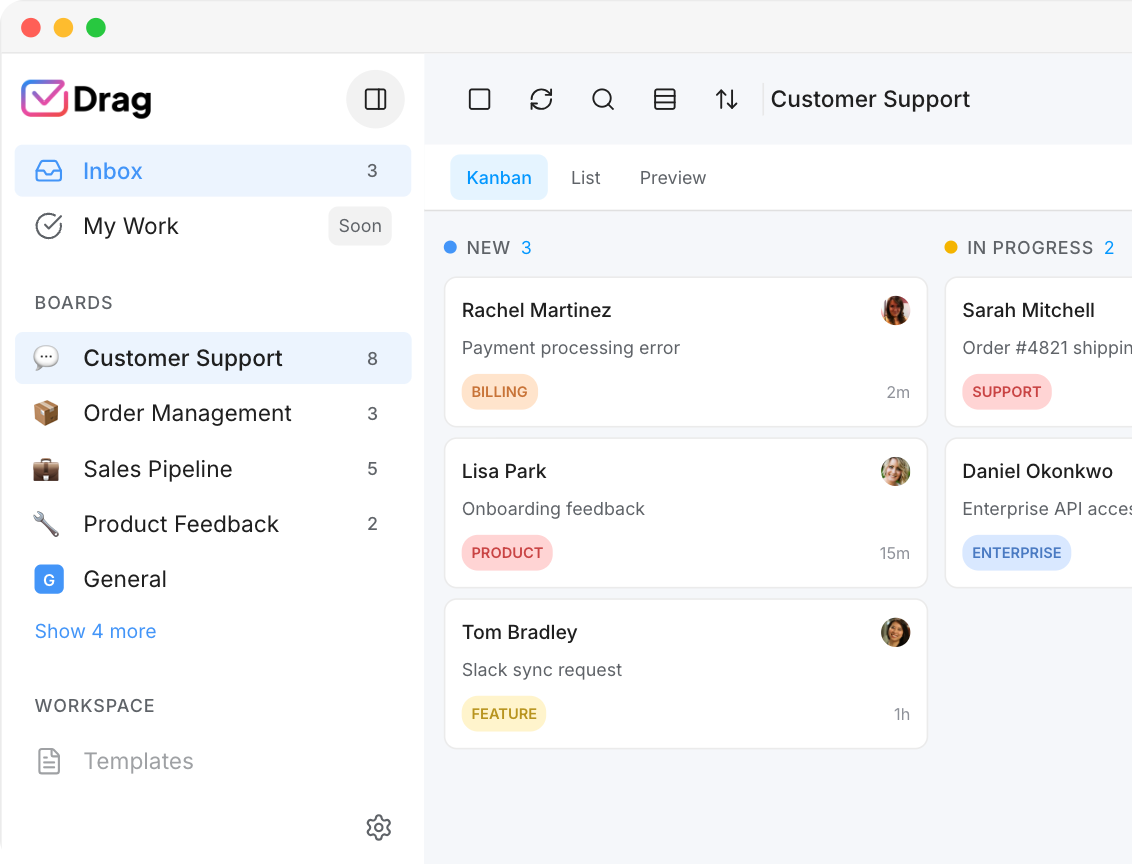 That way, as soon as you open your mailbox, you'll know what your focus for the day needs to be.
7. Disable notifications
On that same note, you should also disable the notifications for your email accounts. If you have them on the desktop, you might be tempted to check them every time the dialog box shows up in your right corner. If you use it on your mobile device, the floating red icon might be too much. But if you don't have notifications at all, you can use the time block technique to only check your messages at their designated time and avoid jumping into it as soon as you see the familiar notification box.
8. Don’t bring socials into emails
Most social media platforms send notifications to the email address linked to your account. However, these messages often clutter your inbox and provide little value.
If you need to see your social media notifications, you should only be able to do this by logging into the social media platforms themselves. So unsubscribe from social media email alerts. That way, you don't get tempted into social media or miss important emails because these notifications keep popping up in your inbox. Similar Post: Manage Gmail Accounts
9. Filter automatically
In the same way, the labeling process helps you filter emails. One of the most useful email management best practices is to keep everything in its place. Say you need to forward all customer issues to an IT department. Instead of opening each message, create a rule. Here's how:
- Open Gmail.
- In the search box at the top, click Show search options.
- Enter your search criteria. In this context, say you choose all emails containing the word "technical issue". To make sure your filter works, click search and see if the criteria was met.
- At the bottom of the search window, click Create filter.
- Choose what you’d like the filter to do. Here, you can forward to the department's email address.
- Click Create filter.
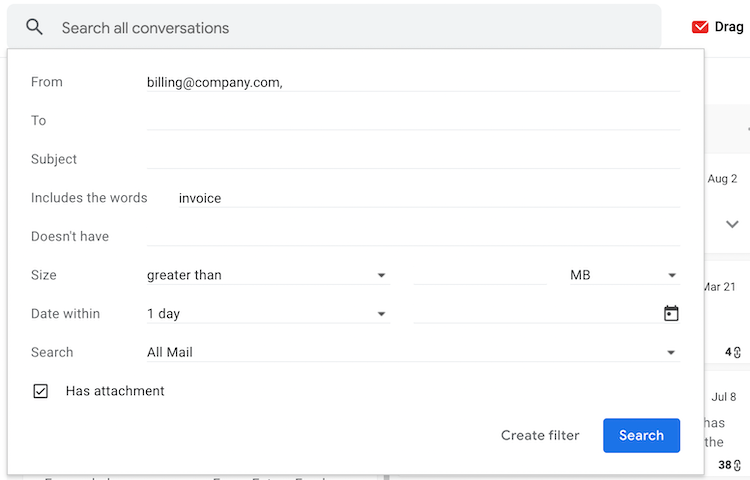 Of course, which filter you create depends on your needs. You can use them for archival, deleting, forwarding, etc. This is also the way to effectively block an email, by filtering the sender or subject and creating a rule that deals with them automatically.
10. Write better (and fewer) emails
If you find that your colleagues are often emailing you for details, it might be that your original messages weren't clear enough. So, write well-written emails that not only contain all the information but are also readable and fluent to read. Use the AI email writer if any assistance is required in this process. Make a habit of proofreading your emails before you send them and checking for lacking details. You should also add bullet points and deadlines so that others can quickly scan over the text. That way, everyone is sending clearer messages and fewer of them, leading to less cluttered inboxes.
11. Not everything needs a reply
Another important part of an email workflow is understanding that you can just not reply to certain messages. If you're BCC'd on an exchange, for example, you just need to overview it, not reply to it. Or if a conversation has run its course just archive it. That way, you avoid neverending email threads.
12. Use email templates (canned responses)
Even if your receiving mail is all automated and sorted, you might face another challenge for your workflow: the emails you have to send. Often, managers and small business owners find themselves replying repeatedly to the same inquiry. Not only it take away from other tasks, but also creates an opportunity for errors. But you can create canned responses right from your inbox and then easily incorporate them whenever needed. First, however, they need to be enabled. Here’s how to do it:
- Open Gmail on your browser and click the settings button.
- Click on the Advanced tab and find the Templates option.
- Make sure it's ticked "enabled".
- Compose your template. All you need to do is to start composing a new email as you would normally.
- Before you click send, go to the three-dot menu on the lower right and click Templates > Save draft as template and pick a name for it.
As soon as you open the compose box again, for either new emails or replies, click the three-dot menu again. Select the option Templates, then select the template you just made. Done! Gmail templates feature is focused on individuals, which means you are not able to share them with your team. You will need a tool like Drag is your need to share email templates in Gmail to ensure consistent communication across the board.
Email Management For Teams
13. Consider the OHIO (only handle it once) method
This method consists of minimizing procrastination and task switching. Here is the rule: when you open an email, you have one chance to decide what to do with it: replying, forwarding, deleting or archiving. Instead of opening up many messages and overthinking what to answer and when this challenge keeps you accountable.
14. Prioritize actual priorities
Prioritizing is among one of the most important email management best practices. Failing to do so may result in you feeling overwhelmed by the amount of emails you need to deal with. Most times you need to make sure you are tagging relevant messages accordingly and organizing your schedule. This way, you don't miss them or wait too long because you're deep into your less relevant information.
15. Give yourself a snooze
Did you know Gmail has a snooze function? If you need some extra time to think over a reply, don't worry: move your cursor to it and click on the clock icon. Then pick a time for the email to come back. If you have a designated day on your schedule for it, just snooze it until then.
16. Time block
Are you always trying to keep up with your inbox? Maybe the problem is not the emails themselves, but the amount of times you check them each day. Even though having clear and concise communication is key to a good workflow, it's important to set up a specific time to do it instead of randomly checking your inbox throughout the day. That is because creating intervals to check your inbox throughout the day doesn't give it your full attention. And you also don't pay attention to whatever you're doing before, often getting lost between tasks. The ideal way to combat this is to set up a specific time in your calendar to check your email each day. For instance, if you dedicate half an hour each morning and half an hour each evening to see what you've missed and reply to anything important, you can add them right into your calendar and don't schedule anything else for the time.
17. Take extra time for important messages
You can use the same strategy to set up a specific time to work on your important emails. Dedicate an hour or two each week to reviewing the most important messages in your inbox, scheduling tasks and forwarding information whenever needed. If you time block it on your calendar, you will avoid being called in for meetings or forgetting about your mailbox. Add a reminder if you need to, but try to avoid letting it pile.
18. Solve it now, not later
Who hasn't been overworked and checked their email in the middle of many other things? This is a common problem among people who work in email-driven companies because they often find themselves letting messages pile up, waiting for the right moment to deal with them. The problem is that there's no ideal time and you end up having a much bigger to-do list in the future. To avoid this, you should try a 1-minute rule: anything that can be solved in less than a minute should be done immediately.
19. Use email management Gmail extensions
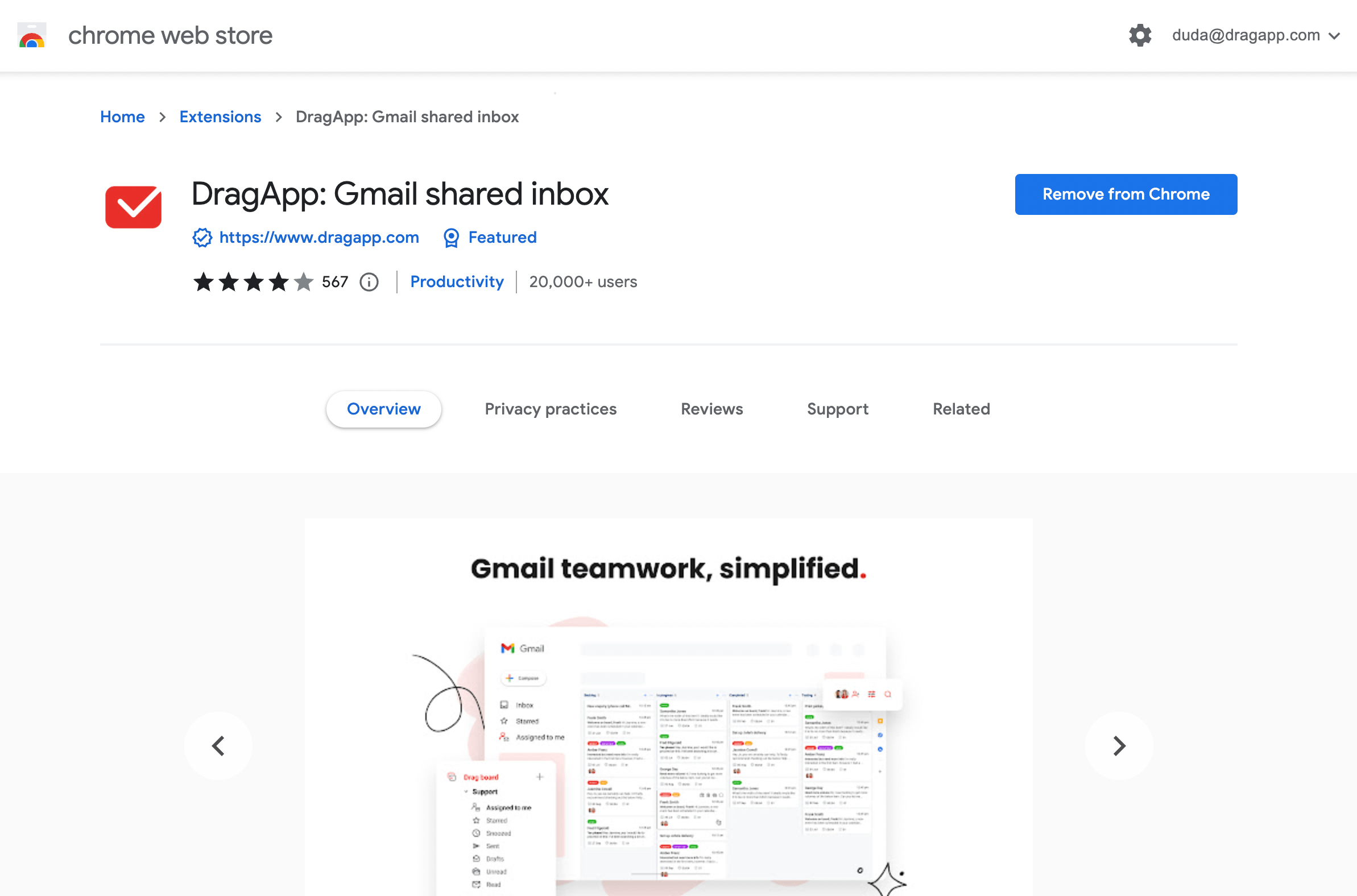
Gmail is a powerful and easy email client, which is why users gravitate towards it even for custom domains. That said, you can make it better for your needs by installing extensions. These extensions, found on the Google Workspace Marketplace or Chrome Store, can add functions like calendar integration, private messaging, task managers and many more. Drag is one of these extensions and turns Gmail into a Team Workspace. Without ever switching tabs, you can share files, chat with your coworkers, or manage tasks as a team.
20. Inbox zero (or whatever works for you) is your friend
The ideal inbox zero, which means having no unread emails, might be a hard reach for most people. However, the same principle can be used in other ways. If you have a status label for all your business tasks, maybe make a goal of never having a message unlabeled. Or not keeping more than two to-do items.
21. Use CC and BCC correctly
It's more common for professionals in an email-driven company to work in a team rather than on their own. Whether you're the business owner, manager, or employee, you probably need to collaborate on each other's work and understand what every team member is doing. Your emails can be an ally in this process because they can keep everyone accountable for what's been going on. But, for this, you need to know the difference between cc and bcc. To include someone in a conversation, add them to the CC. If you're just making someone aware of what you're doing, BCC them, so that others don't reply to them as well.
22. Delegate, if needed
Part of collaboration is delegation. Don't let yourself be a bottleneck when you already have too much to do. Don't hesitate to delegate not only emails but overall day-to-day tasks. For Gmail delegation, tools like Drag can help.
23. Preview emails to save time
The previews are key. Use this function to read them before you even open them. Here's how Google tells you to do it:
- On your computer, go to Gmail.
- At the top right, click Settings and then See all settings.
- On the top, select the Inbox tab and then scroll to Reading pane.
- Check the "Enable reading pane" box.
- Select your split pane mode.
- At the bottom, click Save changes.
Just don't forget about the other email management best practices: use the previews to decide whether to add the message to your to-do list or get rid of it, instead of letting it pile.
24. Don’t multitask
Multitasking is a trap most of us fall into. While it seems productive, the truth is quite the opposite. When people switch context, by switching tabs or tasks, they use their time and energy to get acclimated over and over again, which drives down productivity. The research is blunt about the cost: task switching can rob up to 40% of your productivity, and a study of software developers found those juggling two or three projects lose about 17% of their effort to the switching alone. By focusing on what you're doing, you finish earlier, better and more efficiently.
25. Use shared inboxes
This is among the less-known email management best practices but certainly a game changer for email-driven companies. Instead of forwarding to each interested party or replying to multiple people at once to keep them in the loop, teams can have a shared inbox to deal with collective issues. That way, everyone has access to all messages and can get into their tasks, not needing another email. There are multiple ways to share an inbox, but DragApp helps you do it by organizing those inboxes and transforming them into boards and tasks that need to be done. This makes the content more visual and ready to be done.
Wrapping up
Now that you know some of the best email management practices, it's time to up your email game and make it work for you, instead of taking too much of your time. Are you already incorporating shared mailboxes? Here are our tips on shared mailbox best practices!

Co-founder
Co-founder at Drag, writing about Google Workspace, shared inboxes, and how teams actually run email.
