













Email automation helps productivity. Learn how to implement the right tools and resources to benefit your team with our guide!
Table of contents
- What is the email overload problem and why does it matter at work?
- What is email automation and how can it improve the workplace?
- What’s next for email automation in the workplace?
- Which email automation tools are most effective?
- Quick comparison: Which email automation method is right for you? 🔍
- What are the best practices for using email automation safely?
- How can email automation transform your workflow?
- Frequently asked questions
Email automation has become a popular method to solve a contemporary problem: inbox overload. Moreover, with modern workplaces requiring a lot of internal and external communication, new technologies and practices have become even more important. But what are the most useful email automation methods for each company and team? How can they be implemented in a user-friendly way? Are there best practices to keep in mind? This article is a guide on how team leaders and collaborators can use email automation resources and ideas to create a better inbox experience. Keep reading to find out more!
What is the email overload problem and why does it matter at work?
Inbox overload is the constant flow of messages. As a result, it creates stress, miscommunication, and lost productivity. Since in today’s fast-paced workspaces, email is still one of the most essential interaction tools, the challenge affects everyone.
On average, according to McKinsey's 2023 survey, users receive over 120 emails per day. Therefore, they can spend almost 30% of their schedule dealing with their inbox. This leads to overall stress, but also creates a miscommunication issue: cluttered inboxes cause missed messages and late replies.
In particular, the problem is even more concerning for customer support teams that rely on good email response times for their relationship with clients.
Email overload isn't just a time waster. It's hard to focus on important tasks when you're constantly interrupted. Microsoft's Work Trend Index report from 2025 shows users get notifications from email and other communication channels once every two minutes.
As a result, users feel overwhelmed and have to spend hours sorting, replying, and following up on messages instead of focusing on strategic tasks.
Therefore, automation helps businesses and individuals reduce stress and improve their conversations by:
- Setting follow-ups
- Filtering non-urgent messages
- Speeding up response crafting
- Decluttering your inbox
What is email automation and how can it improve the workplace?
Email automation uses a variety of tools to deal with repetitive email-based tasks, freeing up your time and reducing inbox stress. Common automation methods include:
- Auto-replies
- Categorization and filters
- Smart responses
- Task forwarding
How do auto-replies improve email productivity?
Auto-replies are automated messages sent immediately after receiving an email. They are commonly used to acknowledge receipt and provide FAQs. In addition, they can also be a useful tool to send guidelines, such as onboarding materials.
Key benefits for teams:
- Keeping recipients engaged
- Replies outside business hours
- Avoiding long response times
- Reducing repetitive tasks
2) How do filters and rules keep your inbox organized?
Filters and sorting rules automatically organize incoming emails into folders or categories based on sender, keywords, or priority, depending on your specific needs. A reliable system can keep your inbox decluttered by deleting unwanted messages. At the same time, it highlights important conversations.
Why it matters:
- Reduces cognitive overload
- Your inbox is cleaner before you even open it
- Important tasks are easier to spot
3) What are smart replies and how do they save time?
Smart replies and AI-based writing suggestions analyze email content to recommend quick, efficient responses. Some tools can even draft entire replies or summarize long email threads. 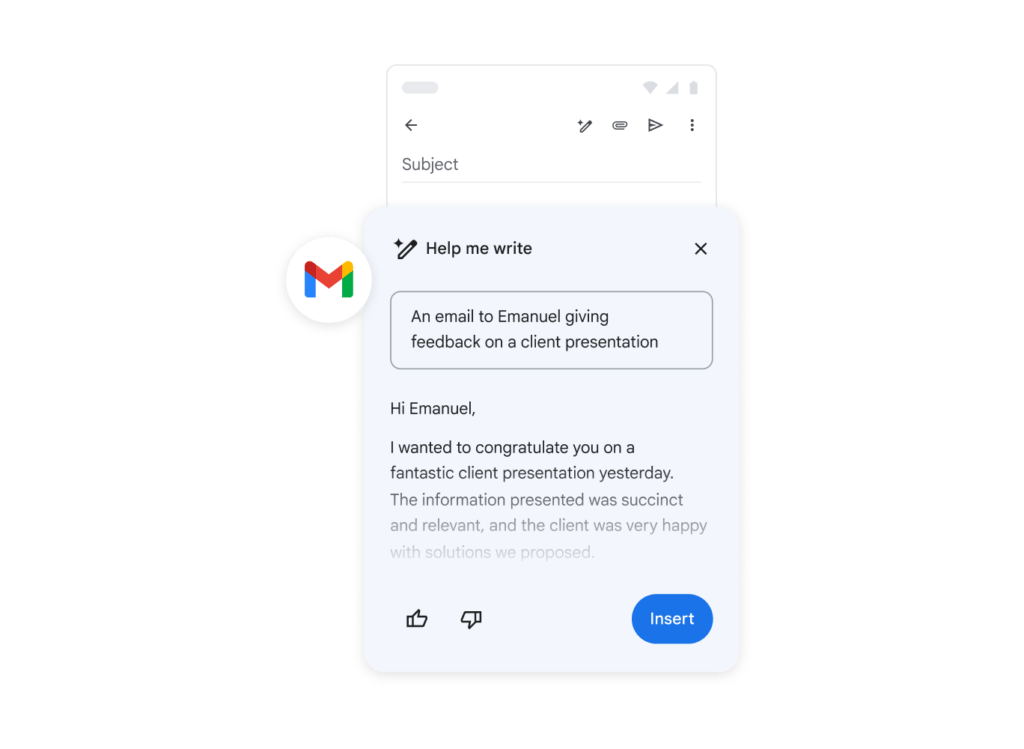
Effects of smart replies:
- Less time spent writing repetitive answers
- Creating a consistent brand voice from your patterns
- Clearer writing
4) How can email automation assign tasks to the right people?
By linking email with project management tools, automation can route messages to the right team member based on priority, workload, or expertise. Teams with an email-based workflow can also use email automation to further their collaborative work.
Pros of this email automation:
- All messages and responsibilities are allocated
- No need for CCs and BCCs
- Clear accountability and organization
- Integration between tasks and emails
What’s next for email automation in the workplace?
With AI and machine learning, email automation is moving toward smarter prioritization, multi-channel integration, and deeper personalization.
With that in mind, when implementing email automation, business leaders should pay attention to key factors such as:
-
AI-based smart sorting and prioritization that considers message urgency and context, helping you focus on important emails first
-
Personalized automation rules that use machine learning to enhance your inbox experience
-
Multi-channel integration connecting email with WhatsApp, social media, and other tools that your team relies on for internal and external communication
-
Advanced analytics and insights monitoring, to track overall email productivity, hurdles, and define potential changes to the workflow and resource allocation
Drag · with Varley
The inbox your team and Varley work in together
Shared inbox and live chat for Gmail teams, with Varley, Drag’s AI, included from $18. Plus an MCP server your own AI tools can drive.
Which email automation tools are most effective?
From Gmail filters to AI assistants, email automation comes in many forms. These tools help businesses manage inboxes faster, improve collaboration, and deliver better customer communication. Before you decide on which one(s) to implement, you need to understand what each tool offers in terms of productivity and reducing email overload. Here’s a detailed look at popular automation methods:
How can Gmail filters and labels help organize my inbox?
Within Gmail’s settings, users create custom filters based on criteria such as sender addresses, subject line, keywords, or message size. 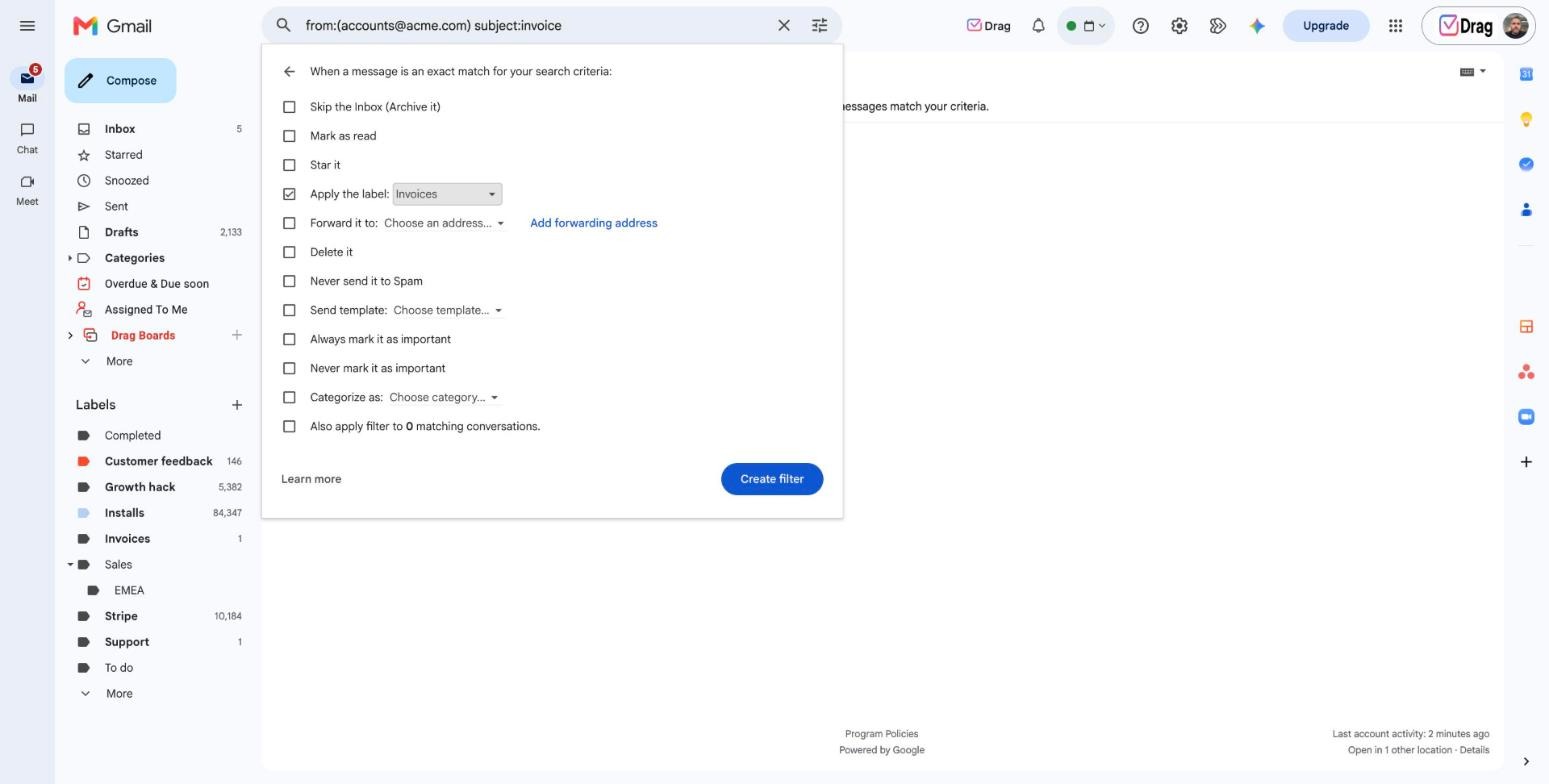 Based on these rules, Gmail automatically applies labels, archives, deletes, marks as read, or forwards emails to other addresses.
Use case:
A small business owner can set up filters to label client emails, archive order summaries, and forward billing communications to their accountant.
Benefits:
-
Keeps inboxes organized automatically, minimizing manual sorting
-
Helps prioritize important messages by separating low-priority emails
-
Reduces inbox clutter
Cons:
-
Can become difficult to manage with multiple filters
-
Limited to Gmail accounts
-
Requires periodic updates and edits to keep filters relevant
Cost: Free
Does Gemini for Gmail help with smarter email habits?
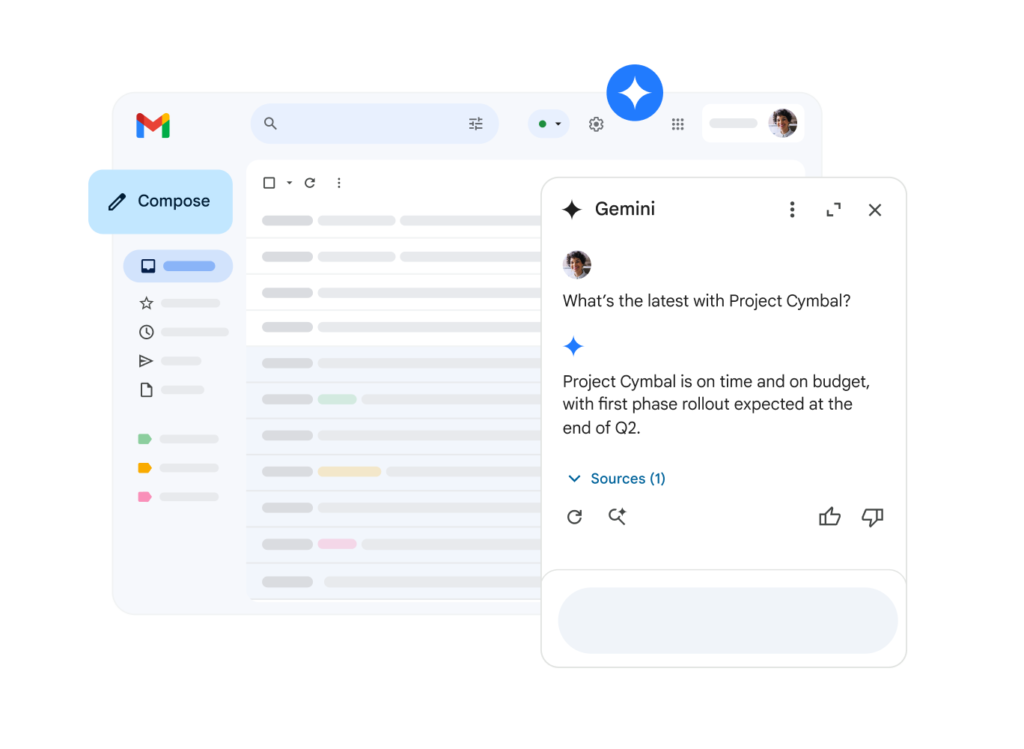 Yes, Google Workspace's built-in AI tool, Gemini, has been integrated into Gmail. It uses language learning models and machine learning to analyze email content, offer summaries for long threads, signal potential unfinished conversations, and suggest relevant quick replies.
Use case:
A professional with a cluttered inbox uses Gemini to quickly catch up on email chains about ongoing projects and send AI-optimized updates to their team.
Benefits:
-
Reduces cognitive load by highlighting critical emails
-
Accelerates response times with smart suggestions
-
Continuously improves as it learns your communication style and inbox context
Cons:
-
AI suggestions may be too generic
-
Limited to each account
-
Lack of integration with additional Workspace tools (unless users opt for paid plans)
Cost: free on Gmail, starts at $14/user/month for advanced integration across tools
Why should I integrate email with CRM and helpdesk tools?
Because incoming emails automatically become tickets that can be assigned to team members across your workflow. Many CRM and helpdesk platforms offer native email integration or connect via additional platforms like Zapier. 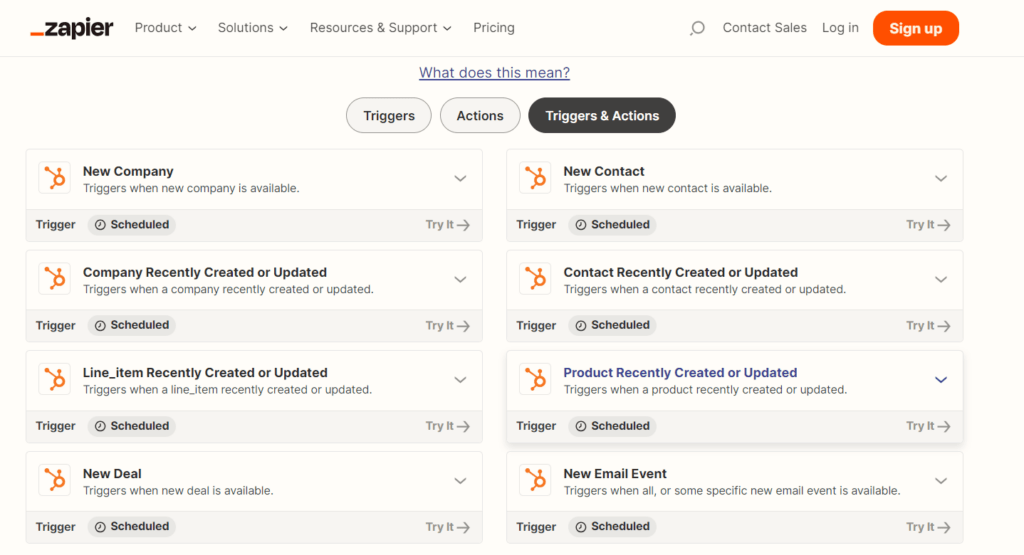 Communication is logged and attached to customer and profiles to automatically keep track of their history as well.
Use case:
A customer support team uses a helpdesk with their email to automatically create support tickets, assign them to agents, and track resolution time.
Pros:
-
Centralizes customer communication and data
-
Improves accountability by automating task assignment
-
Saves time by eliminating manual data entry
Cons:
-
Implementation can be complex, requiring IT support and onboarding training
-
Subscription and integration costs can add up
-
Requires ongoing reviews to ensure syncing and automation rules are useful for the workflows
Cost: paid, varies by software, subscription tiers, and number of users
How do shared inboxes use email automation to improve team collaboration?
Shared inbox platforms like DragApp transform regular email accounts (such as support@company.com) into a centralized dashboard for the whole team.






Emails can be automatically assigned to team members, tagged with status labels, and include internal notes. Automated rules can route emails to appropriate team members based on content or sender.
Use case:
A sales team manages all incoming leads through a shared inbox. New inquiries are automatically assigned to team members. The agent can upload files, set custom tags, create checklists and add notes directly on the task itself, keeping their sales pipeline organized.
Advantages:
-
Enhances team collaboration by making task ownership clear
-
Prevents lost or duplicated responses
-
Automates routing and prioritization of incoming messages
-
Adds extra productivity resources to the inbox itself
Barriers:
- Requires clear rules and responsibilities to foster due process
- Initial learning curve
Cost: varies by platform, Drag starts at $12/user/month
What are AI email automation assistants?
AI assistants can be standalone email clients or Gmail add-ons, like Hey Help, that connect to your existing email account.
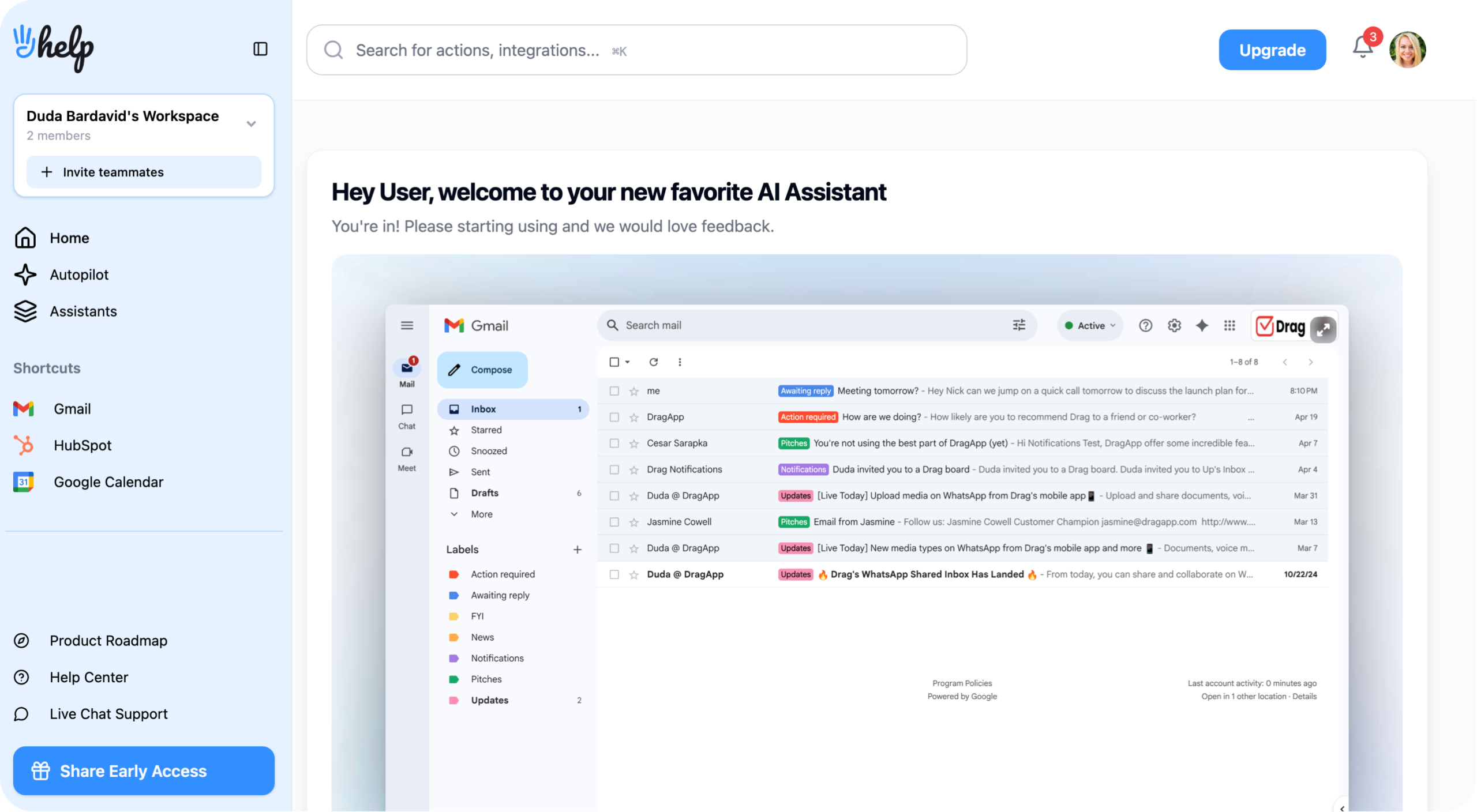
They analyze your sending habits, reply patterns, and content. As a result, they suggest the best times to send emails, draft replies, and remind you to follow up on unanswered messages.
Use case:
A marketing team can use an AI assistant to create custom campaigns based on their target audience and language style, offering better ROI and click-through rates.
Pros:
- Proactive automation: there's no need to prompt the chatbot to summarize your inbox
- AI assistants learn from your inbox patterns, offering custom insights
Attention points:
-
AI suggestions are helpful and more custom than the alternatives, but still require human input
-
Compatibility can vary depending on email services
-
Shouldn't be used for sensitive data, such as legal and HR communication
Cost: varies by platform and subscription option. Hey Help is priced at $129 for lifetime access
Quick comparison: Which email automation method is right for you? 🔍
| Tool / Feature | Automation method | Best for | Main advantage | Cost |
|---|---|---|---|---|
| Gmail filters | Rule-based filtering and labeling | Individuals or small businesses using Gmail | Automatically organizes inbox by applying labels, archiving, deleting, or forwarding based on custom rules | Free |
| Gemini for Gmail | AI summaries and reply suggestions | Professionals with high email volume in Gmail | Speeds up email management with summaries, follow-up notices, and writing suggestions | Free (basic), from $14/user/month for advanced Workspace integration |
| Integration with CRM and helpdesk platforms | Automated ticket creation and customer updates | Customer support or sales teams | Centralizes communication, automates assignment, and logs client history without manual input | Paid — varies by software, tier, and users |
| Shared inboxes | Collaborative email management with automation rules | Teams managing a customer-facing email account (sales, support) | Improves collaboration and prevents duplicate or missed responses with organized tasks and pipelines | Varies by platform — Drag starts at $12/user/month |
| AI email automation assistants | AI-driven drafting, follow-ups, and scheduling | Users who require proactive automation for an organized inbox | Learns from your email patterns to offer custom drafting, scheduling, and insights | Varies — Hey Help $129 lifetime access |
What are the best practices for using email automation safely?
To make the most of automation, start by identifying repetitive tasks, keep your rules updated, and avoid over-relying on AI for sensitive communication. In other words, balance efficiency with oversight.
Ask yourself:
1) What tasks can be automated?
Identify the processes in your email workflow that take up the most time but don't require critical thought and resources. These may include:
-
Auto-labeling and categorizing incoming messages
-
Forwarding messages to specific team members
-
Sending replies to FAQs
By automating these low-complexity, high-frequency tasks first, you can save time without risking key details that may be a part of your emails.
2) Are the automation rules updated?
Rules and filters that made sense during a previous project may no longer be relevant. Or worse, they may cause important emails to be missed. To avoid this issue, make sure to:
-
Schedule periodic reviews of all filters, AI suggestions, and integrated workflows
-
Archive outdated automations (don't delete them, they may be useful in the future!)
-
Monitor error rates (such as emails sent to the wrong folder) to adjust rules quickly if needed
3) Is the company overly reliant on email automation?
Messages that involve sensitive negotiations, nuanced customer complaints, or strategic decision-making should use automation as an assistant, not a replacement or shortcut.
Sure, AI and automation resources can save time. However, they fundamentally lack important areas of communication, such as tone, nuance, and context.
Here are a few tips to keep your workflow safe from over-reliance on AI tools:
-
Use AI to draft initial responses, but review them accordingly before hitting send
-
Don't include automations in sensitive inboxes
-
Opt for tools that include context learning, so that they use your patterns and writing style as a baseline, instead of generic suggestions
-
Use shared inboxes and other collaboration tools so that multiple team members can weigh in on ongoing conversations and flag errors
With these guardrails in mind, you can make the best out of email automation benefits without falling short in professional, efficient, and attentive communication with clients and partners.
How can email automation transform your workflow?
When used well, email automation can be a powerful addition in dealing with communication overload. However, it should be implemented thoughtfully.
Ultimately, the most successful methods start small, learn from the results and data, and evolve over time, fulfilling your specific workflow needs and resources.
Whether you’re using Gmail filters to declutter your inbox, AI assistants to draft personalized replies, or shared inboxes as CRM to manage every client interaction, the right tools will not only save you time but also improve the quality and consistency of your responses.
Frequently asked questions
What is email automation and how does it work?
Email automation is the use of tools to manage, sort, and respond to emails without manual effort. It works by applying rules, filters, and AI-powered tools that trigger actions such as moving an email to a folder, sending an auto-reply, or assigning it to a team member. This helps you handle high volumes of emails faster and better.
How can email automation save me time at work?
Email automation saves time by eliminating repetitive tasks such as sorting messages, replying to FAQs, and forwarding emails to the right person or department. This reduces the time you spend on manual email management and lets you focus on critical tasks that require extra attention and expertise.
What are the best tools for email automation?
Email automation tools include Gmail filters for organizing messages, Gemini for Gmail to add AI, CRM and helpdesk integrations to track customer interactions, shared inbox platforms for team collaboration, and AI assistants to draft and personalize replies. The best choice depends on your workflow, email volume, and the level of customization required.
Can email automation improve customer service?
Yes, email automation can improve customer service by shortening response times, avoiding missed inquiries, and maintaining consistent messaging. For instance, automated replies can give customers instant answers to commonly asked questions, while smart routing ensures the right team member handles each request, leading to more accurate solutions.
Is it safe to use email automation for sensitive messages?
Not fully. Email automation is only safe when used with proper settings and oversight for error prevention. For sensitive messages, including legal matters, client negotiations, or personal and employee information, it should only be used as an assistant to set rules that sort these emails for manual review and replies instead of fully automating the process. That means you can enhance productivity and inbox organization without risking accuracy and privacy or breaking compliance guidelines.

