












Professional emails using AI are faster and clearer (but only if you know how and where to prompt them). Here's our guide to best practices!
Table of contents
- Why should users write professional emails using AI?
- How can users get the best professional emails using AI?
- Which workflows are improved by professional emails using AI?
- Which AI tools can help with writing professional emails using AI?
- What are shared inboxes and how do they help with professional email using AI?
- How do AI email assistants work?
- Wrapping up: how to write professional emails using AI effectively
- Frequently asked questions
Whether you’re following up with a client, applying for a job, or responding to internal communications, the option to write professional emails using AI helps you save time and be more efficient. Writing professional emails doesn’t have to take too long or leave you second-guessing your tone. With today’s AI tools, users can create clear, polished, and effective professional messages fast. In this guide, you’ll learn how to write professional emails using AI, step-by-step. We’ll see real examples, prompt ideas, and the best tools that can make your inbox into a faster and smarter communication environment.
Why should users write professional emails using AI?
Integrating AI tools into your email drafting and reviewing can help you send better and faster messages. Some of the key advantages are:
- Overall writing speed: your AI tool can give you smart reply suggestions and pre-written templates
- Tone detection: with AI, you can match your messages to specific situations and concerns, making them more adequate to the recipient's needs
- Translation and grammar: some AI tools help with enhancing your communication across languages
- Email organization: with follow-up reminders, you don't leave anyone waiting for a reply
- Context learning: AI tools can learn from your inbox history, previous queries, and documents you upload, so that they offer context-based writing for your emails
With that, writing professional emails using AI can be easier for each part of your workflow, especially areas that require quick turnarounds. For example, customer support teams can use AI-based replies to FAQs, so that they get through the queries faster and improve professional email response times.
How can users get the best professional emails using AI?
By understanding how prompts work and using the right ones for each situation and message. Instead of generic options, you need to guide your AI email solution to the right place. Here's how to do it:
1) Set the right context
Start by telling the AI what the email is about, who it’s for, and what you want to achieve. If you want a message to fulfill a specific part of your workflow, make sure you add it to the prompt to get the right results for your goals. For example:
"Write a professional email to a client summarizing the notes of our sales pitch meeting and confirming the next steps to implement our services"
2) Define the tone correctly
Yes, AI messages can be friendly, professional, serious, persuasive, and so on. But they need to be prompted correctly to sound right. When sending a marketing message, for instance, adapt it to the right audience:
"Write a promotional email with a friendly, but professional tone to introduce new contacts to our product"
3) Pay attention to the structure
When prompting your AI help tool, make sure you include the structure you need. After all, you're writing emails using AI, so they need to be easily readable and approachable for your recipient as well.
"Draft a project update email for the team with up to three paragraphs. Include the next steps as bullet points and highlight the key areas of improvement"
4) Include all details you need
Just because you're writing emails using AI doesn't mean your messages should look simple. In fact, it's much better if they are a balance of clear and concise, so that you cut down on back-and-forth. Meaning, adding the key details to your prompt changes everything:
"Create an email to confirm the project deadline [insert deadline] and the completion checklist"
5) Review everything when you write emails using AI
Sure, AI is a timesaver for email-based communication, but there's an important caveat: don't just hit send without reviews. By setting aside time to reread your drafts, you can check for potential mistakes, use a different prompt if needed, and add personal touches to emails.
Which workflows are improved by professional emails using AI?
| Type of email | When to Use | Example Prompt | AI Example |
|---|---|---|---|
| Marketing Campaign | Promoting a product | “Write a professional marketing email announcing our new product launch with a friendly, engaging tone.” | Hi [Name], we’re excited to announce the launch of our new [Product Name], designed to help you [solve key problem or achieve goal]. There's an exclusive [discount or bonus] for early users. Click below to find out more! |
| Follow-Up | After meetings or proposals | “Write a follow-up email after a sales pitch.” | Hi [Name], it was great speaking with you about how [Your Product or Service]. I wanted to follow up to see if you had any questions or concerns about our proposal. I’m happy to schedule a quick call to discuss next steps. |
| Client introduction | Outreach | “Draft a short, professional introduction email to a potential partner.” | Hello [Name], I hope this message finds you well. My name is [Your Name], and I represent [Your Company]. We specialize in [briefly mention product or service], which could complement [their company or area of focus]. I would appreciate the opportunity to schedule a brief meeting to discuss possibilities." |
| Apology | Managing mistakes | “Write a polite apology email for a late response.” | Dear [Customer Name], I apologize for the delayed response. We appreciate your patience and assure you that we are addressing your concern ASAP. Please let us know if there is any additional way we can assist further. |
| Team updates | Task and project details | “Write a concise email requesting updates on project milestones.” | Hi [Recipient Name]! Could you please provide a quick update on the [Project Name] milestones and any upcoming deadlines? Thanks! |
Drag · with Varley
The inbox your team and Varley work in together
Shared inbox and live chat for Gmail teams, with Varley, Drag’s AI, included from $18. Plus an MCP server your own AI tools can drive.
Which AI tools can help with writing professional emails using AI?
Gemini AI built-in integration, AI chatbots, extensions, shared inboxes with AI functions, and AI Gmail assistants. It depends on what task you want them to fulfill and the level of customization you require.
Can Gemini help me write better professional emails with AI?
Yes, Gmail's own AI assistant, Gemini, can be useful for basic email writing tasks. Since it's already part of Gmail, all you have to do is ask the right prompts to get good drafts: 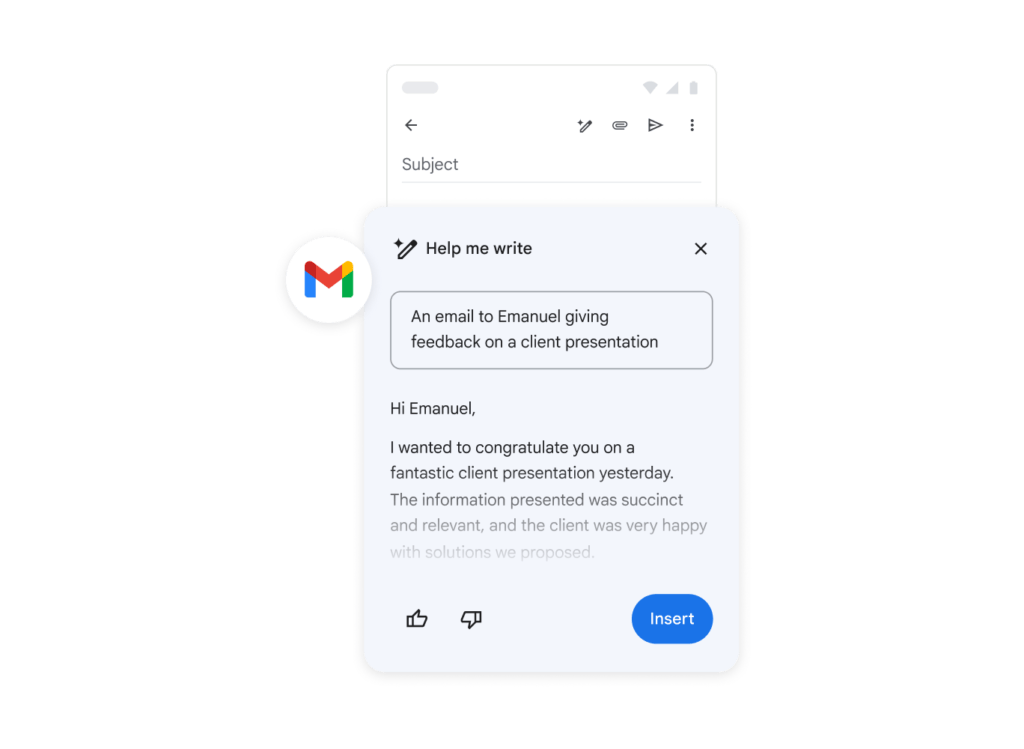 Because Gemini is part of your inbox, it can use context history and tone to offer smart replies automatically, directly from your compose window. Another key bonus is having automated follow-up reminders so that no one is left unanswered. Cost: free limited tier, paid options include Google Workspace integration starting at $19.99/month
Is it better to get professional emails using AI with chatbots?
The results vary by the kind of message you need and the amount of time it takes to fulfill your whole workflow. Basically, users can prompt ChatGPT and Claude for email drafts and replies. 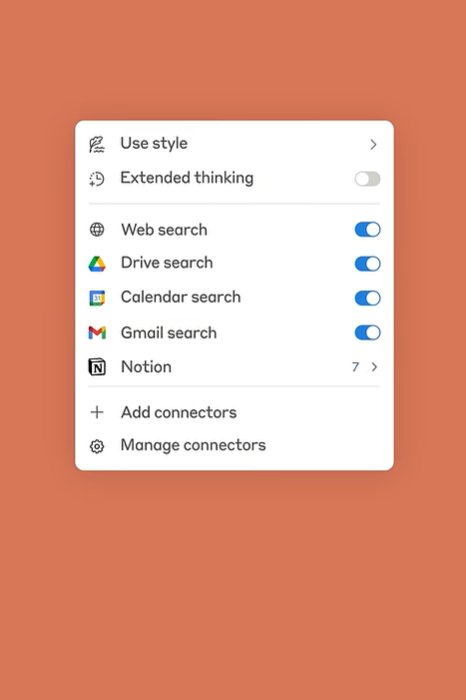 The main benefit of this method is that you can use different AI models for each task (Claude, for example, is great for document and data analysis). The disadvantage is that they still require switching between tools and manually prompting for each reply. Cost: free plans with limited usage tokens, more automation with paid plans starting at $20/month
What are shared inboxes and how do they help with professional email using AI?
A shared inbox is a collective workspace that allows teams to manage, reply to and organize emails based on their workflows. Solutions like DragApp create a Gmail shared inbox that offers full customization and project management features directly on Gmail. For example:
- Task cards and assignments
- Shared drafts and tags
- Contact management
- Internal chat and @mentions



- AI tagging: filters emails automatically
- Tone detection: check your inbox for positive and negative interactions to help your team write professional emails using AI
- AI summarize: ask for updates and key points for long conversation threads and ongoing tasks
- AI copilot: Need a glimpse of what's going on with your task boards? Ask our AI and you'll get reliable and actionable ideas to improve your workflow
But the main resources from DragApp to create professional emails using AI are AI Drafts and Compose Assistant. With AI drafts, you can get instant reply suggestions to your task cards, based on the context history and past conversations: 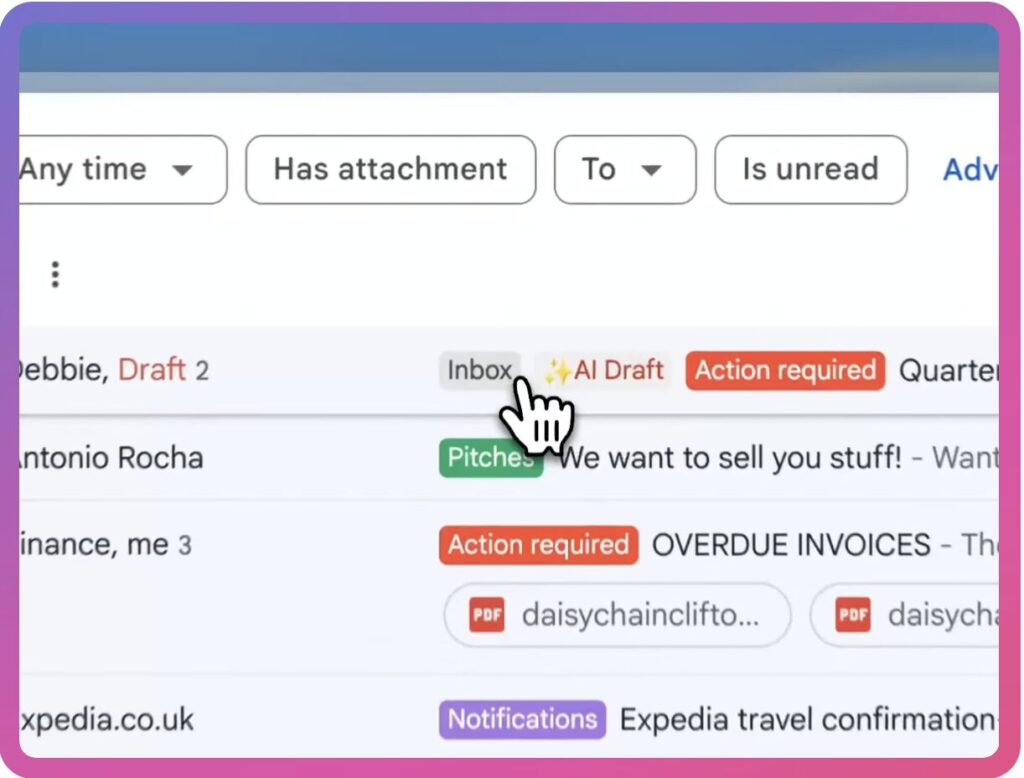 As for Compose Assistant, it can help with correcting grammar, rephrasing parts of the message, adjusting for tone and clarity, and shortening and expanding drafts. Cost: DragApp includes AI for email writing and collaboration tools for teams starting at $18/user/month
How do AI email assistants work?
AI email assistants are flexible tools that bring AI solutions to your inbox. Unlike standard prompting and switching between apps, these can automate certain AI tasks for you, directly from the emails themselves. So when you open your inbox, you get reply drafts, AI email management, and more. 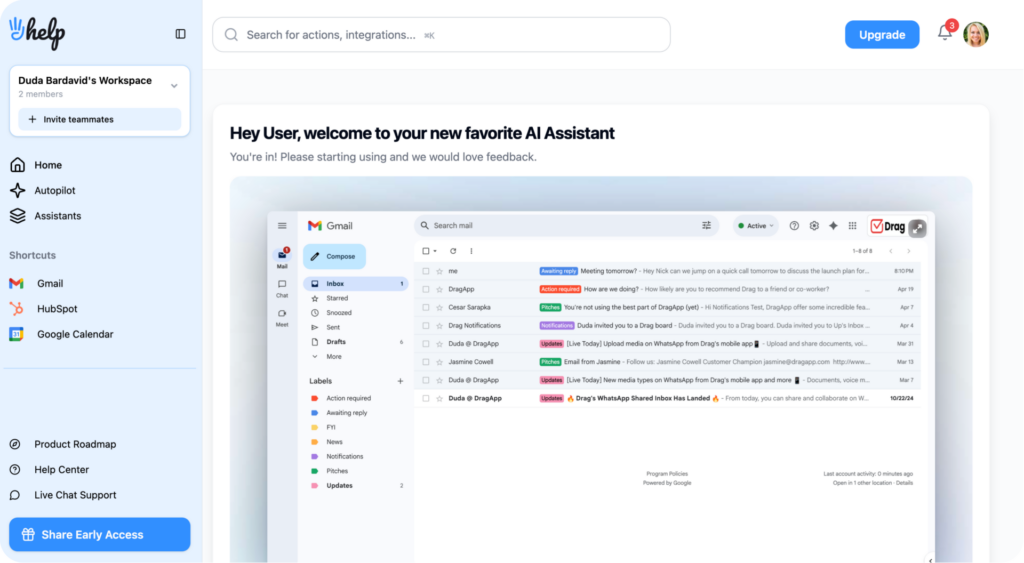 Our solution, HeyHelp, was created to fulfill an important need: bring AI to Gmail through an all-in-one tool. That means it can:
- Triage and tag emails based on inbox usage, urgency and themes
- Send automated follow-ups to improve customer satisfaction and sales rates
- Schedule meetings based on availability with calendar integration
And, of course, HeyHelp gives you the right tools to write professional emails using AI with AI drafts. When you open your inbox, they're already available, no need to prompt. All you have to do is review, adjust, and hit send! Here's a view: 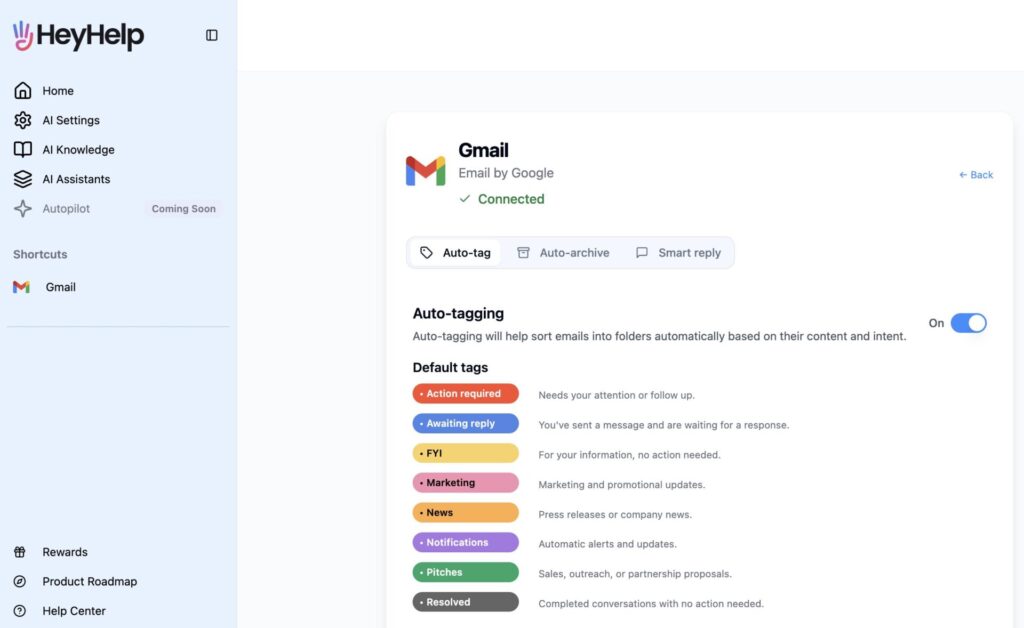 Additionally, HeyHelp learns from you and your use. So any writing adjustments, tone, inbox history, and interactions help guide your AI assistant to provide better, context-aware drafts for future emails. Cost: $12/month
Are there useful extensions to writing professional emails using AI?
Sure! There are many types of AI Gmail extensions that are user-friendly methods to implement AI capabilities into your workflow. They can help with:
- Writing drafts
- Instant translation
- Automated replies
- Tone shifts
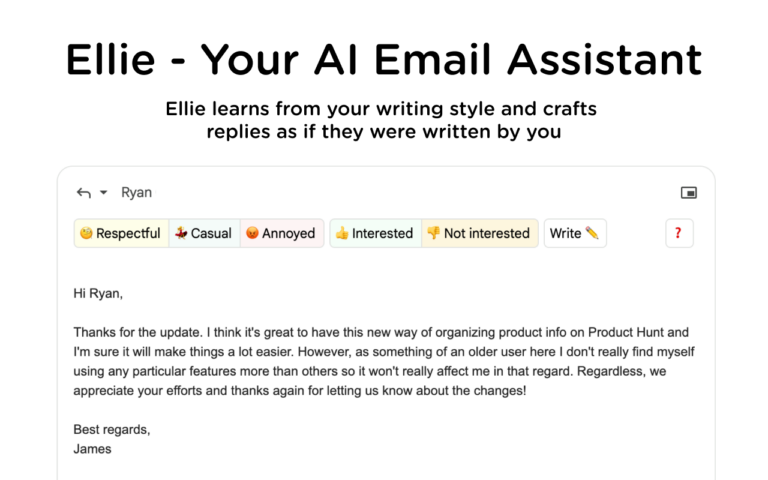 Source: Ellie With that, you can write better emails for sales, marketing, IT, and even internal conversations, without having to leave your inbox space. The biggest disadvantage of this method, however, is that AI extensions are focused on specific tasks. If you require higher levels of automation with AI, they won't be as useful. Cost: varies by platform and subscription tier
Wrapping up: how to write professional emails using AI effectively
Writing professional emails using AI has become a fundamental part of daily communication. Whether you’re managing sales questions, asking for internal updates, offering customer support, or creating campaigns, AI can save you time, improve clarity, and ensure your messages are consistent. By combining clear prompts, careful review, and the right AI tools, you can streamline your email workflow and maintain a communication system that fosters growth. Just remember: AI is a powerful assistant, but your personal touch and careful reviews ensure that emails remain authentic and effective.
Frequently asked questions
How can I write professional emails using AI quickly?
You can write professional emails using AI by providing clear context, specifying tone, and including key details in your prompts. Tools like HeyHelp AI or Gemini can generate drafts directly in your inbox, saving time.
Which AI tool is best for writing professional emails using AI in Gmail?
The best tool depends on your workflow. Gemini works natively in Gmail for quick replies, while ChatGPT nd Claude are ideal for more detailed or nuanced messages. HeyHelp AI offers automated triage, AI drafts, and follow-ups, while DragApp includes collaboration features for teams using AI in their inboxes.
Can AI ensure my emails are professional and accurate?
Of course! I can help with grammar, tone, structure, and context. However, reviewing and personalizing drafts is essential to ensure accuracy and personalization for each recipient.
Are AI tools safe for professional emails?
Generally, yes, but there are a few points to keep in mind. Use reputable AI tools that have secure, encrypted systems. Additionally, when using AI, avoid sharing sensitive personal or financial data directly in prompts to maintain confidentiality.
How does AI improve email workflows for teams?
AI can speed up responses, suggest tone adjustments, summarize long threads, and automate follow-ups. Shared inboxes and AI assistants like DragApp help teams manage emails collaboratively and include AI resources to make the process more efficient while adapting to each team's needs.

