













founder notes
If we didn't want to pay for a help desk, here's exactly what we'd build. Gmail, a free Google Group, and Claude or ChatGPT.
I'm Duda, co-founder of Drag. We sell a shared inbox. So this is an odd post for me to write.
But people ask me all the time: do I actually need a tool for this yet?
Honest answer: often, no. Not on day one.
The short version: make support@ a Google Group, turn on Collaborative Inbox so emails can be assigned and closed, let the team reply as support@, and connect Claude or ChatGPT to Gmail to sort the inbox and draft replies every morning. It costs nothing on top of Google Workspace, plus $20 a month if you want the AI.
Here's exactly how I'd do it if we were 2 or 3 people, starting tomorrow, and refused to pay for one more subscription. I'd run it like this for as long as it held up.
Everything below works today (checked 13 Oct 2026). Times are my estimates, not a stopwatch.
The bill
- Google Workspace: you already pay for it
- A Google Group as support@: $0
- Gmail filters, labels and templates: $0
- Claude Pro or ChatGPT Plus: $20 a month, for the one person who runs the AI
- Help desk software: $0
So "free" really means: the AI subscription you probably already have.
The whole setup, on one screen
- Make support@ a Google Group. (about 5 min)
- Let customers email it. (2 min)
- Turn on Collaborative Inbox, so emails can be assigned. (2 min)
- Add an auto-reply and a few templates. (5 min)
- Let the team reply as support@, not as themselves. (5 min)
- Filter support email into a label in your own Gmail. (2 min)
- Claude: a project with your help docs, and a morning prompt. (15 min)
- Or the same thing in ChatGPT. (15 min)
About 35 minutes, start to finish.
1. support@ becomes a Google Group
groups.google.com, Create group. Name it, give it the address you want.
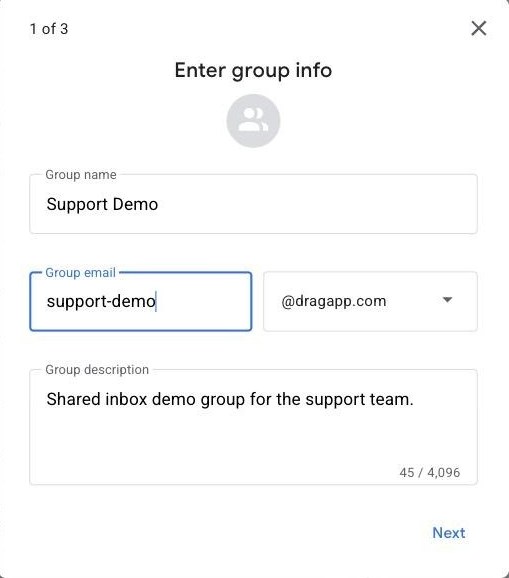
Why a group and not a shared login: nobody shares a password, everyone keeps their own account, and when someone leaves you remove them from the group. Done.
2. Let customers email it
The wizard asks who can post. If it stops at your own organisation, like ours did, customers will bounce.
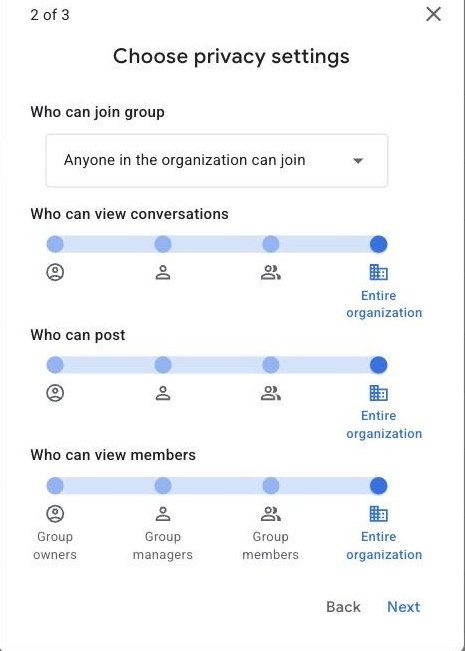
The fix is two switches:
- Your Workspace admin: Admin console, Groups for Business, Sharing settings, "Incoming emails from outside the organization". Let owners allow it.
- You: in the group's settings, set "Who can post" to anyone on the web.
3. Turn on Collaborative Inbox
This is the bit everyone skips. It's free and it's the whole point.
Group settings, "Enable additional Google Groups features", Collaborative Inbox.
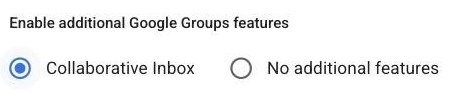
Then two permissions, or your team won't see the buttons (Google's page on it):
- "Who can moderate metadata" includes your team. That lets them assign and resolve.
- "Who can moderate content" includes your team. That lets them mark duplicates and "no action needed".
Conversation history has to be on too.
Now every email can be assigned to a person and marked done, duplicate, or "no action needed". You can filter by "Assigned to me" and "Not assigned".

That's a ticket system. A basic one. But it's a ticket system. (I wrote up where Collaborative Inbox breaks separately, if you want the long version.)
4. Auto-reply and templates
Group owners can set an auto-reply on the group itself, with a different message for outside people. Something like:
Thanks, we've got your email. A real person will reply within one working day, usually much sooner.
Keep it honest. Don't promise an hour if you can't do an hour.
Gmail templates are free too. Turn them on (Settings, Advanced, Templates) and save your five most common answers. Password reset, refund policy, "where's my order". You'll stop retyping them in week one.
5. Reply as support@, not as yourself
Two settings:
- In the group: "Who can post as group" includes your team.
- In your Gmail: Settings, Accounts, "Send mail as", add the support@ address. The verification email goes to the group, so look for it there.
While you're on that screen, pick "Reply from the same address the message was sent to". Then replies to support@ email go out as support@ without you thinking about it.
One habit that matters: Bcc support@ on every reply. Otherwise your reply only goes to the customer. Your colleagues never see it, the group never shows it, and the AI will think nobody answered.
6. One filter in your own Gmail
Every person on the team gets support email in their inbox (group subscription: each email). Add a filter so it lands somewhere sensible:
To: support@yourcompany.com
Apply the label: Support
Never send it to Spam
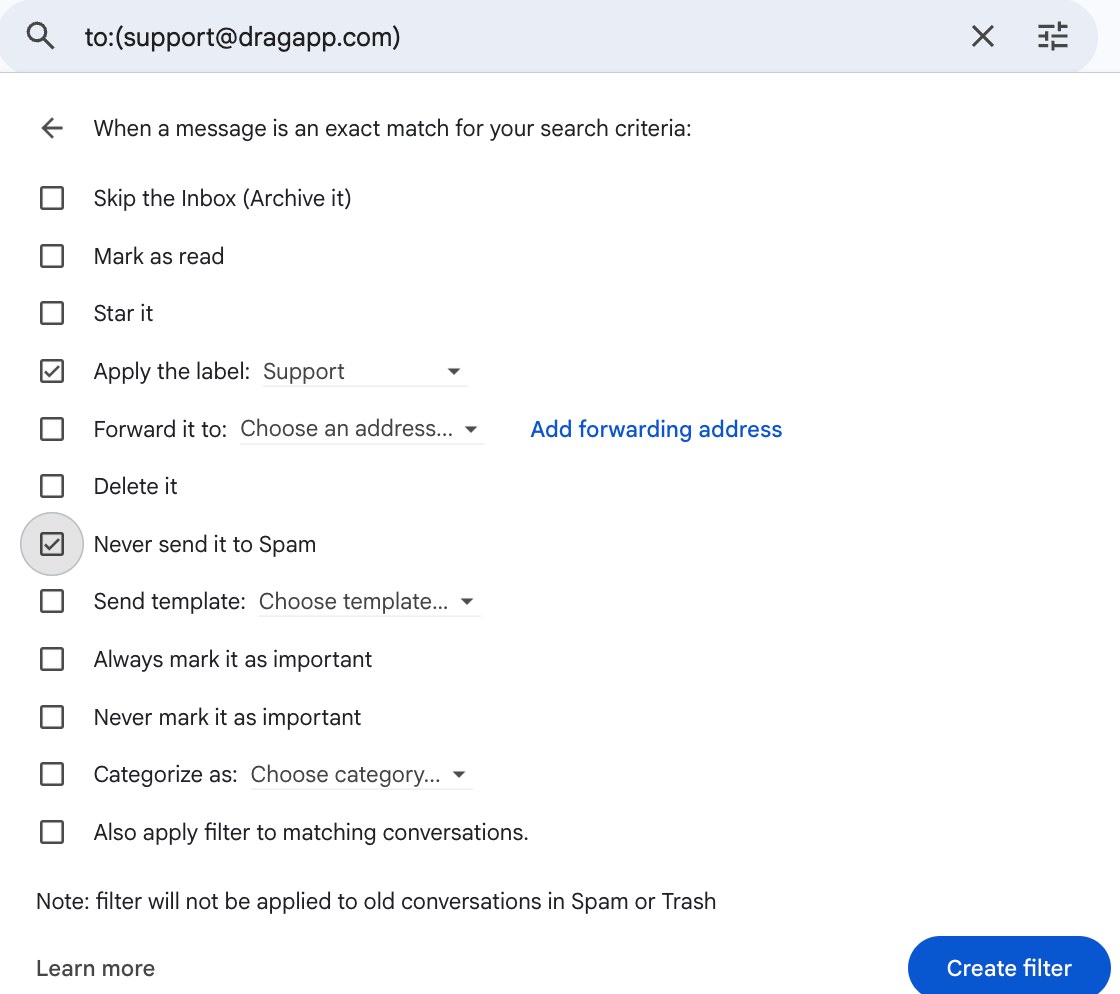
This step matters more than it looks. Claude and ChatGPT read your Gmail. If support email isn't in your mailbox, the AI can't see it.
7. Claude
Make a Project. Call it Support desk.
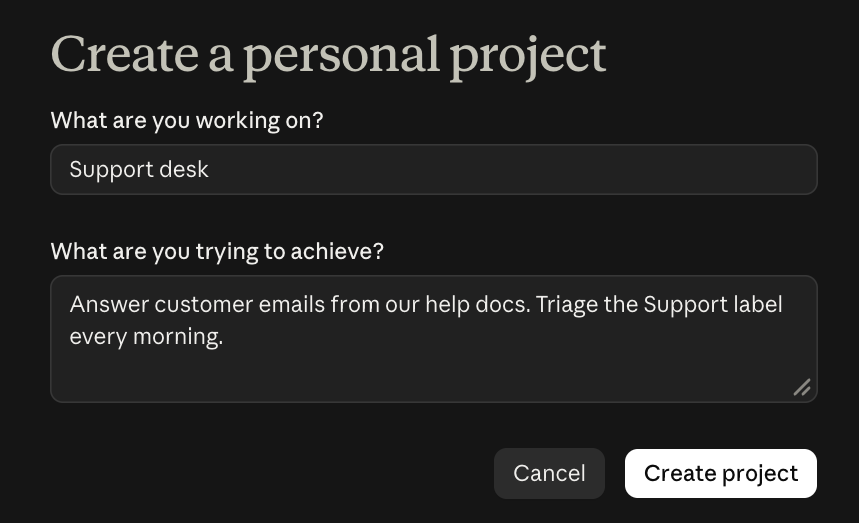
Paste this into the project instructions:
You are our support assistant. Our product is [one line].
Only answer from the files in this project and the email thread.
If you don't know, say so and draft a holding reply.
Tone: friendly, short, no corporate phrases.
Never promise refunds or dates. Flag those for a human.
Upload your help docs, pricing page and refund policy as project files. Then connect Gmail from Claude's connectors.
Then the morning prompt:
Look at my emails labelled Support from the last 24 hours.
List every one with no reply from us yet, oldest first.
For each: who, what they want, and a draft reply.
Anything angry, legal or about money goes at the top.
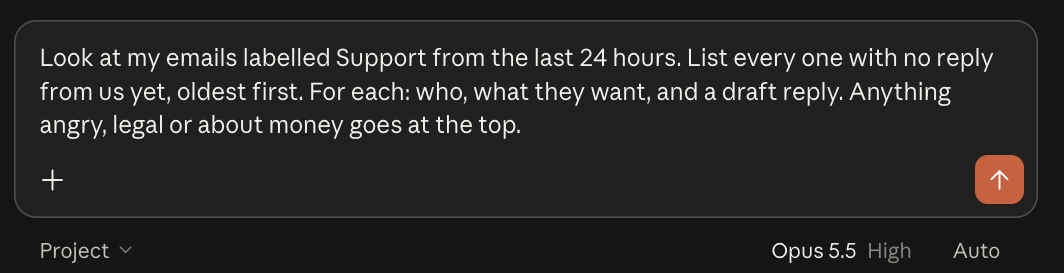
Things worth knowing:
- Claude can send, reply and forward from Gmail now. By default it asks before every single email. Good. Keep it that way.
- On paid plans you can run the prompt on a schedule (weekdays, 8am) as a scheduled task in the Claude desktop app. That lives outside the Project, so paste the instructions into the task too. Depending on your plan it runs in the cloud or needs the desktop app open.
- It can also apply Gmail labels, so "label it Done once I've sent it" works.
8. Or ChatGPT
Same idea. Make a Project, paste the same instructions, upload the same files, connect Gmail.
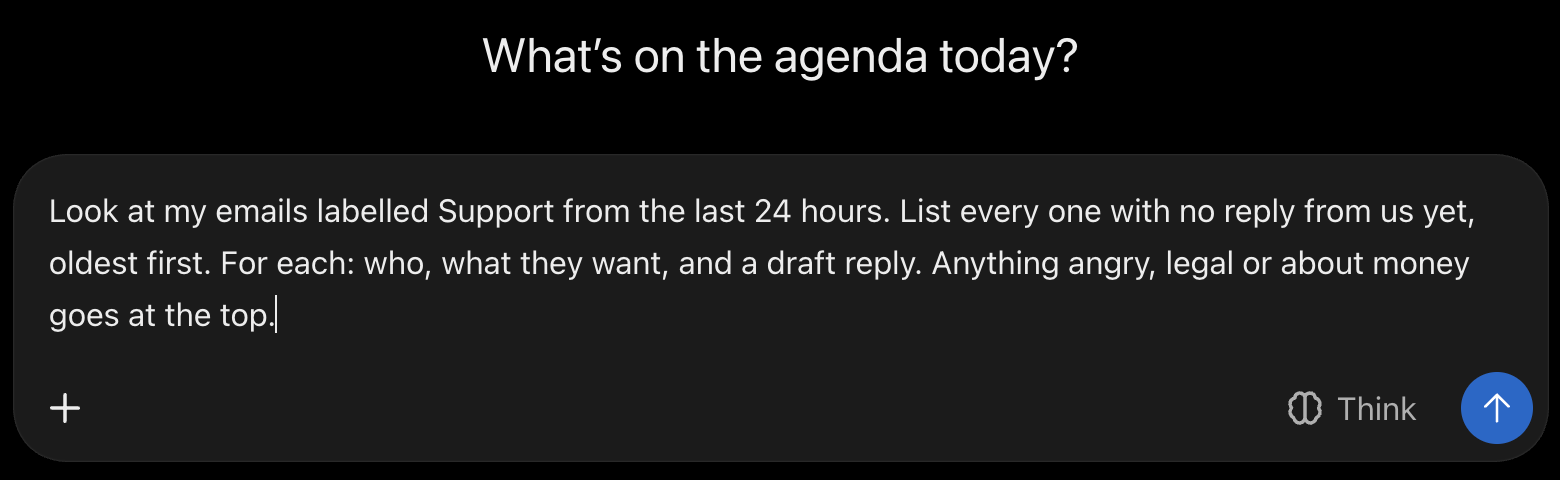
Things worth knowing:
- ChatGPT can draft and send from Gmail too (Plus and up, on the web, since June 2026). It asks first unless you switch it to allow all actions.
- ChatGPT Work can react when a new email lands in Gmail (Plus and Pro), instead of waiting for the morning. It doesn't run in projects set to project-only memory.
- Scheduled tasks: up to 5 on Plus.
- Don't build a "support GPT". OpenAI plans to retire custom GPTs. Use a Project.
Claude or ChatGPT?
| Claude | ChatGPT | |
|---|---|---|
| Reads your Gmail | Yes | Yes |
| Sends from Gmail | Yes, asks every time by default | Yes (Plus and up, web), asks unless you allow all |
| Labels emails | Yes | Not documented |
| Runs on a schedule | Yes, paid plans | Yes, 5 tasks on Plus |
| Reacts to new email | Via a schedule | Yes, ChatGPT Work (Plus, Pro) |
| Price for this | $20 a month (Pro) | $20 a month (Plus) |
Pick the one you already use. The setup is 90% Gmail and Groups anyway.
Why not Gmail's own shared inbox?
Google is rolling out a shared inbox inside Gmail. It works by delegation: everyone opens the same mailbox. There's no assigning and no status, and Gemini in Gmail is switched off for delegated accounts.
A Group keeps everyone in their own Gmail, where Gemini still works, and Collaborative Inbox gives you the assigning.
Where it breaks
- The AI only sees one person's mailbox. It can't see who's assigned what in Google Groups. So it might draft a reply to something your colleague already handled.
- Two people, one email. Collaborative Inbox fixes this only if everyone actually assigns. In week three, someone won't.
- Someone forgets the Bcc. Then nobody can tell the email was answered, including the AI.
- No clock. Nothing tells you an email has waited 26 hours. Gmail search counts in days, not hours.
- Approval on every send. Safe, and right. Also slow at 40 emails a day.
- Customer data in your AI. You're putting customer emails into Claude or ChatGPT. Check the data settings before you connect.
When I'd start paying
The day two of us answer the same customer. Or the first time someone waits two days because everyone thought someone else had it.
For most teams that's somewhere around 3 people and a few dozen emails a day. Before that, this setup is fine.
What the paid version costs
If you skip all of the above and buy a tool, this is roughly the bill. Cheapest plan that runs a shared support inbox, per month, billed annually. We read each vendor's own pricing page on 13 Oct 2026.
| Tool (cheapest plan) | Per person | Team of 3 | AI on that plan |
|---|---|---|---|
| Zendesk (Support Team) | $19 | $57 | AI agent, 5 resolutions per agent a month. Copilot $50 a seat extra |
| Freshdesk (Growth) | $19 | $57 | AI agent, first 500 sessions. No Copilot on this plan |
| Help Scout (Standard) | $25 | $75 | Basic AI. AI Answers $0.75 per resolution |
| Front (Starter) | $25 | $75 | Copilot $20 a seat extra |
| Hiver (Growth, 2 seats min.) | $25 | $75 | Included |
| Drag, that's us (Starter) | $12 | $36 | None on Starter. Plus is $18 a seat, $54 for 3 |
Billed monthly it costs more: Zendesk is $25 a seat, Hiver $35, Drag $16.
Two of them have free tiers worth knowing about. Help Scout's is up to 5 users and 100 contacts a month. Hiver's is one shared inbox with a "sent via Hiver" line on your emails. If you'd rather have a tool than a setup, try those first. We keep a longer list in 13 free help desk options, honestly sorted.
We make Drag, a shared inbox that lives inside Gmail. It's what I'd move to when the setup above starts to creak: assignment, a clock on every email, and AI that sees the whole team's inbox (that's Plus). But don't buy it on day one. Build the thing above first. When it creaks, you can try Drag free for 7 days, no card.
If you try the free setup, tell me what broke. I read everything.
Duda