













Need a WhatsApp with multiple users for your team to access? Hete's how this can be done, the best tools and tips!
Table of contents
- WhatsApp with multiple users: 5 things you need to know
- Why WhatsApp?
- Why do users need access to WhatsApp with multiple users?
- How to share your WhatsApp with multiple users: 4 methods
- How to use a shared inbox to share your WhatsApp with multiple users
- Shared inbox x sharing your WhatsApp with multiple users: more benefits
Using WhatsApp to connect with customers is key for accessibility, marketing efforts, and overall digital footprint. However, it comes with a challenge: what if you need to share your WhatsApp with multiple users? There are many situations in which this might come up for companies. Maybe you're using different numbers (such as having WhatsApp for the sales teams and another account for customer service). Or maybe the same conversations must be seen by multiple team members. In this article, we'll look into the 3 main methods to share your WhatsApp with multiple users. Including their benefits and drawbacks, and why it might be the right option for your company.
WhatsApp with multiple users: 5 things you need to know
- WhatsApp is a growing platform for professional communication, but the standard account is still insufficient for most teams, requiring more resources.
- You can add multiple users to WhatsApp to help with collaboration, centralize your internal chats, and organize shift-based work.
- Team leaders benefit from having this collaborative workspace to assign tasks and balance the workload.
- You can use linked devices to share your WhatsApp with multiple users, but it lacks accountability.
- A shared inbox helps you add your entire team to WhatsApp with even more collaborative resources, like task notes, @mentions and auto replies.
Why WhatsApp?
The main reason why many companies started using WhatsApp for teams is flexibility. This chat app is available on mobile devices, browser tabs, and with a dedicated desktop version. Meaning: it helps teams stay connected no matter where and what platform they're working on. A second benefit is that WhatsApp is popular worldwide, with almost three billion unique users. So customer-facing roles, such as support agents, should be accessible there. A WhatsApp account, however, is usually a one-person account. So when a team has to use this platform to connect with their client base, it requires extra effort.
The limitations of a standard WhatsApp setup
But still, team members have to manually log into the account through company devices to check incoming messages. This takes too long, which leads to productivity loss. It can also mean longer response times for clients, which isn't ideal for any business. For example: say a client messages the customer service team on WhatsApp. Usually, they have to wait until an agent is logged into it and checks it. Adds any related tasks to a ticket, which goes through an entire process. Then, the agent has to log in again and answer the message, before closing the ticket. 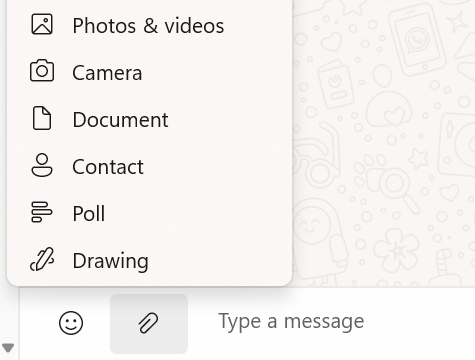 WhatsApp also includes multimedia messages, with documents, audio, video, and photos. That's helpful for sending branded messages, how-to guides, and updating clients on launches. But these files are split into different conversations, so it's hard to find them later. Related post: WhatsApp Business Web
Why do users need access to WhatsApp with multiple users?
Ideally, a professional WhatsApp inbox should include multiple users. That way, the entire team can see, at once, what's going on in their inbox. Also what tasks should be completed faster, what files are attached, etc.
Centralizing communication
First of all, teams need a space in which their entire communication can be seen. Too often, inboxes get cluttered because agents have to forward, CC and BCC each other on emails and chats. If you have a shared space, users can check what's going on and stay up to date. On WhatsApp, this space is crucial. You should be able to get a glimpse of each needed task directly from your inbox. Related Post: How to Schedule Messages in WhatsApp
Overall collaboration
Another key benefit of sharing your WhatsApp with multiple users is having a dedicated method to collaborate on tasks. On a standard WhatsApp account, you need to open tickets on another platform, and then ask other team members for help. If you have multiple users available, you could also chat with them about current tasks. That's useful, for example, for an agent using WhatsApp for customer service.
Shift work
Customer-facing teams often work around the clock to offer efficient points of contact. That can be sales, client support, IT, and so on. These teams have a heavier amount of incoming messages. They also need to balance staying updated with focusing on other tasks. Hence why some teams prefer to have shifts when certain people stay online during specific hours to fulfill any queries. Whether you offer 24/7 access or specific business hours, there's a limit on how much one can answer during a certain time. So when a team member ends their shift but the conversation is still happening, how can the next agent maintain the connection? If they have to log into a standard account and read the whole context, it takes too long. A space in which a user can jump into the ongoing chat is much faster by comparison.
Task assignments
Drag · with Varley
The inbox your team and Varley work in together
Shared inbox and live chat for Gmail teams, with Varley, Drag’s AI, included from $18. Plus an MCP server your own AI tools can drive.
How to share your WhatsApp with multiple users: 4 methods
It isn't currently possible to share WhatsApp with multiple users natively. However, there are different workarounds, depending on what kind of resources you need.
1) Share login credentials
The most basic way to allow multiple users into your WhatsApp account is sharing the login credentials. However, each WhatsApp account is tied to a specific phone number, so that means you can't be logged into the account on multiple phones. This method is pretty rudimentary, but some teams can benefit from it by using WhatsApp's desktop app. So, for example, a logistics team is often doing tasks outside the company, but they have a person available to answer clients and suppliers. This team member can have access via the desktop app, so they check incoming messages ASAP, all while keeping others updated. The main concern with this method is security: if one device is lost or stolen, your credentials can be compromised. Another problem you might run into is that users need to log in and out of their personal WhatsApp accounts to check the team one. This isn't practical on a daily basis, especially if people use WhatsApp for office communication as well. Related Post: How To Get Unblocked in WhatsApp
2) Use WhatsApp Business' linked devices
Another more reliable method is using WhatsApp Business' linked devices tool. When using the professional app, users can link up to four devices to one primary phone, and paid Meta Verified plans raise that cap to between six and 10 devices depending on the plan. 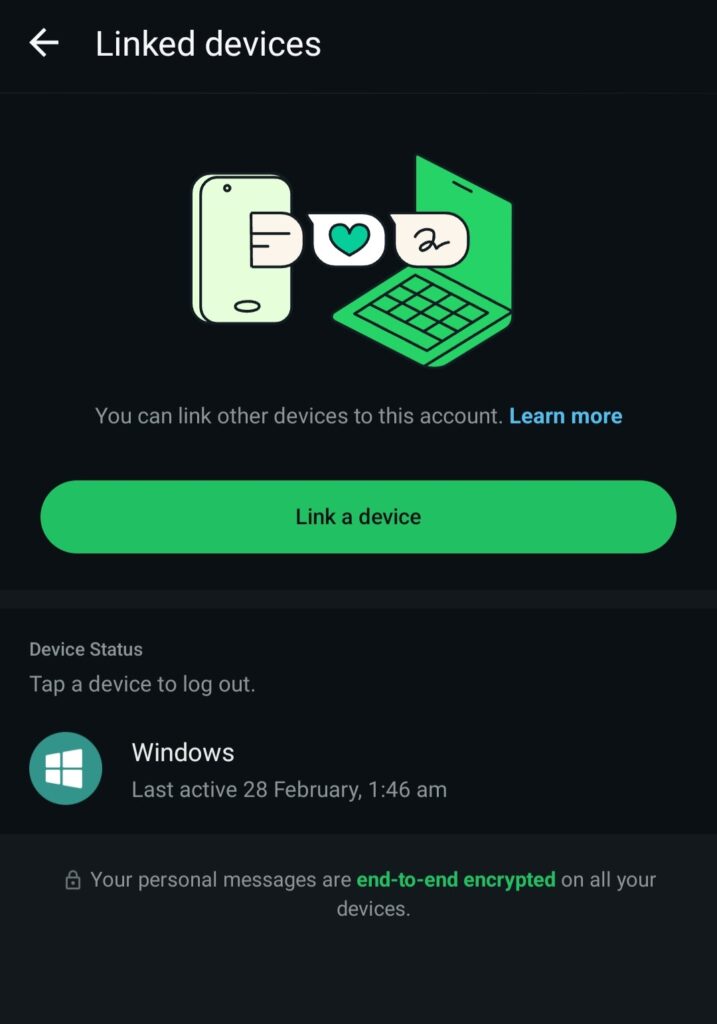 This helps avoid the authentication issue: once the user is allowed to access the conversations on their own device, they are allowed to manage it efficiently. Here's how it works:
- Open WhatsApp Business on the main phone
- Click Tools > Meta Verified > Linked devices
- Then Link device
- Scan the QR code on the secondary device
- Name each new device (tip: name them according to the agent to find them easily)
The account will stay connected unless the user doesn't access the device in 14 days. Another benefit is that conversations show which device (AKA agent) sent which message. This helps accountability and task management.
3) Build a platform with WhatsApp Business API
Due to the above's limitations for companies that require extra customization for their chat workflows, WhatsApp has another solution: the Business API. With this, managers can create their own custom WhatsApp-based interface. This allows IT departments to create options for WhatsApp with multiple users for each workflow. It's a smart solution, especially if you need to adapt WhatsApp's resources to multiple departments. The issue, especially for small and medium-sized companies, is that this platform charges per chat. So if on a specific period you require more conversations with your clients, the charge will be exponentially higher, creating a budget concern.
4) Implement a shared inbox
The third and most flexible way to share WhatsApp with multiple users is by having a WhatsApp shared inbox. With a shared inbox, your team can get all the benefits of a task management tool while staying updated on messages. A shared inbox is a collective workspace that allows teams to see, manage and reply to all incoming chats. They can add tasks to their queues, set up deadlines, collaborate on solutions and enhance their customer service metrics from one digital space. Instead of logging in and out or having to link devices, a shared inbox grants more practicality and security. One account on WhatsApp is transformed into a shared workspace, then users are granted full access to its features based on their roles. With that, they can all see everything in real-time, with no need for context threads or CCs.
How to use a shared inbox to share your WhatsApp with multiple users
A WhatsApp shared inbox can be a great way to include multiple users and grant them access to your conversations, all while staying productive. However, it's important to pick the right software. Our solution, DragApp, is a tried-and-tested shared inbox tool that simplifies collaboration. Here's how you can install Drag and change the way your WhatsApp inbox works:
- Download the DragApp extension and sign up for an account;
- Open Gmail on your browser and click on the Drag icon;
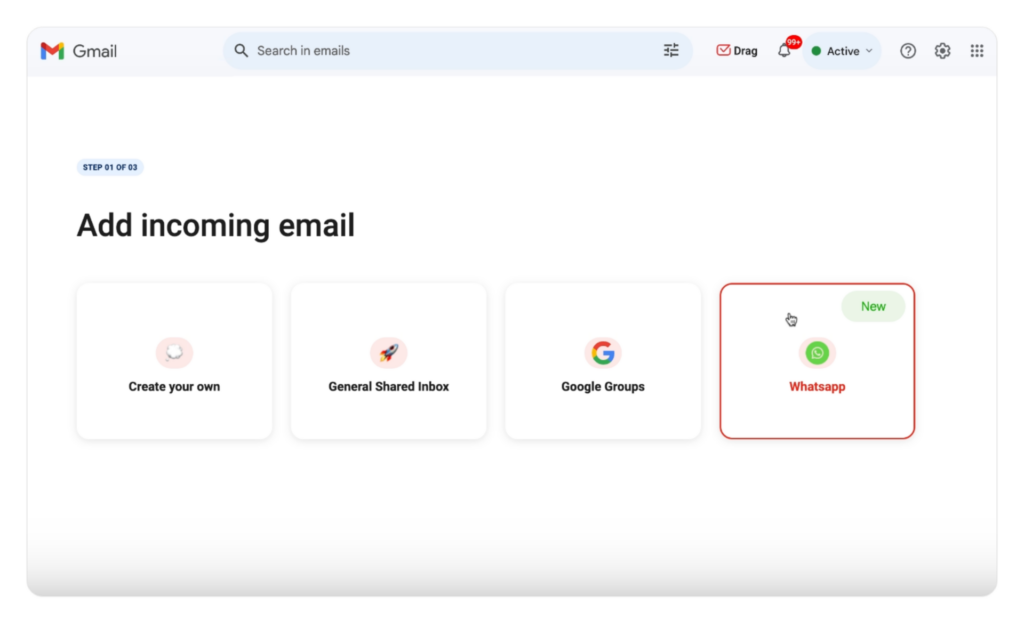
- Pick the WhatsApp workspace on the next screen, as shown below:
- Log into your team's WhatsApp;
- Authenticate the connection;
- Done! Now this shared inbox will show your WhatsApp messages in real time.
 Sarah Chen
Related Post: How to Integrate WhatsApp and Gmail
Adding multiple users to WhatsApp
After you've installed the software, the next step is fully sharing WhatsApp with multiple users. Doing it is pretty easy on Drag:
- Log into the shared inbox you've set up;
- Click on Drag Boards, then select the current one;
- Click on Share board with team;4. Go to the Invite member section and add each team member's email address.
- Click Send! Now you're sharing your WhatsApp with multiple users.





Shared inbox x sharing your WhatsApp with multiple users: more benefits
With Drag, you can manage new interactions and turn chats into a task list. Then, transform these tasks into cards and benefit from even more resources. One example is the notes tab: each task card has a space for notes, in which you can add anything you need to complete your workflow. 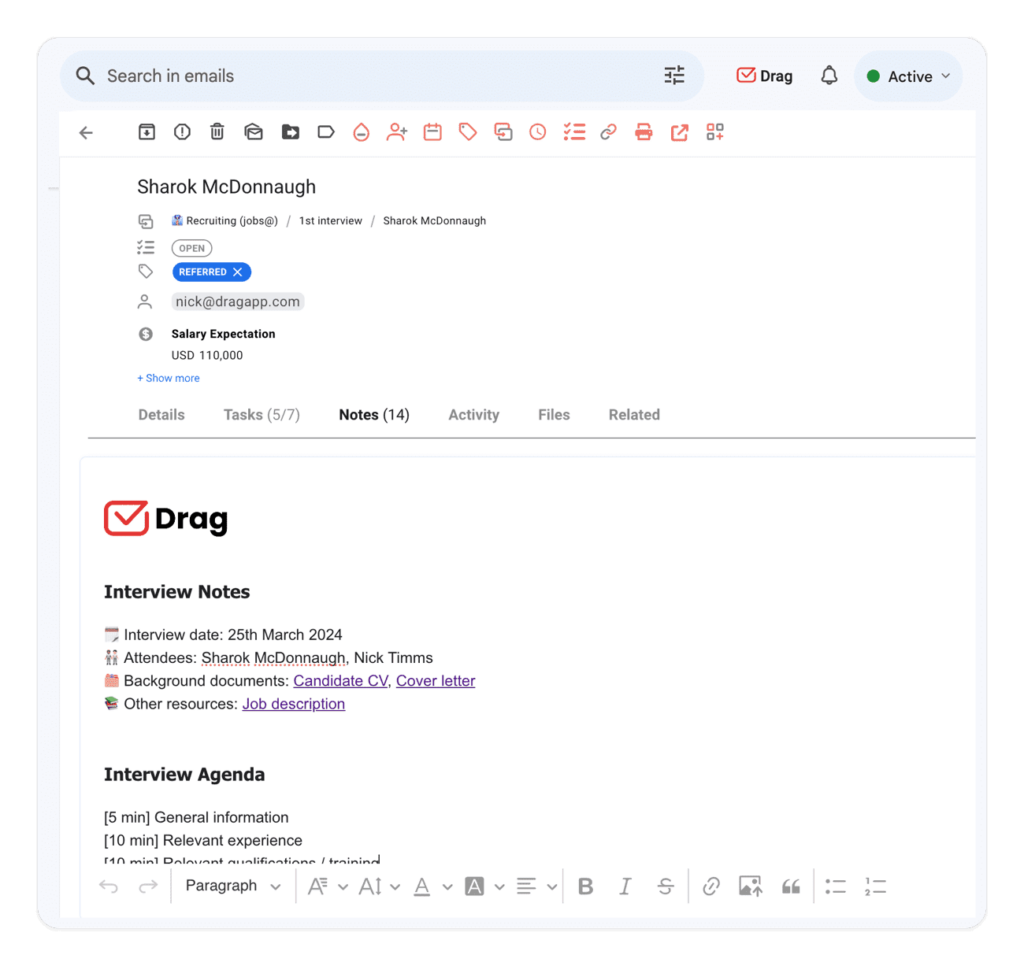 When working on WhatsApp with multiple users, these notes can help give other team members the data they need to finish a task and get back to a customer. Another resource that might benefit teams working on WhatsApp is the auto responder. With Drag, you can create a library of custom WhatsApp auto replies that'll be sent to your recipients based on their questions. This helps solve most FAQs so that team members have more time to dedicate to harder tasks. Related Post: Restore WhatsApp Chat

Co-founder
Co-founder at Drag, writing about Google Workspace, shared inboxes, and how teams actually run email.
