













Switching from Hiver to Drag without moving an email: the export to request early, the one-sitting cutover, and what carries over versus what you rebuild.
Key takeaways
- Your emails never move: Gmail keeps everything, so the migration is a workflow switch, not a data transfer.
- The one rule that matters: a shared inbox connects to one tool at a time, so the cutover happens in a single sitting, in the order this guide gives.
- Request your Hiver export days early if you want deep history: Hiver's processing time is the only slow step in the whole move.
Table of contents
Migrating from Hiver to Drag is simpler than most software migrations because nothing about your email has to move: both tools run on Gmail. New mail flows into Drag the moment you connect a board, your most recent thousand emails come across automatically for context, and anything older is handled by an assisted migration our team runs from your Hiver export, including inboxes past 100,000 emails. This guide is the exact playbook: the export to request early, the one-sitting cutover that avoids conflicts, and what carries over versus what you rebuild in about an hour.
Still weighing the decision itself? The full comparison lives on our Hiver alternative page; this guide assumes you are ready to move.
Available on: Chrome extension · Web app · Desktop app Web app steps also apply to the desktop app.
How the migration works
- New emails: instant. Connect your shared address (support@, sales@) to a Drag Shared Inbox board and new conversations appear immediately. Nothing to import.
- Recent history: automatic. When you connect a board, Drag automatically brings in the most recent 1,000 emails from that inbox, so your team starts with context, not an empty board.
- Older history: assisted. If you need history beyond that, export your data from Hiver and send it to support@dragapp.com. We migrate your historical conversations, assignments, statuses, notes, and tags into your boards.
- Structure: recreated. Automations, SLAs, and team setup are rebuilt in Drag. Most Hiver rules have direct equivalents and take under an hour to recreate.
Step 1: Request your Hiver export early
This step is only needed if you want history beyond the most recent 1,000 emails that Drag brings in automatically.
To run the export you need a Hiver role with access to shared mailbox settings (an Admin, in most setups). Then:
- Open the Hiver admin panel.
- Go to the Account section and choose Export Data. Hiver's own help guide covers the export in detail.
- Select what to export. The export covers your email conversations from shared mailboxes and shared labels, email notes, email templates, and shared drafts.
- When the export is ready, Hiver emails a download link to whoever started it. The files arrive in XML format. You do not need to open or process them: download the files and send them to support@dragapp.com as they are, and we handle the rest.
Import your templates yourself
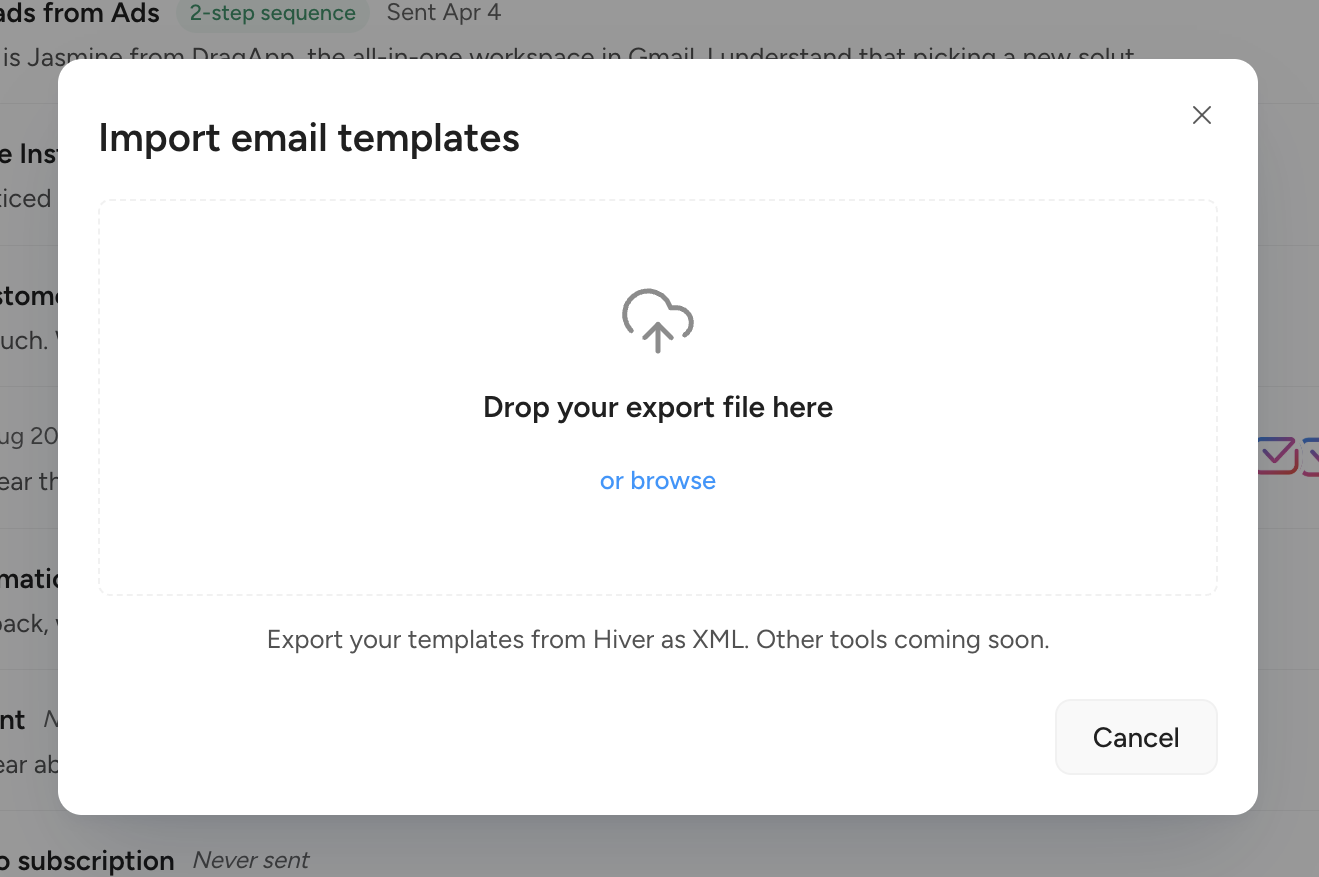
One part of the export you can bring in on your own, without waiting for the assisted migration: templates. In the Drag dashboard, go to Templates, choose Import, and upload the templates file from your Hiver export. They appear in your Drag templates, ready to use. Hiver's XML format is supported today, with other tools coming.
Request the export a few days before your switch date: in our experience it can take days to be processed on Hiver's side, so the earlier you request it, the safer your timeline. While you wait, you can keep working in Hiver as normal.
One thing not to confuse this with: Hiver's Analytics section also has an Export tab, which produces CSV reports about your emails (response times, assignees). That is reporting data, not your conversation history, and it is not what the migration needs.
Step 2: Set up Drag, but do not connect your shared inboxes yet
A shared inbox can only be connected to one application at a time. While it is connected to Hiver, it cannot also be connected to Drag, so connecting your shared addresses is the one thing you save for the switchover moment in Step 3. Everything else can be prepared in advance:
- Install Drag or sign in on the web app. See How do I install the Drag Chrome extension or How do I use the Drag web app.
- Make sure your team members have Drag accounts, so inviting them takes seconds on the day.
- Map out what you will recreate (automations, SLAs, Round Robin rules) using the table below, so the rebuild is a checklist, not a research session.
| In Hiver | In Drag |
|---|---|
| Shared Inbox | Shared Inbox board |
| Email assignments | Card assignments |
| Statuses (Open, Pending, Closed) | Card status, plus Kanban columns for your workflow stages |
| Email tags | Tags (migrated in the assisted migration) |
| Notes on conversations | Notes on cards (migrated in the assisted migration) |
| Email templates | Templates (import them yourself: dashboard > Templates > Import) |
| Automations | Automations (How do I create automation rules) |
| SLAs | SLA automations using the delay option (How to use SLAs rules) |
| Round Robin | Round Robin, including rules scoped to a sub-team (How to use Round Robin assignment) |
| Knowledge base | Help Center with AI answers |
| Analytics | Reports |






Drag · with Varley
The inbox your team and Varley work in together
Shared inbox and live chat for Gmail teams, with Varley, Drag’s AI, included from $18. Plus an MCP server your own AI tools can drive.
Step 3: Switch over
Because a shared inbox can only be connected to one application at a time, this is the moment you take the leap: Hiver is disconnected and Drag is connected in the same sitting, so new emails flow into your boards without a gap. Pick a cutover moment, ideally the start of a quiet period, and do these in order:
- Delete your shared inboxes from Hiver. You need a Hiver Admin (or Mailbox Admin) to do this. In Gmail, open the Hiver icon, go to the Admin Panel, then Shared Inboxes, select the inbox, and delete it. Hiver's help guide covers the exact steps. Two things to know before you click: deletion cannot be undone, and all Hiver-specific data on that inbox is deleted with it. This is exactly why your export (Step 1) must already be in hand.
- Remove Hiver's access to the Google account. Do not skip this step. Deleting a shared inbox in Hiver does not necessarily remove Hiver's Google Workspace permissions, and if those permissions remain, the connection to Drag will not work. Log into the shared inbox's Google account, go to account.google.com, then Security, then your connections to third-party apps and services. If Hiver is on the list, remove it.
- Create your Shared Inbox boards in Drag, immediately. Create a board for each shared address you managed in Hiver: How do I create a Shared Inbox in Gmail with Drag. The moment a board connects, new emails start flowing in and Drag automatically brings in the most recent 1,000 emails from that inbox.
- Invite your team to each board.
- If you need older history, send your Hiver export to support@dragapp.com. We migrate your historical conversations, assignments, statuses, notes, and tags, typically over the following days. Re-assign anything active in the meantime so nothing waits on the migration.
If your shared inbox is a Google Group rather than a regular Gmail account, there is no password to log in with. In that case the disconnection is controlled through the inbox's Primary User in Hiver, and we can walk you through it.
During the transition
Do not run the Hiver and Drag extensions at the same time in the same browser. With both enabled, parts of Drag can stop responding (for example, the send to board menu may not open), and while a mailbox is connected to both tools, new emails can end up split between them. Keep one extension disabled until your cutover is done.
If you need recent conversations available in Drag before the assisted migration completes, move them manually: with the Hiver extension disabled, apply a Gmail label to the conversations, then send that label to your board.
Ready to move off Hiver?
Drag runs your shared inboxes on Gmail, with AI and MCP included, from $12 per user per month. Start a 7-day trial with no card required, and our team handles the assisted migration from your Hiver export so your history comes with you.
Frequently asked questions
Will we lose any emails?
No. Emails live in Gmail, not in Hiver or Drag. Nothing is deleted during migration, and your historical conversations are brought into your boards from the Hiver export.
Can we keep the shared inbox connected to Hiver and Drag at the same time?
No. A shared inbox can only be connected to one application at a time, which is why the switchover in Step 3 happens in one sitting. Personal Gmail use is unaffected, but keep only one of the two extensions enabled in your browser during the transition.
Can our history, assignments, and statuses come with us?
Yes. Drag brings in the most recent 1,000 emails automatically when you connect a board. For anything older, the assisted migration from your Hiver export covers conversations, assignments, statuses, notes, and tags.
We split our support team into groups. Can Round Robin respect that?
Yes. Round Robin rules can be scoped so conversations rotate only within a specific group of teammates. See How to use Round Robin assignment.
How long does it take?
Board setup takes under an hour, and your most recent 1,000 emails appear automatically. If you need the assisted history migration, it usually completes within a few days, and the main variable is how long Hiver takes to produce your export, so request it early.
Drag stopped responding while we still had Hiver installed. What happened?
Two Gmail extensions managing the same inbox conflict with each other. Disable the Hiver extension and reload Gmail. If your board still is not populating, check that Hiver was removed from the Google account's third-party access (Step 3.2).

Co-founder
Co-founder at Drag, writing about Google Workspace, shared inboxes, and how teams actually run email.


