












Connecting one Gmail account to Claude is easy. Connecting several, personal, team, and shared addresses, is where it gets messy. The three honest routes in 2026, and when each one wins.
Key takeaways
- Claude's built-in Google connection holds one account at a time, so a personal-plus-work setup already needs a deliberate choice of route.
- Community multi-account servers exist, but they put unvetted third-party code between your email and the internet, which is a real trade for anything beyond a hobby setup.
- For teams, the cleanest answer is consolidation: pull the shared addresses into one inbox tool and connect the AI once, so it sees every account through a single, governed connection.
Table of contents
- Why multiple accounts is the hard version of this problem
- Route one: one connection, swapped when you need it
- Route two: community multi-account servers (and the honest risk)
- Route three: consolidate the accounts, connect once
- Which route fits you
- What you can actually do once it is connected
- Frequently asked questions
Here is the fact that surprises everyone first: Claude's built-in Google Workspace connector holds one Google account at a time, so a personal-plus-work setup cannot run through it side by side. So "multiple Gmail accounts in Claude" has three honest routes in 2026.
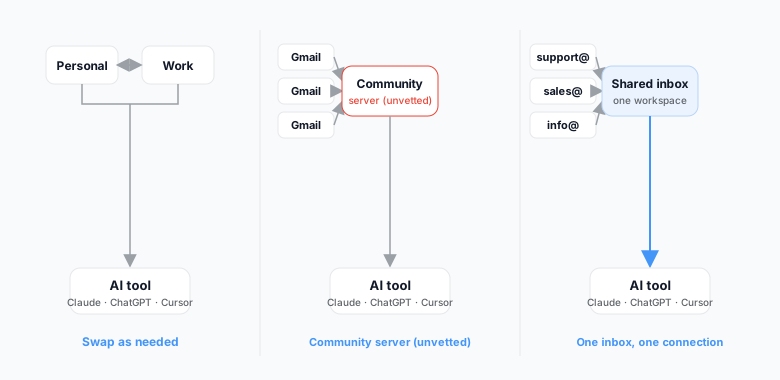
You can swap the connection between accounts as you need them, which is free and fine for occasional use. You can run a community MCP server that holds several accounts at once, which is the power-user route and means trusting unvetted code with your email. Or you can consolidate the addresses that matter into one shared inbox and give the AI a single connection to all of them, which is the route built for teams. This guide walks through all three, where each breaks, and how to choose.
Why multiple accounts is the hard version of this problem
Connecting one Gmail account to an AI assistant is now genuinely easy: the major tools have first-party ways to do it, and it works. The trouble starts with the second account. Most people asking this question are not managing one inbox: there is a personal address, a work address, and then the shared ones, support@, sales@, info@, the accounts where the real volume lives.
The default answer, one connection per account, has three costs that only show up in practice. The assistant can usually only look through one connection at a time, so cross-account questions, such as finding a thread you cannot remember the home of, do not work. Every account is another authentication that can silently expire, and the failure mode is quiet: the AI simply stops seeing that inbox and nobody notices for a week. And shared addresses are the worst fit of all, because connecting support@ through one person's login means the AI acts as that person, with no record the rest of the team can see.
People who have run multi-account setups describe the same three failures. Answers quietly drawing on the wrong inbox, so you act on a thread that lives somewhere else. Authentications that expire one by one, turning the setup into a small maintenance job that is always slightly broken. And the worst one: a setup that looks connected and routes unreliably, which costs more than an honest error message ever would. Any route you choose should be judged against those three.
Route one: one connection, swapped when you need it
The built-in route is honest but narrow: connect the account you use most, and when you need the other one, disconnect and reconnect. That sounds worse than it is for light use, if your second account only matters occasionally, thirty seconds of swapping beats running infrastructure. Some people run one account per surface instead, one in Claude, one in another tool, which works until you want one assistant to see both.
- Claude connects Gmail through its Google Workspace connector, one Google account at a time.
- ChatGPT installs listed plugins, Drag included, from its Plugin Directory; Developer Mode, which OpenAI documents for Business, Enterprise and Edu (read-only on Pro) as of October 2026, adds other MCP servers by URL. Our Connect Gmail to ChatGPT guide covers those routes and the built-in connector side by side.
- Cursor connects MCP servers through its MCP settings; our Connect Gmail to Cursor guide covers that setup end to end.
- Google's own official Gmail MCP server is in developer preview and is configured one account at a time.
Where it breaks: the moment the accounts need to work together. Cross-account questions are impossible by construction, and shared team addresses through one person's login remain the arrangement every shared inbox tool exists to end.
Route two: community multi-account servers (and the honest risk)
The open-source world got here early, and there are community MCP servers that hold credentials for several Gmail accounts and expose them to any MCP client at once. Capability-wise, this is the power-user answer, and for a technical person running it locally for personal accounts, it can be a reasonable choice.
The honest risk is not hypothetical. A server like this holds authentication for every inbox you give it, runs code you did not write and probably will not audit, and sits directly between your email and an AI with write access. Google's own official server remains cautious about what it lets AI do with mail, and the community options exist precisely because they remove that caution. For personal experiments, your call. For a business, for shared addresses, or for anything a compliance question could ever touch, this is not the route, and we do not recommend specific servers for exactly that reason.
Drag · with Varley
The inbox your team and Varley work in together
Shared inbox and live chat for Gmail teams, with Varley, Drag’s AI, included from $18. Plus an MCP server your own AI tools can drive.
Route three: consolidate the accounts, connect once
The route built for teams flips the problem: instead of teaching the AI about every account, you bring the accounts to one place and connect that. A shared inbox tool pulls your shared addresses, support@, sales@, info@, and as many others as you run, into one workspace with assignment, boards, and history. Connect the AI to that workspace through one MCP server, and it sees every account through a single connection, with the team's permissions governing what it can touch and every action visible to everyone.






Full disclosure, Drag is ours, and this is exactly what it is for: it turns Gmail shared addresses into one shared inbox, and its own MCP server gives Claude, ChatGPT, Cursor, or any MCP client read and write access to all of it, boards, threads, assignment, and replies, through one connection. That MCP server exposes 47 tools across 12 categories.
The setup takes minutes, one pasted URL in your AI client's connector settings for the fastest route, and the step-by-step for every client is in our connect guide. The trade to state plainly: this route is for the accounts a team shares, it does not consolidate your personal Gmail, and it is a paid tool, from $12 per user per month with a 7-day trial and no card.
Which route fits you
| You are | Best route | Why |
|---|---|---|
| One person, two accounts, light use | Separate connections | Built in, free, good enough at this scale |
| A power user, personal accounts, comfortable auditing code | Community server, locally | Maximum capability, risk you have chosen knowingly |
| A team with shared addresses | Consolidate and connect once | One governed connection, team permissions, full audit trail |
| A business with compliance questions | Consolidate and connect once | The only route where access is governed and actions are visible |
What you can actually do once it is connected
The point of any of this is what the assistant can do afterwards. With a single governed connection over your shared accounts, the morning queue can be triaged by prompt, replies drafted in your team's tone, threads assigned to the right person, and response-time reports pulled without opening a dashboard. Our guide to running support inside Claude or ChatGPT shows real workflows on a real queue, and the MCP for customer support guide covers the protocol side in depth.
Frequently asked questions
Can Claude connect to two Gmail accounts at the same time?
Not through the built-in connector: it holds one Google account at a time. To have one assistant see several inboxes at once you need either a community multi-account server or, for teams, consolidation into a shared inbox with a single connection.
Is there an official way to connect Gmail to AI tools?
Yes. Google ships an official Gmail MCP server and the major AI tools have first-party Google connections. The official routes are deliberately careful about what AI can do with your mail, and they connect one account at a time. Our Gmail MCP server guide covers the landscape.
Are community Gmail MCP servers safe?
They are unvetted third-party code holding your email credentials, so the honest answer is: safe enough for a technical person's personal experiments, not appropriate for business email or shared addresses. We deliberately do not recommend specific ones.
What is the best setup for a team?
Consolidate the shared addresses into one inbox tool with an MCP server and connect your AI tools to that, one connection, team permissions, every action visible. Drag is our tool for exactly this on Gmail, and the connect guide walks through the setup in minutes.

Co-founder
Building Drag for nearly ten years: shared inboxes, boards, and now the AI and agent layer, all on Gmail, plus HeyHelp for the personal inbox. Writes the honest versions of the comparisons.
Related articles
Gmail AI Inbox: Who Gets It, How to Turn It Off, and What It Can't See (2026)
Nick Timms
If we didn't want to pay for a help desk, here's exactly what we'd build. Gmail, a free Google Group, and Claude or ChatGPT.
Duda Bardavid
Gemini Agent: Google's AI Coworkers Get Their Own Email Address (2026)
Nick Timms
