













Gmail's AI Inbox reaches more Workspace accounts from October 26: which plans get it, why it may not show, how to hide it, and why shared inboxes miss out.
Key takeaways
- AI Inbox is a separate view in Gmail with two sections, Suggested to-dos and Topics to catch up on. It is in beta, and your normal inbox stays as it is.
- Paid Workspace accounts get it in two waves: Rapid Release domains from October 12, 2026 and Scheduled Release domains from October 26, each over up to 15 days. Business Standard and Plus, Enterprise Standard and Plus, and Frontline Plus come first; Starter editions follow in the coming months.
- It works only in the US with the account language set to English (US), and it needs two smart feature settings turned on.
- There is no admin switch for AI Inbox itself. Each person hides it with the Show AI Inbox box in Settings, under the Inbox tab.
- Gmail Help says AI Inbox does not support delegated inboxes, and Google says delegated accounts and shared inboxes are the same in Gmail, so a shared support@ mailbox gets no AI Inbox.
Table of contents
- What is Gmail's AI Inbox?
- Who gets AI Inbox, and when
- How to open AI Inbox in Gmail
- AI Inbox not showing? Check these seven things
- How to turn off or hide AI Inbox
- What AI Inbox can't see
- Does AI Inbox work on a shared inbox like support@?
- What to use for a team inbox instead
- Frequently asked questions
- Related guides
The short version: AI Inbox is a separate view in Gmail that lists suggested to-dos and topic summaries pulled from your email. Google is rolling it out to paid Google Workspace accounts in the US now: Rapid Release domains started on October 12, 2026, and Scheduled Release domains start on October 26, 2026, with up to 15 days for it to appear.
- Who gets it first? Business Standard and Plus, Enterprise Standard and Plus, and Frontline Plus. Starter editions follow "in the coming months". Personal accounts need Google AI Plus, Pro or Ultra.
- How do you turn it off? Uncheck Show AI Inbox in Gmail's Settings, on the Inbox tab. Google says admins have no switch for AI Inbox itself.
- Does it work on a shared inbox? No. Gmail Help says it does not support delegated inboxes, which is how Gmail shares a mailbox like support@.
Everything below comes from Google's announcement and help pages, checked on October 19, 2026. We haven't used AI Inbox on a work account yet, so there is no screenshot of it here; this page sticks to what Google has published and says where press reports fill a gap.
What is Gmail's AI Inbox?
Gmail's AI Inbox is a view, listed in Gmail's left panel, that reads your recent email and shows you what to do next and what has changed, so you don't have to open every thread. Gmail Help calls it a beta that "may change over time", and your normal inbox stays exactly as it is.
It has two sections:
- Suggested to-dos: high-priority items pulled from incoming email, with the action in bold, such as a due date on a bill. Each one has buttons like View or Reply, and you click Mark done when you finish.
- Topics to catch up on: short summaries of updates spread across several threads, such as travel, reservations or purchase confirmations. Mark all as read also marks those emails as read in your inbox.
Every item has a More options menu where you can give positive or negative feedback, report abuse, or remove a to-do from your list.
For work accounts, Google's October 15 announcement describes the same two sections in business terms: action items, deliverables and deadlines from email conversations, and summaries of "key decisions and status changes".
AI Inbox has been around for most of 2026. Google announced it on January 8, 2026 for trusted testers. Android Authority reported on May 19, 2026 that it was expanding from Google AI Ultra subscribers to the cheaper AI Plus and AI Pro plans. October is the first time it reaches paid Workspace accounts.
Who gets AI Inbox, and when
AI Inbox reaches paid Workspace accounts in the US in two waves, each taking up to 15 days, and only for people whose account language is English (US). Personal Google Accounts need a paid Google AI plan. Here is what Google has published:
| Account | Plans | When |
|---|---|---|
| Work, Rapid Release domains | Business Standard and Plus, Enterprise Standard and Plus, Frontline Plus | From October 12, 2026 |
| Work, Scheduled Release domains | The same editions | From October 26, 2026 |
| Work, Starter and Education | Business Starter, Enterprise Starter, AI Pro for Education | "In the coming months" |
| Personal Google Account | Google AI Plus, Pro or Ultra | Available now in the US |
One wrinkle: Google's announcement lists Business Starter, Enterprise Starter and AI Pro for Education under availability, then adds a note that AI Inbox "will rollout later to Starter and Education editions in the coming months". We read the note as the plan, so expect Starter accounts to wait.
Rapid or Scheduled Release? This is a release track your Google Workspace admin chooses for the organization. Rapid Release domains get new features first, and Scheduled Release domains get them later, on the date Google gives in each announcement. If you don't know which you are on, ask your admin.
Google has not said when AI Inbox will reach other countries or languages, and it has published no separate price: it comes with the plans above.
How to open AI Inbox in Gmail
You open AI Inbox from Gmail's left panel, or the app menu on a phone, once your account qualifies and two smart feature settings are on. Gmail Help gives these steps:
- Check your account. You need to be in the US, with your account language set to English (US), on one of the plans above.
- Turn on both smart feature settings. In Gmail on a computer, click Settings, then See all settings. On the General tab, scroll to Google Workspace smart features, click Manage Workspace smart feature settings, turn on Smart features in Google Workspace and Smart features in other Google products, and click Save.
- Make sure AI Inbox is not hidden. In Settings, open the Inbox tab and check Show AI Inbox.
- Open it. Click AI Inbox in the left panel. In the Gmail app on Android, iPhone or iPad, tap Menu at the top left, then AI Inbox. Android Authority's June hands-on found it as a button in the middle of the app's bottom bar instead, so check there too.
- Give it time. Google says it can take a few hours after you turn on smart features, and up to 7 days for your first to-dos and topics. Click Refresh at the top to update it.
To find suggested to-dos and topics that aren't visible in AI Inbox, Gmail Help says to select View all at the bottom of AI Inbox in a web browser.
AI Inbox not showing? Check these seven things
If AI Inbox is missing in October 2026, the most likely reason is that Google's rollout hasn't reached your account yet; after that, check your plan, your country and language, both smart feature settings, the Show AI Inbox box, how long ago you turned smart features on, and whether you're in a delegated mailbox. In order:
- Your rollout hasn't reached you. Scheduled Release domains only start on October 26, and each wave takes up to 15 days. Two people on the same plan can get it on different days.
- You're on a Starter edition. Business Starter and Enterprise Starter come later. Personal Gmail accounts without a Google AI plan don't get it at all.
- You're outside the US, or your language isn't English (US). Both are required.
- A smart feature setting is off. AI Inbox needs both Smart features in Google Workspace and Smart features in other Google products. Google turns smart features off by default in the EEA, Japan, Switzerland and the UK.
- Show AI Inbox is unchecked. Look in Settings, on the Inbox tab. On a phone, look in both the Menu and the bottom bar.
- It is too soon. The first to-dos can take up to 7 days after you switch smart features on, and AI Inbox can look empty if you haven't sent or received email recently.
- You're in a delegated mailbox. If you opened a shared address like support@ as a delegate, AI Inbox doesn't support it. Switch back to your own account.
How to turn off or hide AI Inbox
To hide AI Inbox, open Gmail's Settings, click See all settings, open the Inbox tab, uncheck Show AI Inbox and save. That removes the view from your left panel without touching your other Gmail features. Google's help page gives this switch for Gmail on a computer only, and publishes no separate one for the Android or iPhone app.
What you can and can't control:
- Admins have no switch for AI Inbox itself. Google's announcement says plainly: "There is no admin control for this feature." Each person decides with the Show AI Inbox box. Admins can still turn Gemini features on or off for users in the Admin console, as Google's Gmail Live announcement notes.
- Turning off smart features goes further. AI Inbox needs both Smart features in Google Workspace and Smart features in other Google products, so turning either off should also stop it. But those settings power other things too, such as flights from Gmail showing up in Calendar, so turn them off only if you want all of that gone.
- Gmail Live is a separate feature. Google's voice search for your inbox, rolling out to paid Workspace accounts on Android and iOS from October 15, is on by default where Gemini is available and follows your admin's existing smart feature settings. Hiding AI Inbox doesn't affect it.
What AI Inbox can't see
AI Inbox works only from the Primary tab of your own mailbox, and Gmail Help lists several kinds of mail it leaves out. That matters if you rely on it not to miss anything.
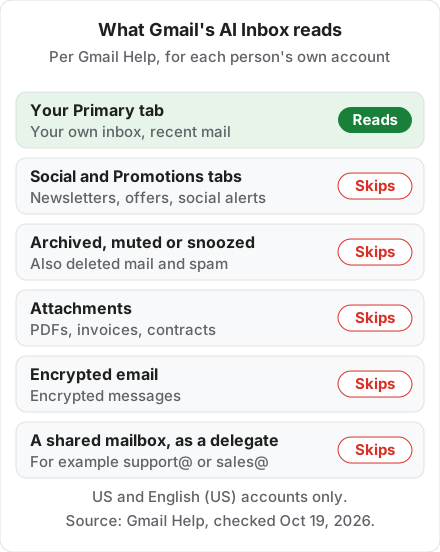
According to Gmail Help, AI Inbox:
- Reads only your Primary tab, not Social or Promotions.
- Leaves out spam and anything you archive, delete, mute or snooze.
- Does not support attachments, so a due date that sits only inside a PDF invoice won't become a to-do.
- Does not support encrypted email or delegated inboxes.
On privacy, Gmail Help says AI Inbox is covered by the Google Cloud Terms of Service. Google's Workspace privacy hub, which covers Gemini in Workspace generally rather than AI Inbox alone, says: "Your content is not human reviewed or otherwise used for Generative AI model training outside your domain without permission." Gmail Help also notes that some to-dos and topic updates "may be generated and used to optimize your experience, but not shown".
Does AI Inbox work on a shared inbox like support@?
No. Gmail Help says AI Inbox "does not support" delegated inboxes, and Google's admin help says "In Gmail, delegated accounts and shared inboxes are the same." So if your team works support@ as a delegated or shared mailbox, AI Inbox won't build to-dos from it. Gmail Help also lists Gemini in Gmail among the features delegates can't use.
Some teams set support@ up as a Google Group that delivers a copy of each email to every member. Those copies land in each person's own inbox, so each person's AI Inbox could pick them up. But AI Inbox is personal: Google describes Mark done and Remove for your own list only, and nothing about sharing or assigning a to-do. Two teammates could each get the same customer email as a to-do, and neither would see the other mark it done. The copies may not even match: in Android Authority's June hands-on, when the reviewer and his partner got the same emails, AI Inbox "only highlights them for one of us."
Here is how AI Inbox compares with what a support team needs from a shared address:
| What a support team needs | AI Inbox | Drag |
|---|---|---|
| Work the shared address | Not in delegated mailboxes | Yes, support@ becomes a shared inbox |
| One owner per email | Personal to-dos; no assigning | Assign by hand or round-robin |
| Avoid double replies | Not described | Warns when a teammate is replying |
| Track response times | Not described | SLA rules and reports |
| AI drafts | Reply button on a to-do | Varley drafts on Plus and Pro |
The AI Inbox column reflects Google's published pages as of October 19, 2026. Drag is our product, and the next section makes the case for it.
What to use for a team inbox instead
For a shared support or sales address, use a shared inbox that gives each email one owner, and keep AI Inbox for each person's own mail. Drag is built for that queue on Gmail:
- It runs on the Gmail address you already have. Drag turns support@ into a shared inbox and board your team works together, so there is no new address and no help desk migration.
- One owner per conversation. Assign emails by hand or round-robin, and talk each one through in internal notes with @mentions instead of forwarding.
- Fewer double replies. Collision detection shows when a teammate is already replying to the same customer.
- Response times you can see. SLA rules and reports track how fast the team replies, which Gmail doesn't report on its own.
- Varley works the shared queue. On Plus and Pro, Varley, Drag's AI, drafts and tags every email and answers from your help center and docs. On Pro, Varley also resolves conversations on its own, and your team works the rest.
- A price you can see. $12, $18 or $24 a seat a month, billed yearly, with Varley included on Plus and Pro, and a 7-day free trial with no card.






Where AI Inbox is the better choice: for each person's own mail. It costs nothing extra on the plans that include it, it needs no new tool, and it is good at surfacing a bill or a deadline you would otherwise miss in your Primary tab. The two work side by side: AI Inbox for your own inbox, Drag for the address your team shares.
Drag · with Varley
AI Inbox skips support@. Varley doesn't.
Keep your Gmail address. Drag gives every customer email an owner, warns you before two people reply, and tracks response times. On Plus and Pro, Varley drafts and tags every email in the shared inbox. 7-day free trial, no card.
Frequently asked questions
How does AI Inbox decide what's important?
Google says AI Inbox identifies your VIPs from signals such as the people you email often, the people in your contacts and relationships it can infer from message content, so a bill due tomorrow or a dentist reminder rises to the top. That comes from Google's January 8, 2026 launch post.
Is Gmail's AI Inbox accurate?
Useful, but not something to rely on alone. Android Authority's hands-on in June 2026, on a Google AI Pro account, found it surfaced bills, receipts and a parking warning the reviewer might have missed, but it was inconsistent, sometimes looked empty and is best treated as a backup rather than a reminder system. Google still labels it a beta.
Can AI Inbox reply to emails for me?
No, not on its own. A to-do can carry a Reply button, but you write and send the reply yourself; AI Inbox suggests and summarizes and doesn't send anything. Android Authority reported in May that Google showed AI Inbox drafting replies, but Google's help page doesn't describe that yet, so treat it as coming rather than here.
Can I turn off AI Inbox on my phone?
Not with a dedicated switch: Google publishes Show AI Inbox for Gmail on a computer only. The other route is the smart feature settings, but turning those off also switches off other Gmail features that use your email, such as events from Gmail in Calendar.
Related guides
- How to connect Gmail to Gemini: the other Gemini features in Gmail, and which plans include them.
- The Gemini agent: Google's AI coworkers with their own email address, and the same shared-inbox catch.
- Gmail delegation, explained: how delegating a mailbox works, and the features delegates lose.
- Shared mailboxes in Google Workspace: the ways to share support@ across a team.
- AI email assistants compared: eight tools priced for one person and for a team of five.
- Drag for Gemini: connect Gemini to your team's shared inbox through Drag's MCP server, on Pro.
Want AI on the inbox your team shares, not just your own? Start a 7-day free trial of Drag. Varley is included on Plus and Pro, and no card is needed.

Co-founder
Building Drag for nearly ten years: shared inboxes, boards, and now the AI and agent layer, all on Gmail, plus HeyHelp for the personal inbox. Writes the honest versions of the comparisons.
