













Learn how Gmail read receipts work and why they matter. Explore Drag’s email tracking as best alternative for real-time inbox insights.
Table of contents
- What is a Gmail read receipt?
- How to enable read receipts in Gmail?
- How to request Google Workspace read receipts?
- How to return receipts in Google Workspace?
- Benefits of Using Read Receipts
- What are the limitations of Gmail's read receipt feature?
- Gmail read receipt alternatives
- Are there any privacy concerns with using read receipts in Gmail?
Effective email management offers many important benefits, such as increased productivity, reduced stress, and stronger relationships. This is why we use email in our daily professional and personal lives in the first place. If we could only take the worry out of wondering whether the recipient has received and read that essential email we put so much time and effort into! Well, we can, and that's where Gmail read receipts come in.
If you, like so many people, already use Gmail to handle your emails, you may be curious if it allows read receipts. Fortunately, it does. Unfortunately, that's not the case for all account types. Luckily, there are additional alternative tools like Drag App that provide read receipts and more effective email management overall.
What is a Gmail read receipt?
A Gmail read receipt is a confirmation message sent back to the sender after the receiver has received and opened their email. When enabled, Gmail tracks the email's opening and alerts the sender. That way, you can confirm that your message has reached your recipient's inbox without getting lost, ending in spam, or failing to deliver.
How to enable read receipts in Gmail?
While email read receipts are simple, they're unavailable for personal Gmail accounts. They are exclusive to Google Workspace email accounts, which are typically used for work and school by users who have paid for Google services. Only the organization's admin can enable or disable this feature. Within the organization, admins have the authority to establish rules on who is eligible to request and receive read receipts.
Here's a simple step-by-step guide on how you can, as an admin, enable read receipts in Gmail for your organization:
- Sign in to the Google Admin console. Navigate to admin.google.com and log in with your administrator credentials.
- Access Gmail settings. From the Admin console dashboard, go to Apps > Google Workspace > Gmail > User settings.
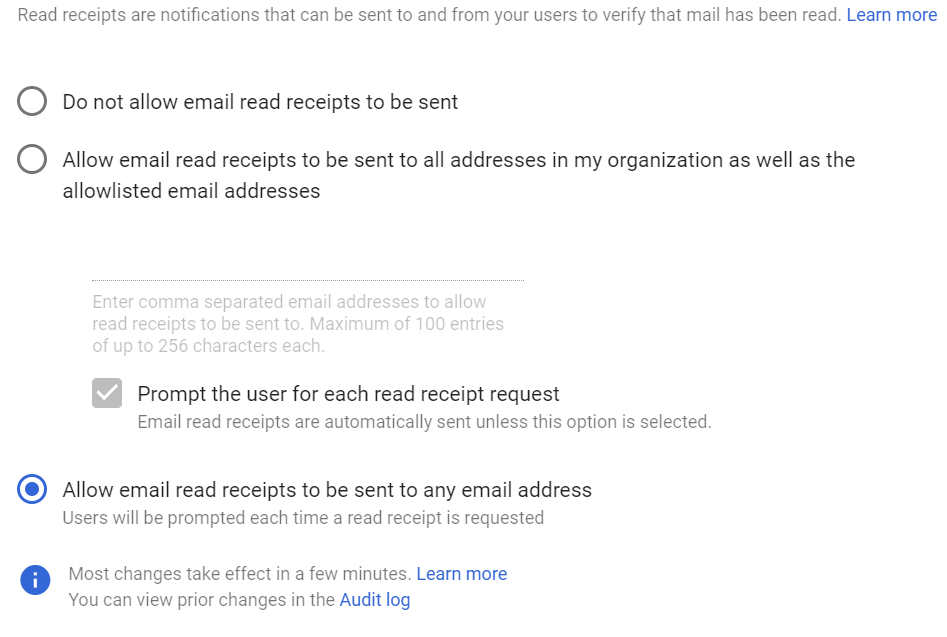
- Configure read receipt settings.
-
Scroll to the Email read receipts section.
-
Select one of the following options:
-
- Allow email read receipts to be sent to all addresses: Permits users to request and return read receipts to any email address.
- Allow email read receipts to be sent to addresses in my organization: Restricts read receipts to internal addresses only.
-
Click Save to apply the changes.
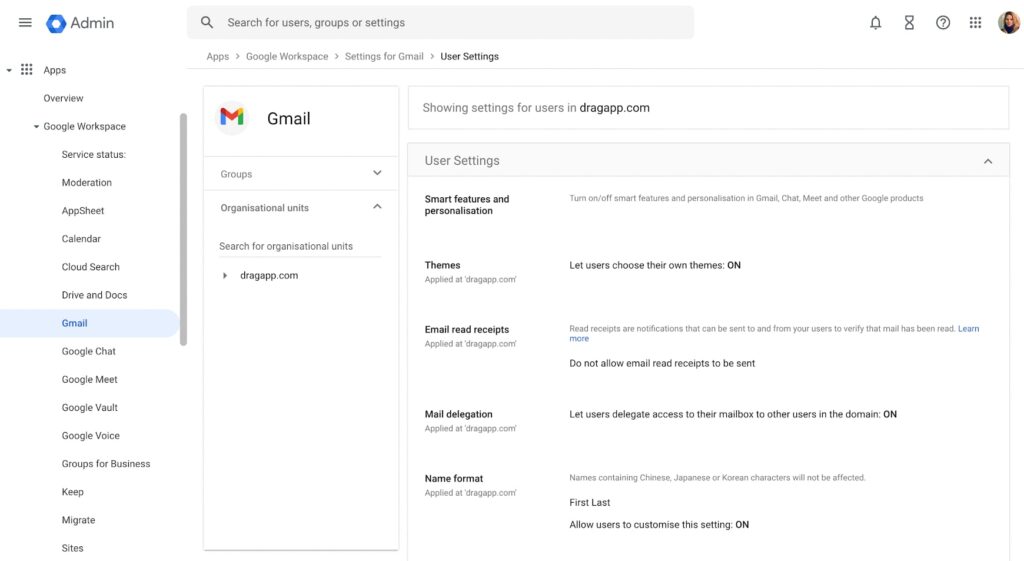 How to enable read receipts in Gmail
  If your main goal is to understand how Gmail users can determine whether someone has viewed their emails, you can go straight to the section "Gmail read receipt alternatives". There you'll discover effective third-party email tracking tools that can provide you with the necessary creative solutions. If you're a Google Workspace user, keep reading so you can make the most out of this practical email tool and get peace of mind.
How to request Google Workspace read receipts?
Read receipts are among the many other benefits of using Google Workspace, such as extensive communication and collaboration features.
Here's how you can request a read receipt if you already are a Google Workspace user.
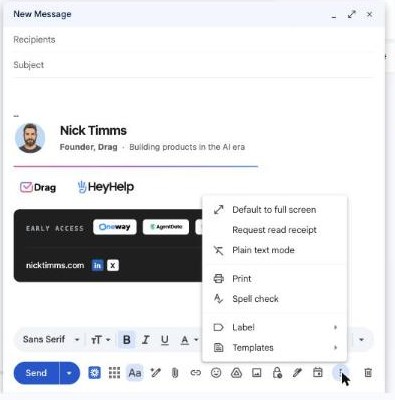
- Step 1: Launch Gmail on your Computer.
- Step 2: Select "Compose" to start writing your email as you normally would.
- Step 3: Click on the dotted menu, or "More options", in the bottom right corner of the screen. If you have read receipts enabled on your account, the "Request read receipt" option will appear. Before sending your email, select this option.
- Step 4: After you've chosen to receive a read receipt, send your email as normal. Gmail will notify the receiver that you would like a read receipt.
Drag AI
The inbox your team and your AI work in together
Shared inbox, live chat, and AI in Gmail, with an MCP server your AI tools can drive.
How to return receipts in Google Workspace?
If you're on the other side as a receiver of a message with a requested read receipt, and your administration has made it mandatory for you to authorize them beforehand, here's what you need to do to return them.
- Step 1: Check your emails by opening Gmail on your PC.
- Step 2: When a requested read receipt is requested for a specific email, a pop-up window will appear on the screen to inform you of the request.
- Step 3: You can choose from a few different messages that alert you to read receipts that the sender has requested:
- To submit the receipt right away, click "submit Receipt."
- To send the receipt later, choose "Not Now." The next time you open the message, the system will prompt you to do so.
Benefits of Using Read Receipts
Email delivery confirmation is the main advantage of Gmail read receipts, particularly for time-sensitive information. Once opened, senders can also observe how engaged their recipients are.
Here are more benefits of using this Google Workspace feature to help smoother workflow, especially in professional settings.
Client communications
Within an organization, read receipts can greatly increase the effectiveness of email communication. Senders can save time and lessen email overload by avoiding pointless follow-ups or reminders when they know whether an email has been read. Decision-making can go more quickly and with greater efficiency as a result.
Sales follow-ups
Gmail users who work in marketing and sales are often curious if their recipients have read their emails so they can assess the effectiveness of their efforts. Unread emails may have an impact on the tone of your follow-up correspondence. Marketers can better schedule their follow-ups when they know when an email has been read, as the read receipt serves as a signal for senders to start follow-ups at the right times.
Team collaboration
Most spread-out team members may find it easier to collaborate and communicate using the read receipt feature, as that way, they can acknowledge received messages without requiring spoken confirmation. That means you can immensely benefit from Gmail read receipts if you work remotely.
Better Project Management
Monitoring job allocations and communications is essential to Google Workspace project management. Knowing their emails have been received can make jobs easier for project managers; thus, they can greatly benefit from read receipts.
What are the limitations of Gmail's read receipt feature?
While this feature has certain benefits, it has its limitations.
It's not available for all Gmail Accounts
Although it's a useful function, if you have a free account, you won't be able to use it. Sending read receipts in Gmail is only possible with Google Workspace accounts that finish in "@companyname.com" or "@schoolname.edu."
It's optional
Gmail asks your receiver if they would like to send a read receipt when they receive your email, so they can read it and decide not to. That leaves you wondering if the recipient chose not to send a read receipt or if they did not receive your email.
This gives the recipient complete control over the "request read receipt" option, a major drawback of Gmail read receipts. Other technologies, such as email tracking tools, don't require recipient approval, and, thus, can provide you with far more accurate information.
It requires a manual setup
Gmail forces you to manually enable read receipts every time you create an email, which can be time-consuming and difficult to remember. This is in contrast to other providers that let you establish your read receipts automatically for every email you send out.
Gmail read receipt alternatives
As read receipts aren't available for personal Gmail accounts and there is no built-in method for Google Workspace users to be certain if someone has viewed their email, more and more users opt for more advanced solutions such as Drag App.
Drag is a productivity tool that works as both a Chrome extension and a web app and can transform Gmail into a collaborative workspace where everything from email tickets, leads, tasks, chats, and file management is readily accessible without leaving the tab.
Drag runs around shared "workspaces," which can be a Google Group, a shared inbox, or a blank area according to your team's requirements. You can choose between a Kanban board view and a standard list view for workspaces, which will give your work even more visibility.
Among its many other handy features, this Gmail shared mailbox offers email tracking to help you know whether and when the recipient has read your email. How does Drag work for tracking emails?
How to enable email tracking in Drag?
The email tracking feature is built into the Drag Chrome extension, so the first thing you need to do is install it on your computer. You can go to the Chrome web store, search for Drag Gmail, and click Add to Chrome to install it.



Drag's email tracking in Gmail
The next step is to sign in to Drag. Open your Gmail, and it'll integrate automatically. Sign in with your Google account so you can enable its features. You can enable or disable this feature for each email you compose or reply to.
Whether composing an email or replying to one, look for the checkmarks icon on the formatting bar. Clicking on this icon toggles the email tracking on and off.
When the checkmarks are filled in green, the email will be tracked; when not filled, it won't be tracked. This setting is automatically saved for future emails until you change it again.

Once an email is sent with tracking enabled, you can visually check its status. Unread emails display a single green checkmark while read emails have two green checkmarks. You can see these indicators next to the email subject in your Drag boards, inside the email body next to the date, or in the Sent folder in Gmail.
Additionally, by hovering your cursor over the checkmarks, you can see how many times your email has been viewed, as well as the exact time of the first and last views.
Are there any privacy concerns with using read receipts in Gmail?
Although read receipts are incredibly helpful, some people are concerned about their privacy. The fact that you are monitoring their email activities may make the receiver uneasy.
This may result in several possible issues:
- Unwillingness to open emails that include read receipts.
- Purposefully choosing not to send read receipts.
- Negative impression of senders who use read receipts excessively.
It's critical to keep these issues in mind in each of these situations. Ensure that you carefully use your read receipts, particularly when contacting new people or sending private emails.
On the other side, when using Drag's email tracking feature, recipients aren't explicitly notified that their email is being tracked. Drag does not add any visible indicators or messages to the email to inform recipients of the tracking.
However, it's important to note that some email clients and security tools may detect tracking mechanisms, such as tracking pixels or embedded images, and alert the recipient or block the tracking attempt. Therefore, while Drag App does not proactively inform recipients about tracking, certain recipients may still become aware of it through their email client's features or security settings.

Co-founder
Co-founder at Drag, writing about Google Workspace, shared inboxes, and how teams actually run email.
