













If you need shared contact management in Google Workspace to collaborate with your team, here's how to implement it.
Table of contents
- When do you need shared contact management in Google Workspace?
- Which sectors benefit from shared contact management on Google Workspace?
- Using shared contact management in Google Workspace
- Dedicated contact management tools
- Using Drag for shared contact management in Google Workspace
- Is it worth implementing shared contact management in Google Workspace?
- Shared contacts management Q&A
Your contact list is a key asset for your business. Knowing how to reach out to clients helps during and after-sales. However, most of the time, teams run into the problem of having individual email and phone number lists instead of shared contact management in Google Workspace. With that, they spend a lot of time and energy looking for and sharing individual details among collaborators. Need a supplier's phone for a quick check? It'd be easier to have immediate access than to ask a coworker for it, right? That's why it's important to find a way to implement shared contact management in Google Workspace. You and your team need adaptable, synchronized systems that keep everything on track and easy to find. Our guide will show you why these systems help and how to create them.
When do you need shared contact management in Google Workspace?
Basically, to make sure no contact information gets lost across your team. The idea here is that all of your clients and suppliers are easy to connect with, whether you're emailing them, calling, or using WhatsApp's popularity and reach to offer your services. Shared contact management in Google Workspace brings consistency to your brand's communication strategy. Clients will hear from you regularly, which helps with branding. But it also works to reinforce internal collaborations: if an entire team has access to their contacts, they can work together easily.
Leaving or entering roles in a company
One of the scenarios in which you need to share your contacts is when you're moving into or away from your role. Usually, professionals like sales agents and logistics leaders have categorized lists that are essential to their workflow. But what happens if they leave their position? The new person would need these lists to keep the company's momentum moving forward. Ideally, if these contacts are already available through Google Workspace, they can be used by other people on your team.
Establishing a professional setup
One issue that many entrepreneurs face is separating personal and professional communication. When creating a new Gmail for business or WhatsApp Business account, they need to continue conversations with contacts they interacted with through their personal address or number, at least temporarily. Here, they can manually export and import contact lists and let them know of the change, but there are two risks: forgetting some of them or adding people who aren't relevant to your work to the work directory. So, shared contact management in Google Workspace means the business owner could easily find contacts acquired through their personal account from their professional account using the search function and categorization.
Collaborating on projects
If you work with a team, there's an even bigger need for shared contact management in Google Workspace. Here's a scenario: You're planning a marketing newsletter to launch your new product and need a reliable contact list of people who might be interested in it. But if your Marketing team uses individual accounts, they'd need to replicate the campaign across each one. This can make data collection harder, so you won't have important overall Gmail statistics, such as open rates, click-through rates, A/B testing results, and so on. Of course, they can send their contact lists based on interests to the team's marketing@company account and run the campaign from there, but this process is time-consuming if the team is bigger and doesn't allow for real-time updates.
Which sectors benefit from shared contact management on Google Workspace?
Of course, having a dedicated contact directory accessible to all team collaborators is useful across the board. But there are a few departments that would benefit immensely from making it a company reality. Some of them are:
Sales
Any growing company's success is highly determined by its ability to reach multiple clients. However, the post-sales strategy is just as important. Your sales team should have a system in place to make sure the buyers have a good experience and remember your brand when they decide to make the next purchase. But to establish this long-term relationship, you need to understand customer profiles better, including their purchase habits, budgets, deadlines, and other operation factors. For example, a sales representative of a wholesaler needs to keep track of their partner store's stock flows and how to reach out at the correct times for additional orders. If they can use shared management contacts in Google Workspace, sales teams can adjust their schedule accordingly to find a balance between reaching out with enough regularity and not reaching out too often which inconveniences clients.
Financial operations
Your finance team's tasks require a lot of detailed information. So they're using shared contacts management in Google Workspace to fulfill invoice emails, add documentation to accounts payable queues, and saving receipts. This requires a high level of organization and collaboration, including a collective, reliable contact list. For instance, if your company often hires freelancers, the managers will email the Finance department with their banking details. Then, as the payment process moves along, they can notify the freelancer if everything is ok or if they need extra documentation and details. If the contacts are shared across the company, this process is a lot faster.
HR
Using shared contact management in Google Workspace
There are two ways to implement shared contacts management in Google Workspace. Manual sharing works with all accounts, free or paid, and can be done across domains. Contact delegation is meant for internal data only and requires you to be part of a Google Workspace Business Plan. Here's what you need to do for each option:
Manual sharing
The most hassle-free way of sharing Google Contacts between accounts is just exporting and importing them into a new account. This is pretty limited, and it requires repetitive action if you're constantly adding new contacts. This means that it's not an actual shared contact management system in Google Workspace, but it's a start. It's usually better suited for when you need to permanently transfer Google Accounts. However, it can work for any workflow that requires little to no contact list updates. First, open Google Contacts with the account you need to share and click on the Export icon.
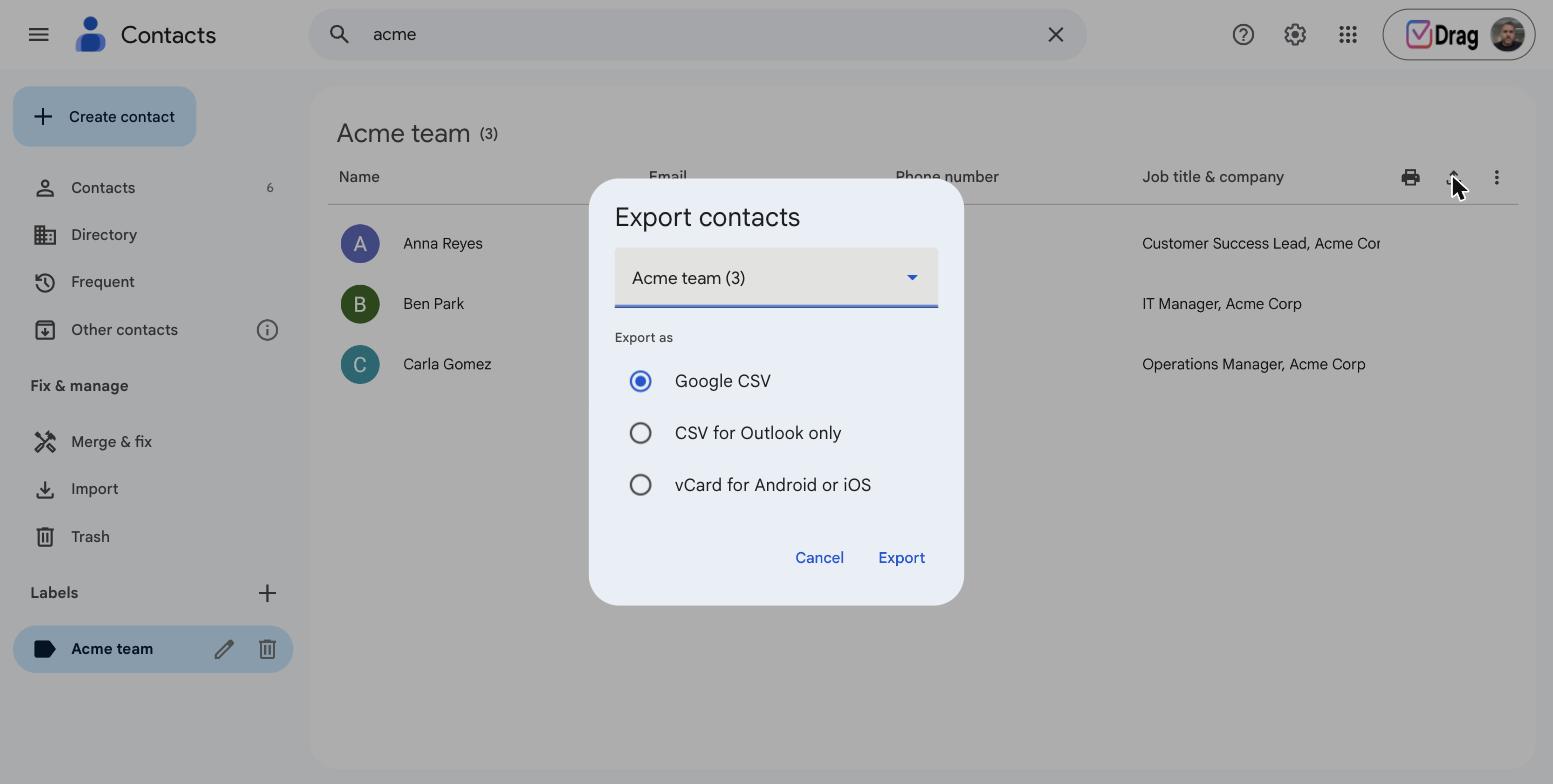
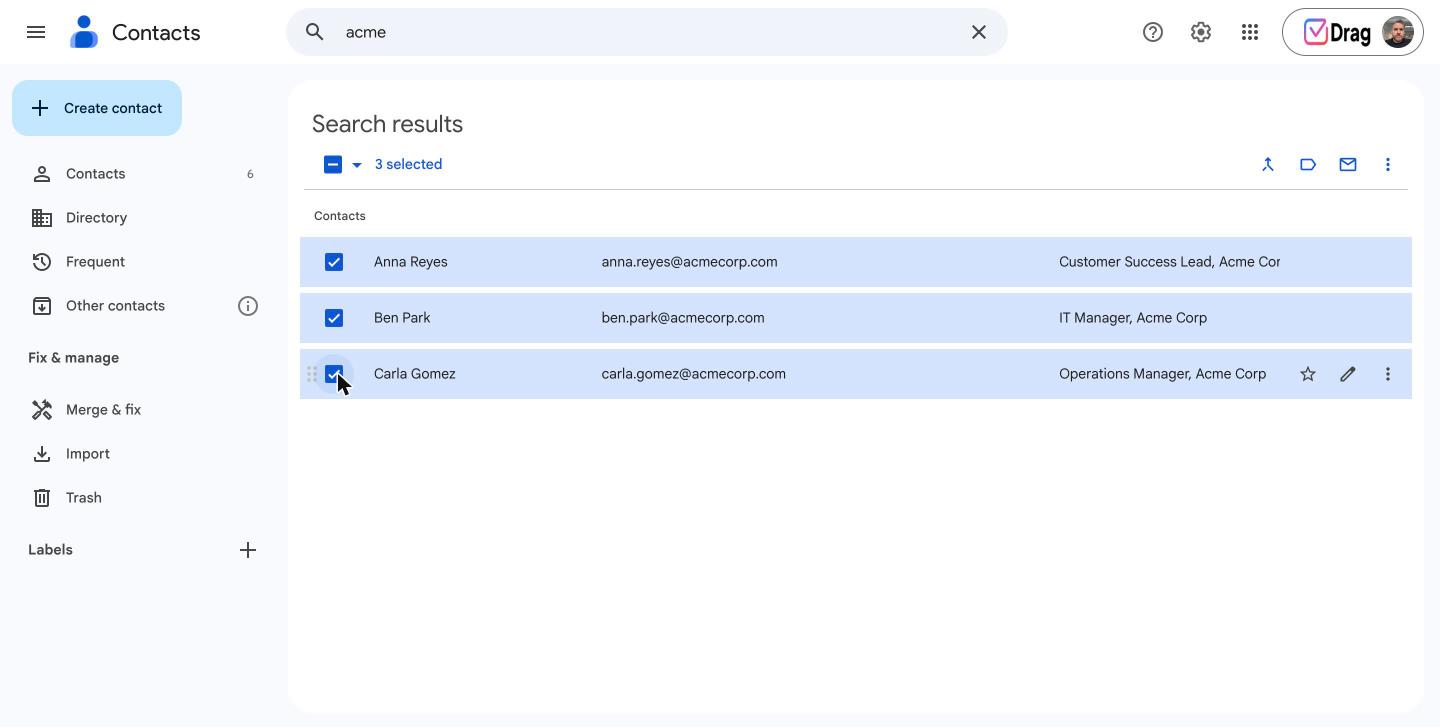 Then, select the contact lists you want to share (or all of them) and the format:
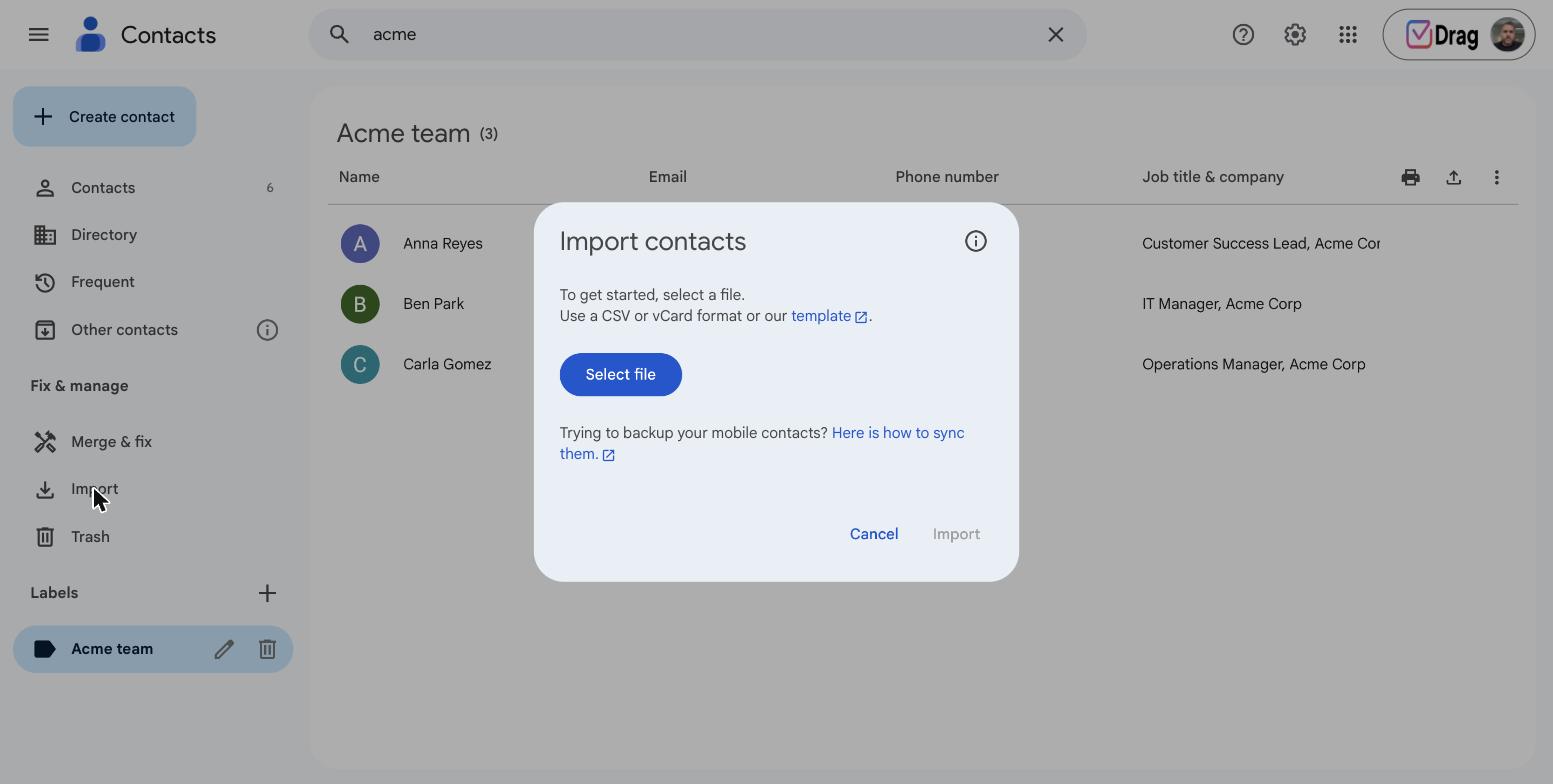
 Now, log into the second Google Account and click on Import on the left menu. As soon as the file is uploaded, this account will have all of the information provided by the primary account.
Contact delegation
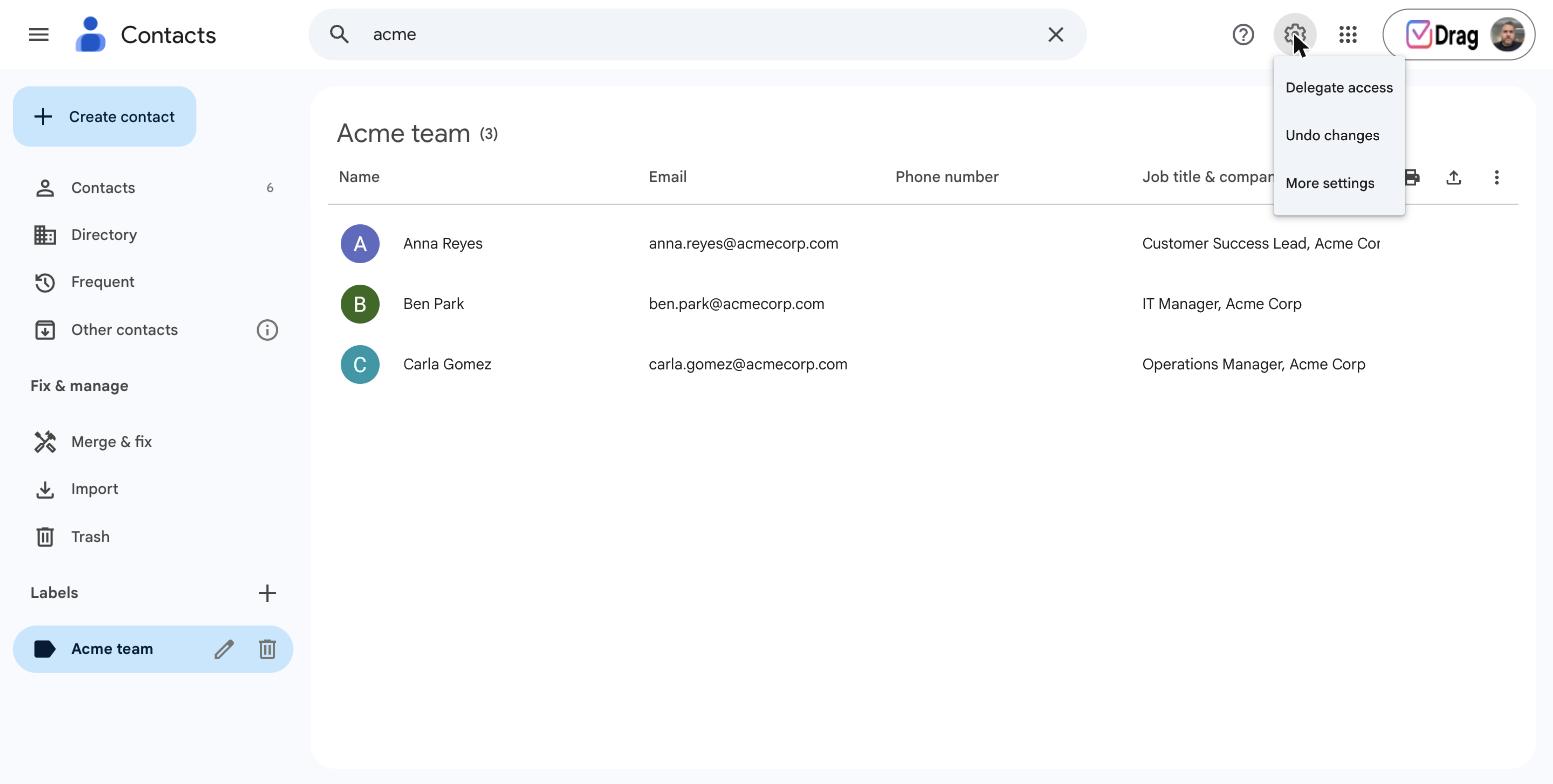
There's a native option on Google Workspace business accounts that allows users to share their contacts with other users in the same organization: global directory. This option should be activated by the Google Workspace Admin profile. After it's on, team members can follow this guide to delegate contacts:
- Open Google Contacts on your browser;
- Sign in with your professional email;
- Click Settings > Delegate access;
- Then, Invite delegate;
- You'll be able to select up to 25 users from your organization to delegate your contacts to;
- To finish, hit Send.
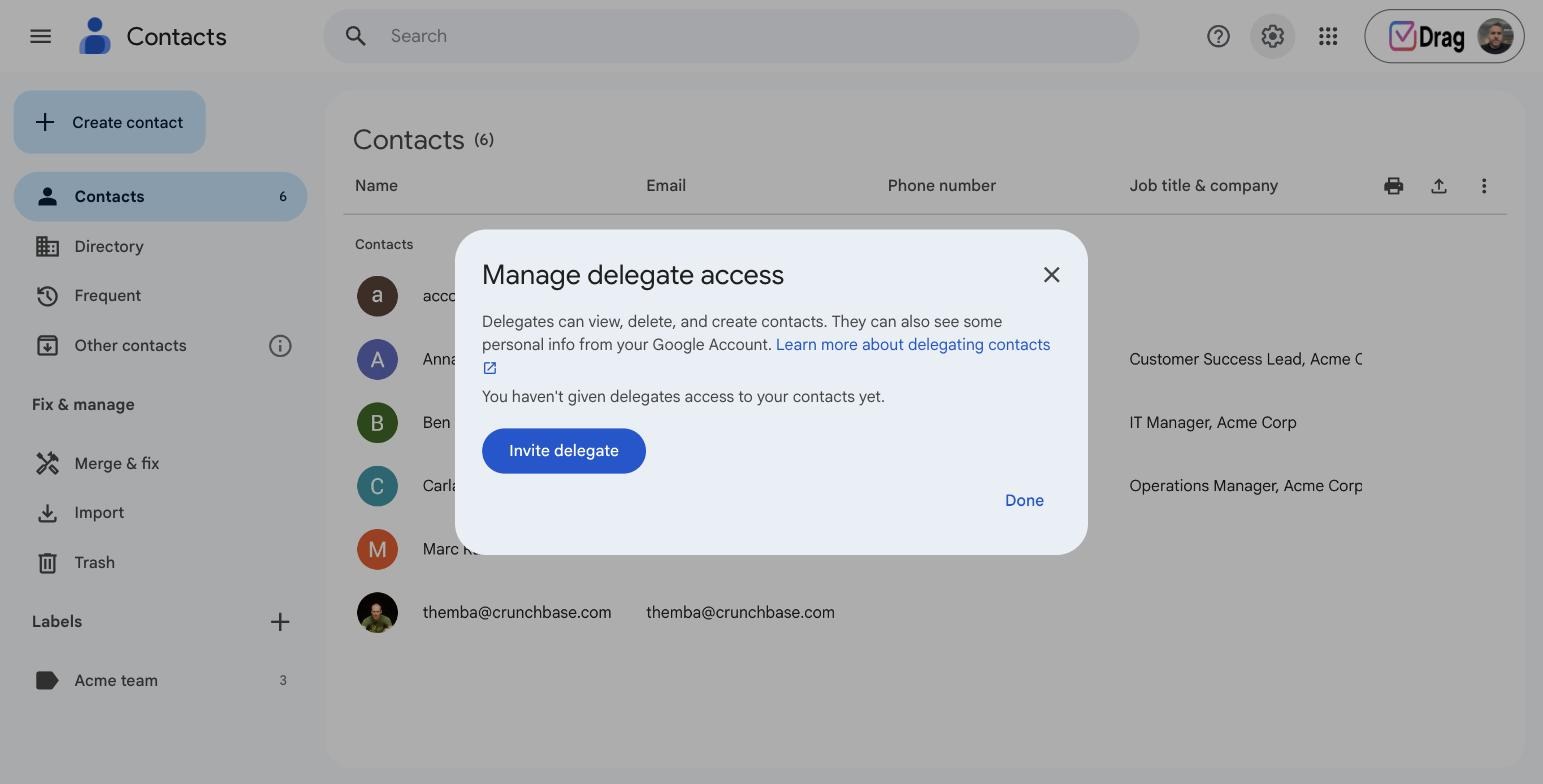
It's important to note that delegates cannot import, export, or merge your contact lists. They can view, edit, and manage contacts and all their fields. They can also add new ones and use the search bar to find any information they need. So, it can be considered an actual shared contact management system in Google Workspace. However, due to delegate limitations, it's not very practical when you're working in bigger teams and need to go through this process multiple times whenever someone requires access to a specific list.
Drag · with Varley
The inbox your team and Varley work in together
Shared inbox and live chat for Gmail teams, with Varley, Drag’s AI, included from $18. Plus an MCP server your own AI tools can drive.
Dedicated contact management tools
Google Workspace allows users to implement dedicated tools and extensions that can help managers benefit from Google products with higher flexibility. With platforms like ContactsBoard, your team can collaborate across channels - inclusing Gmail, Google Calendar and Drive - with contact sharing. That is, you can work together on tasks like recruiting, sales, and more while everyone has access to segmented contact lists. So instead of manually transferring individual contacts or having to create multiple groups for each project, you'll be able to share them as needed and with the right security.
Using Drag for shared contact management in Google Workspace
DragApp is a shared inbox for Gmail that turns your email into a full-fledged workspace. Instead of each team member working through their own account and having to export data and import it into the team's account, you can create a collective space and add collaborators to it. The other advantage of this system is that it includes productivity resources such as customizable Kanban boards. Basically, it turns regular messages into task cards that you can move along your workflow and add details to. So, a recruiting workflow can look like this:




These contacts can then be shared with your collaborators and added to task cards so they're easy to find and contextualize during projects that involve them. There are some additional benefits of using Drag as shared contacts management in Google Workspace, including:
Multiplatform contact management
Drag is a Gmail-based extension, but it integrates WhatsApp and Gmail as well and you can even create dedicated WhatsApp inboxes. So, if, for instance, a sale starts on a WhatsApp chat and moves to Gmail, you can use the shared contacts list to make the process go smoothly.
User roles and permissions
Another advantage of opting for Drag is being able to set user roles and permissions. Native Google Contacts sharing is pretty limited to labels and all-or-nothing sharing. With Drag, you can add users to one or multiple boards, then give them access to admin tools or not. This is key for maintaining data integrity and security. For example, if your development team works with freelancers, you can add the team leader to the Finance board to share the freelancers' contacts with the accounts payable team, but don't give them permission to edit the workflow.
App integrations
Drag was developed with Google Workspace in mind, so you can use it alongside your Calendar, Google Drive, and cloud storage. However, it can also work with thousands of additional apps via Zapier integration and custom APIs. You can take your shared contacts management in Google Workspace from Drag and use it to create automation with other platforms that are part of your ecosystem.
Is it worth implementing shared contact management in Google Workspace?
Yes, by creating a real-time shared contact directory, you can make sure your team has all the resources they need to complete daily tasks. This can benefit multiple areas of your work, from recruiting talented candidates to fulfilling orders and paying for services. With that in mind, it's important to use the correct platform, like a shared inbox, that allows users to create and personalize their shared contacts management in Google Workspace and use them along with other tools.
Shared contacts management Q&A
- Can you share contacts directly through a free Google Workspace account?
Yes, you can manually export and import contacts from one Google account to another. However, this process has to be done for each new contact.
- If you're at the same company, can you see and use each other's Google Workspace contacts?
If the Google Workspace account admin opts into the Directory, yes. This means users from the same organization can delegate contacts to each other and manage their lists. This makes it easier to add or edit contact information in real time.
- What's the benefit of using shared contacts management in Google Workspace?
With shared contact lists, you can skip the back-and-forth and go directly to the person you're reaching out to. This enhances productivity and helps you streamline your workflow.
- Can you customize your shared contacts management in Google Workspace?

Co-founder
Co-founder at Drag, writing about Google Workspace, shared inboxes, and how teams actually run email.
