













When you backup and restore WhatsApp chats, you can continue your conversations with customers seamlessly. Here's how to do it!
Key takeaways
- Android WhatsApp backups now count against Google Drive storage, the free era ended in 2024, and videos are the biggest saving if space is tight.
- Encrypt the backup end to end and store the 64-digit key off-phone, WhatsApp cannot recover it for you by design.
- Restore before customizing on a new phone, the prompt appears once and is painful to reach later.
- Business WhatsApp conversations belong in a shared inbox the company controls, not in a backup on one person's phone.
Table of contents
- When to backup and restore WhatsApp chats?
- Backing up your WhatsApp account
- Can you backup and restore WhatsApp chats on a browser?
- Restoring WhatsApp chats
- Encrypt the backup: the setting most guides skip
- Transferring your message history
- Including WhatsApp into Google Workspace
- Conclusion
- What you need to know before you backup and restore WhatsApp: FAQs
Your professional WhatsApp account is a key factor in your business strategy and should stay safe. After all, chats with customers, potential contacts and files are important to have at hand. So knowing how to backup and restore WhatsApp chats can make a huge difference.
The short version: WhatsApp backs up to Google Drive on Android and iCloud on iPhone, and the two never mix, which is why cross-platform moves need WhatsApp's transfer tool rather than a backup. Two things changed recently that old guides miss: Android backups now count against your Google account's storage quota, they stopped being free, and you can encrypt backups end to end with a password or 64-digit key, which you should. Setup for each, the storage math, and what a backup does and does not save, below.
Related: How to Use WhatsApp on Desktop
When to backup and restore WhatsApp chats?
Besides a change in roles and responsibilities, there are a few other situations your backup might come in handy. One of them being a tech upgrade. Say the company phone is outdated and you invest in a new model. Since it isn't synced to the account, you can log into your profile, but you won't have access to the chats. So having the message history and contact list is crucial to keep your communication going with no friction. Here, backup and restoration are a priority. But of course, you can also use it to your advantage in case unplanned device changes happen. If your main phone is stolen or damaged, for instance, you will need to access your history again. If you've prepared beforehand, this is pretty easy to do. Many teams that rely on WhatsApp for customer interaction, such as WhatsApp for sales teams, can benefit from a constant backup system. That way, if anything happens, they are sure to keep up with the sales pipeline no matter what. Related: WhatsApp Business Auto Reply
Backing up your WhatsApp account
The first step when you backup and restore WhatsApp chats is, of course, setting up your backup. You can do it either manually or create a regular backup system. Before you start, however, make sure you have a cloud-based storage option. That way, you can save your backup somewhere you can access even if the phone is compromised. If you're using an Android device, make sure it's logged in and you have enough space on your Google account. Similarly, if you're on iOS, make sure you're logged into an iCloud account with enough available storage. Then, follow this step-by-step: 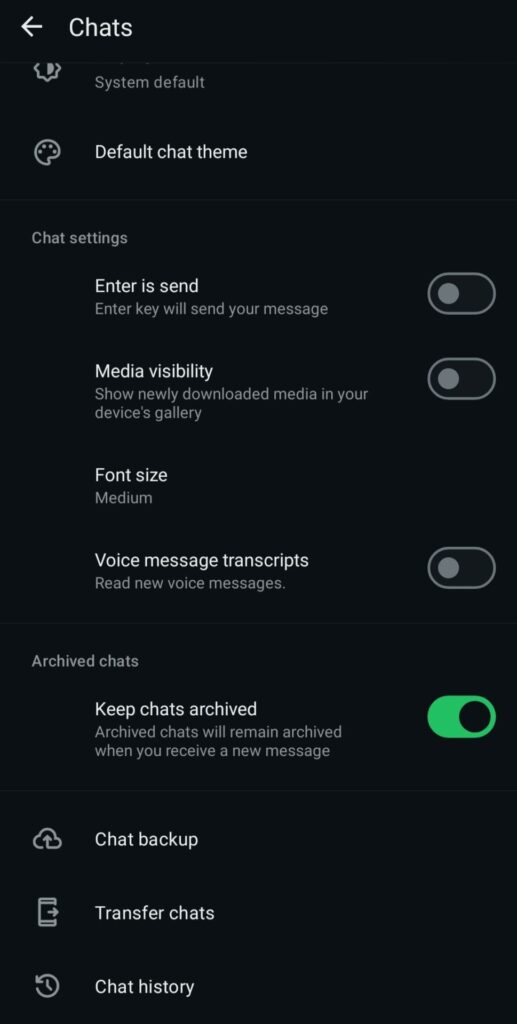
- Open the WhatsApp account you'd like to backup;
- Click on More options (three-dot icon);
- Then Chats > Chat backup;
- Now, select Backup and the app will process it for you.
To make this easier, you can also set up automatic backups to avoid losing important files:
- Go to Chat backup > Back up to your Google Account;
- Select the correct Google account or log into one;
- Pick your backup schedule (for instance, weekly);
- You can also choose if you'll include videos and whether to use cellular data or just WiFi.
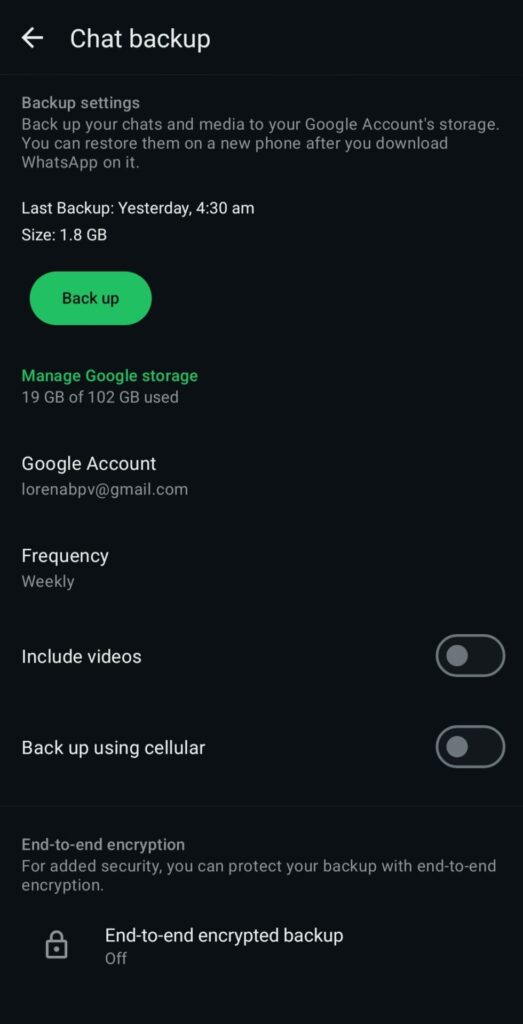
One change worth knowing before you schedule anything: since 2024, WhatsApp backups on Android count against the same Google storage that holds your Drive, Gmail and Photos, the free unlimited era ended. A media-heavy backup can be tens of gigabytes, most of a free 15GB account. Your levers: back up without videos (the single biggest saving), clear WhatsApp's own storage of forwarded junk first (Settings, Storage and data, Manage storage), or pay for extra Google storage if the history genuinely matters. iPhone users have always faced the same math against iCloud's free 5GB.
Can you backup and restore WhatsApp chats on a browser?
The short answer is no. WhatsApp Web and the Desktop app are linked devices, they mirror the account but cannot create or restore backups; backup and restore live in the phone app only. What you can do from a computer is keep working while a phone-side backup runs, and export individual conversations from the phone (each chat's menu, Export chat) when you need a per-conversation copy outside the backup system. If the reason you want browser-side backup is that a whole team works the account, the last section covers the setup that makes backups almost irrelevant.
Drag · with Varley
The inbox your team and Varley work in together
Shared inbox and live chat for Gmail teams, with Varley, Drag’s AI, included from $18. Plus an MCP server your own AI tools can drive.
Restoring WhatsApp chats
Now that you have the backup files on your Google Account, restoring the chats to a new device is a quick process. Here's how to do it:
- Download WhatsApp on the new device;
- Make sure the Google Account is also logged in;
- On the login page, enter your phone number attached to the account;
- Enter the verification code;
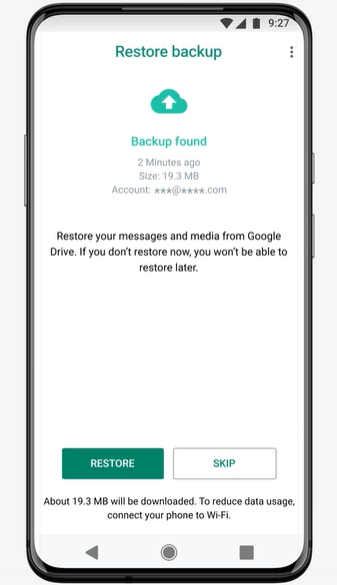
- On the next page, you'll be notified of any existing backups;
- Review the data and click Restore;
- WhatsApp will download all the files;
- Click Next;
- Add your name and profile photo, then Next;
- WhatsApp will open your inbox with all the message history up until your last backup.
 Related: Schedule WhatsApp Message
Encrypt the backup: the setting most guides skip
An ordinary backup is readable by the cloud it sits in; an end-to-end encrypted one is readable only with your password or 64-digit key. Turn it on under Settings, then Chats, then Chat backup, then End-to-end encrypted backup, and store the key somewhere that survives losing the phone, because WhatsApp cannot recover it for you, that is the point. One warning for teams: an encrypted backup protects the data, but it also means a departing teammate who holds the key holds the history, which is one more reason business conversations belong in a system the business controls rather than on one person's phone.
Transferring your message history
There's a quick way to back up and restore WhatsApp chats that don't include using cloud storage. This is mainly useful for quick transfers, but it doesn't account for damaged, stolen, or otherwise compromised devices. You can try this method if you're simply upgrading your device and have full access to both endpoints through the same number. They also need to be connected to the internet and fully charged. The step-by-step is:
- On the old phone, open the WhatsApp account you want to transfer;
- Go to Settings > Chats > Transfer chats;
- Tap Start;
- Keep it open.
Meanwhile, on the new device:
- Download WhatsApp;
- Set up your profile with the same number;
- You'll get a Transfer chat history from the old phone prompt;
- Tap Start;
- The new phone will show a QR code to scan with the old phone;
- Authorize the connection;
- Keep both phones connected to the internet and unlocked during the transfer;
- The progress can be monitored through the bar (the length depends on file size);
- When the transfer is ready, click Done and you're good to go.
Including WhatsApp into Google Workspace
If WhatsApp is one of multiple communication hubs for you and your team, you might need a way to include it with your other channels. For example, if you offer customer support through chat and email, integrating WhatsApp and Gmail helps you define a cohesive strategy with tools like auto-replies, message templates, and customer service metrics reports. A great way to do this is through a shared inbox in WhatsApp, like Drag. Drag offers a full, collaborative workspace that includes both your Gmail and WhatsApp inboxes in the same place. That way, everyone on the team can use their own credentials to log into a collaborative mailbox to view, manage, and reply to messages across platforms.




Messages can be turned into Kanban-style tasks, which managers can assign to team members, set deadlines for, and personalize according to each workflow. These tasks can include tags, file uploads, task notes, and much more. It's also a great way to backup and restore WhatsApp chats in a reliable space. Drag is connected to your Google Workspace account, so any files can be stored on the cloud safely and shared with collaborators. Beyond that, Drag also connects to other tools through Zapier when the workflow needs it. And since users check for new messages directly on Drag, they won't need to backup files every time they switch phones or a device gets compromised. The biggest benefit of having WhatsApp and Google accounts together is that your manager or IT representative can use the admin console to implement Google Workspace security best practices across the board. Related: WhatsApp User Statistics
Conclusion
The ideal time to backup and restore WhatsApp chats is before anything happens. If you keep a regular backup schedule, you won't lose any relevant files if you need to change devices quickly. However, it's always a good practice to implement to avoid potential issues in the future. You can also manually backup and restore WhatsApp chats or even transfer them between devices if the process is planned. This only takes a few minutes and can make all the difference to avoid losing customer data, questions, and inquiries. After all, keeping up reply time and overall efficiency is key to a good professional WhatsApp presence. A seamless experience, both for you and your customers, is always the best option. And if the WhatsApp account is a team's, the honest fix is above: a shared inbox the company controls, with plans from $12 per user per month and a 7-day trial that needs no card.
What you need to know before you backup and restore WhatsApp: FAQs
Do WhatsApp backups still use free Google Drive storage?
No, that ended in 2024: Android backups now count against your Google account's storage quota alongside Drive, Gmail and Photos. Back up without videos or clean WhatsApp's storage first if you are near the 15GB free ceiling.
Can I move WhatsApp chats from Android to iPhone?
Yes, but not via backup, Google Drive and iCloud backups are incompatible. Use WhatsApp's built-in transfer flow during new-phone setup; it moves history directly between devices.
What is an end-to-end encrypted backup?
A backup only you can unlock, with a password or a 64-digit key created when you enable it. Without the key, nobody can read it, including WhatsApp, so store the key somewhere safer than the phone itself.
How do I restore my chats on a new phone?
Install WhatsApp, verify the same phone number, and accept the restore prompt that appears before setup finishes. Order matters: skip that prompt and reaching the backup afterwards is painful, usually a reinstall.
Does a backup save everything?
Messages yes, media if included, calls history yes; payment data no, and linked devices no, you re-link your computers after any restore. And it is only as fresh as its last backup run, so anything since the last one is not in it.

Co-founder
Co-founder at Drag, writing about Google Workspace, shared inboxes, and how teams actually run email.
