













Learn everything important about using WhatsApp on your computer with the desktop app. Discover a seamless messaging experience on Windows and Mac.
Table of contents
- What is WhatsApp Desktop App?
- How to set up WhatsApp Desktop
- Advantages of using WhatsApp on PC
- WhatsApp on PC vs WhatsApp Web
- Limitations of WhatsApp Desktop
- Alternatives to WhatsApp Desktop App
- Which should you use: Web or Desktop?
- One number, whole team: WhatsApp on everyone's computer
- Frequently asked questions
When Brian Acton and Jan Koum first launched WhatsApp in 2009, its original purpose was to track users' work statuses and inform their contacts of their availability. As its early user base embraced the app's capability to notify other users, it quickly became a messaging platform. We can only imagine if its founders expected or hoped that WhatsApp would become the most popular messaging app in the world, but 3 billion users later, and here we are. Since the beginning, the ability to communicate worldwide and between platforms is what made WhatsApp so popular. The app kept evolving, and today, it’s available on Android, iOS, WhatsApp web, and desktop. Features like video calls and voice notes have improved personal instant messaging, while message scheduling and auto-reply options have improved business communication. Here’s what you need to know about WhatsApp Desktop, including how to install it, advantages, and alternatives to help you incorporate it into your everyday routine, particularly while using it for work.
The short version: WhatsApp runs on a computer three ways: WhatsApp Web (web.whatsapp.com in any browser), the WhatsApp Desktop app for Windows and Mac, and either one works as a linked device, meaning your phone can be off or offline for up to 14 days and your chats keep flowing. Linking takes a QR scan and about a minute. The guide below covers each method step by step, what works and what does not on a computer, and the setup teams should use when one WhatsApp number needs many people answering it.
What is WhatsApp Desktop App?
WhatsApp Web and WhatsApp Desktop are the same idea in two wrappers: linked-device clients that mirror your account, end-to-end encrypted, without needing the phone in the loop after setup. WhatsApp Web lives in a browser tab, nothing to install, ideal on machines you do not own. The Desktop app installs on Windows or Mac, sits in your dock or taskbar with proper notifications, and generally earns its keep on the computer you use daily. Both connect the same way, by scanning a QR code from the phone once, and both stay linked across restarts until around 14 days of inactivity logs them out.
How to set up WhatsApp Desktop
WhatsApp Desktop is available for Windows and Mac. It’s easy to install and takes just a few minutes. 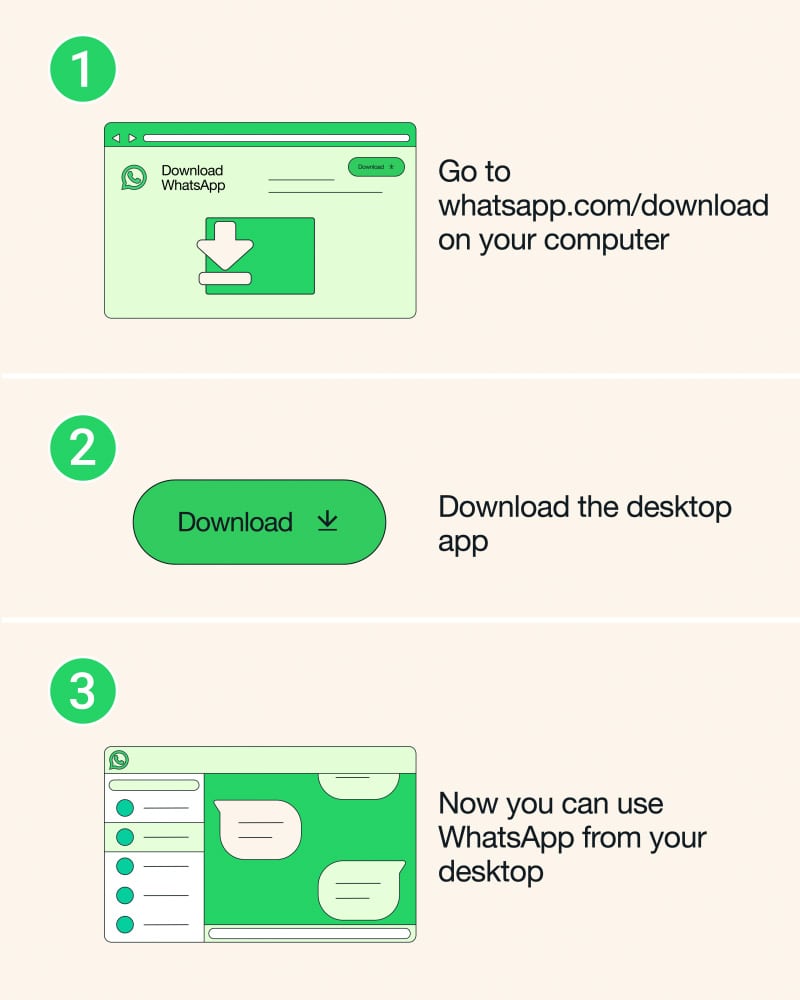
How to download WhatsApp Desktop for Windows
You can use WhatsApp Desktop on Windows 10 64-bit 1903 or later. WhatsApp Web is accessible through your browser on all other operating systems.
- Visit the App Store on Microsoft
- To finish the installation, download the app and follow the instructions
How to download WhatsApp Desktop for Mac
You can use WhatsApp Desktop on macOS 11 or later.
-
Get it from WhatsApp.com
- Go to the WhatsApp Download page in the browser on your PC, then download the Desktop Mac version.
- Open the file after it has finished downloading, then follow the instructions to finish the installation.
-
Get it from the Apple App Store
- Download the Desktop Mac file from the Apple App Store
- To finish the installation, download the app and stick to the instructions
How to link a device
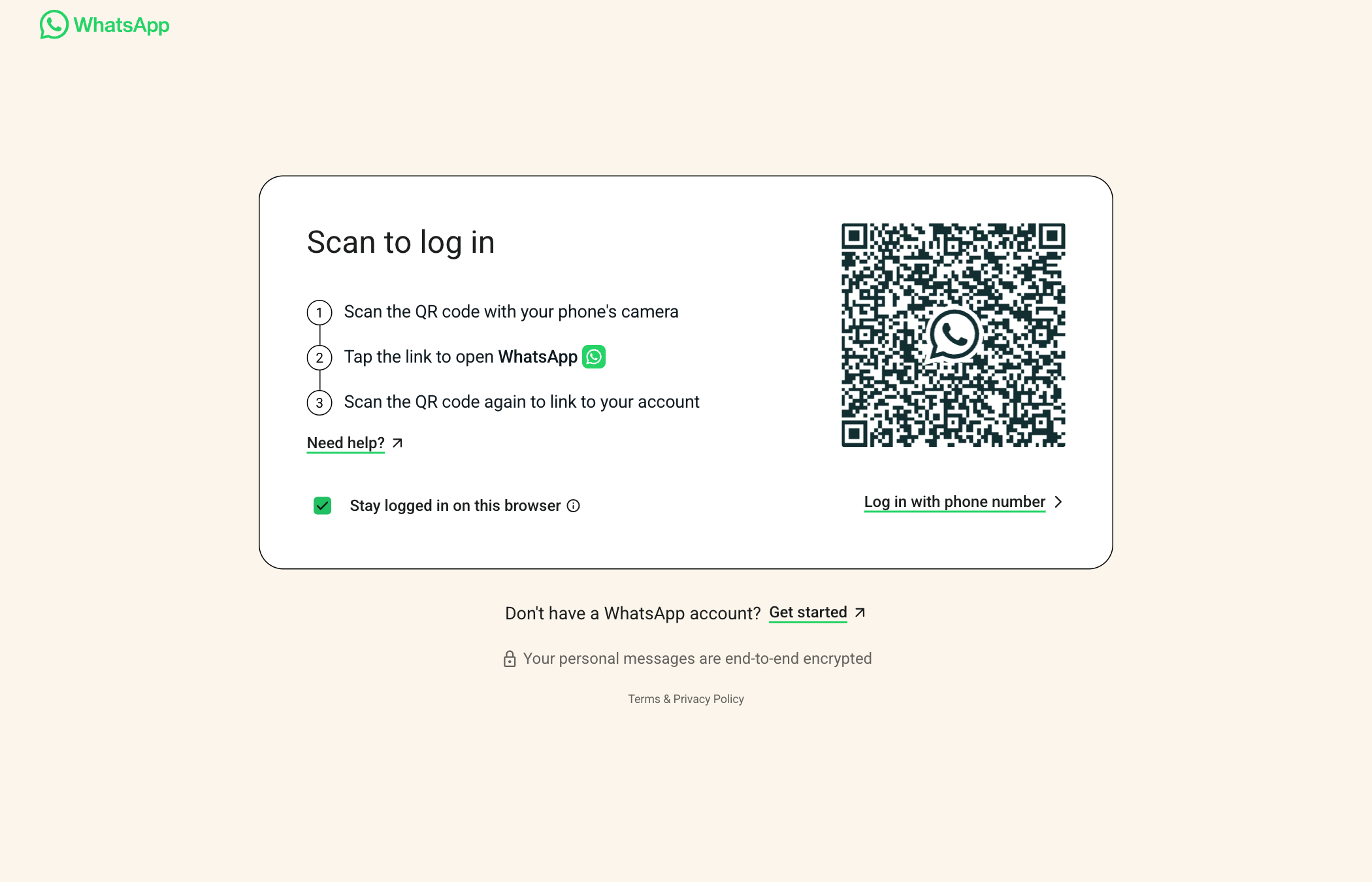
You can use WhatsApp on up to four connected devices simultaneously without keeping it open on your primary phone. To keep multiple user devices linked to your WhatsApp account, log in to WhatsApp on your primary phone every 14 days. To link a device for the first time, launch WhatsApp for Windows or Mac on the device you wish to link. A QR code will appear, which you can scan with your primary phone.
Android
- On your primary Android phone, launch WhatsApp.
- Press more options > Devices linked > Connect a device.
- Verify your identification on your primary phone when prompted:
- Follow the on-screen directions if your smartphone has biometric authentication.
- It will ask you to input the PIN you use to unlock your phone if you do not have biometric authentication activated.
- Scan the QR code by pointing your primary phone at the screen of the device you wish to link.
iPhone
- On your primary iPhone, launch WhatsApp.
- To link a device, select Settings > Linked devices.
- Use your primary phone to confirm your identification if asked.
- Follow the on-screen directions if your smartphone has biometric authentication.
- It will ask you to input the PIN you use to unlock your phone if you do not have biometric authentication activated.
- Scan the QR code by pointing your primary phone at the screen of the device you wish to link.
Advantages of using WhatsApp on PC
Increased call capacities, autonomous operation, quicker loading times, and recognizable interfaces make WhatsApp Desktop essential for smooth and safe messaging and calling experiences. Here are some of the main benefits of these features.
- Increased productivity. Because you don’t need to check your phone for new messages constantly, you can focus on your tasks and promptly reply to messages without interfering with your work when you receive notifications straight to your desktop.
- Easy integration of other tools such as Google Drive or Dropbox. Sending media files or documents is simple and doesn't require switching between systems.
- Convenience and ease of use. Those who are accustomed to typing frequently find that a physical keyboard is far more comfortable than a smartphone's virtual keyboard. This is particularly helpful for lengthy chats or business communications.
- Improved multitasking. WhatsApp Desktop makes working on numerous tasks at once possible. Sending documents, checking other apps, and switching between conversations is simple and uninterrupted.
Drag AI
The inbox your team and your AI work in together
Shared inbox, live chat, and AI in Gmail, with an MCP server your AI tools can drive.
WhatsApp on PC vs WhatsApp Web
Another way to use WhatsApp on a computer is through WhatsApp Web or WhatsApp Business Web. It provides the same capabilities straight from the browser if you don't want to install the desktop app. Simply visit web.whatsapp.com and scan the QR code using the same steps. Nearly all browsers, including Chrome, Firefox, Microsoft Edge, and Safari, are compatible with WhatsApp Web. Both WhatsApp Desktop and WhatsApp Web let you use WhatsApp on a computer, but they work differently. WhatsApp Web is browser-based, meaning you don’t need to install anything, just open the site, scan a QR code with your phone, and start messaging. As a linked device, it keeps working even if your phone goes offline for up to 14 days. WhatsApp Desktop, on the other hand, is a standalone app you install on your computer. Once linked to your phone, it stays connected even if your phone goes offline for a while. It also supports extra features like keyboard shortcuts and desktop notifications, making it more convenient for frequent users. If you prefer a quick, no-install option, WhatsApp Web is great. But if you want a more stable and feature-rich experience, WhatsApp Desktop is the better choice.
| Feature | WhatsApp Desktop App | WhatsApp Web |
|---|---|---|
| Installation Requirement | Requires download and setup | Browser-based; no download required |
| Performance | Faster and more stable | May depend on the browser's speed |
| Features | Supports calling (audio/video) | Messaging and voice calls (video needs Desktop) |
| Security | More secure (app-based) | Vulnerable if the browser is compromised |
| Device Connectivity | Syncs directly with the phone | Works with the phone offline |
Limitations of WhatsApp Desktop
The capability gap between Web and Desktop has narrowed to roughly one thing: video calls. Messaging, media, voice notes, groups, status, and voice calls all work in both. Video calls work in the Desktop app; on WhatsApp Web they are not yet available, which makes Desktop the pick if you make video calls from the computer. Broadcast lists are limited on both, and a handful of settings and account-level changes stay phone-only. For typing and voice, either is complete; for video calls, install the app.
Alternatives to WhatsApp Desktop App
If you’re using WhatsApp Desktop for your business interactions, you’ve probably noticed its limitations, especially when it comes to team collaboration and business workflows. While the app is great for quick chats, businesses, regardless of their size and team members, often need more advanced tools to streamline communication and improve efficiency. That’s where the following alternatives can help.
1. WhatsApp Business API
Although business communication is the focus of both WhatsApp Business and WhatsApp Business API, the latter offers more sophisticated capabilities and integration possibilities. The WhatsApp Business API is a revolutionary solution for medium-sized to large businesses looking to connect with hundreds, and even thousands of customers at once to generate more sales and conversions. Companies can design a personalized communication flow that meets the demands of their clients by using features like interactive messages with call-to-action buttons, dynamic product catalogs, and rich media sharing, improving the customer experience. Additionally, it allows for two-way conversations, supporting both user-initiated and business-initiated messages, which can be particularly useful for notifications and customer support. However, unlike the free WhatsApp Business App, the WhatsApp Business API is a paid solution with conversation-based pricing. Pricing varies by country and category of conversation.
Which should you use: Web or Desktop?
Web wins when the computer is not yours, the office hot-desk, a borrowed laptop, since it leaves nothing installed and logs out cleanly. Desktop wins on your own machine: real notifications, keyboard shortcuts, faster switching, and no lost tab. Plenty of people use both, Desktop at their desk, Web everywhere else, since linked devices allow several at once. Whichever you pick, add a recovery-minded habit: check Settings, then Linked devices on your phone occasionally and remove anything you do not recognize.
One number, whole team: WhatsApp on everyone's computer
Everything above assumes one person's WhatsApp. The moment a business number needs several people answering, support, sales, orders, linked devices stop being the tool: replies collide, nobody knows what is handled, and the account teeters on personal-app limits. The proper route is the WhatsApp Business Platform with a shared inbox on top, which is what Drag provides: the team's WhatsApp conversations land as cards on shared boards next to email, with owners, statuses, notes and automations, on the official API with no ban risk. Here is what that looks like: a WhatsApp conversation handled on a Drag board, tagged and assigned like any email.




And because Drag runs as a desktop app of its own (as well as inside Gmail and on the web), the team still gets WhatsApp on the computer: everyone answers the same number from their own screen, with no linked-device roulette. Plans run $12 to $24 per user per month, and the 7-day trial needs no card.
Frequently asked questions
Can I use WhatsApp on a computer without my phone?
Yes, after a one-time setup. Link the computer by QR code and it works as a linked device even with the phone off or offline, for up to 14 days of phone inactivity before WhatsApp asks you to reconnect.
Is WhatsApp Web safe on a shared computer?
Reasonably, if you log out: use the browser's private mode, and end the session from your phone afterwards under Settings, then Linked devices. Never stay linked on a computer other people use.
Can I make WhatsApp calls from my computer?
Yes. Voice calls work on both the Desktop app and WhatsApp Web in current browsers; video calls work in the Desktop app but not yet on WhatsApp Web, so install the app if you make video calls from the computer.
How many devices can I link to one WhatsApp account?
Up to four linked devices alongside your phone, any mix of Web sessions and Desktop installs, all end-to-end encrypted.
Can a team share one WhatsApp number on their computers?
Not properly through linked devices, they collide and risk the account. Teams should use the official WhatsApp Business Platform with a shared inbox tool like Drag, which turns the number into shared boards with assignment and automation, no ban risk involved.

Co-founder
Co-founder at Drag, writing about Google Workspace, shared inboxes, and how teams actually run email.
