













Yes, you can recover deleted or missing emails in Gmail, but you need to act quickly. Here are our guides to each type of email loss.
Key takeaways
- Trash holds deleted mail for 30 days and restore is two clicks; after that, Google's recovery tool is the only consumer route and it makes no promises.
- Most "deleted" mail isn't deleted, check All Mail, your filters, and search operators before mourning.
- Workspace admins can restore beyond the Trash window from the Admin console, one of the honest reasons team addresses belong on Workspace.
Table of contents
You may have run into this issue before: technically, certain specific emails should be visible on your inbox. But somehow, they aren't showing up. Now, you need to recover deleted or missing emails in Gmail before it's too late. The first step, of course, is to understand why you need to recover deleted or missing emails. If they were deleted, was it an accident or a security concern? Alternatively, if they are missing, why aren't they showing up on the main inbox? Follow our guide to troubleshoot the deleted or missing emails scenario and get the messages you need:
The short version: deleted Gmail sits in Trash for 30 days and restores with two clicks; after that, consumers have one shot, Google's message recovery tool, which sometimes works for mail lost to hacking or sync problems but makes no promises. Missing-but-not-deleted mail is usually a filter, a forgotten archive, or the All Mail view hiding in plain sight, check those before assuming deletion. Workspace accounts get more grace: admins can restore for a further 25 days from the Admin console. Every route, in order of hope, below.
Why are emails deleted or missing on Gmail?
That's the first step before actually solving the problem. Here's the key difference:
Missing emails
The messages are somewhere in your inbox, but they don't show up on Gmail's main page. A good test to see if that's the case is just checking the other tabs.
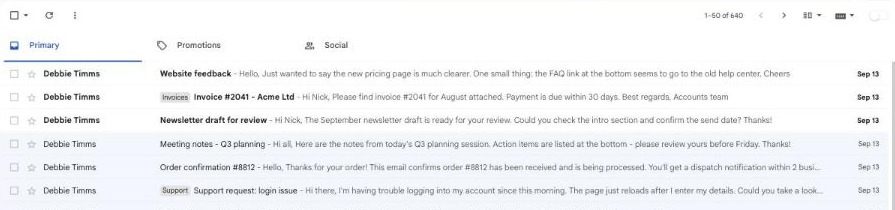 That happens because some messages might be flagged as spam or promotions wrongly, depending on what the emails say. Repetitive sales links, for instance, are usual culprits. There's a chance, however, that the emails are automatically sent to another folder because they fit filter criteria. In that case, you need to review your filters.
Deleted emails
There's also the possibility that your emails have been deleted. In that case, you need to look into a few variables. How long has it been? Did you accidentally delete them, or was it due to an invasion? Is it a standard account, or are you part of a Google Workspace company? If so, do they have backups through Google Vault? Follow the options below if it's less than 30 days. Now, skip to this guide if your emails have been deleted or missing for longer.
How to recover deleted or missing emails before 30 days
If the emails you need should have reached your inbox within the last 30 days, the process is much easier. There are three main options:
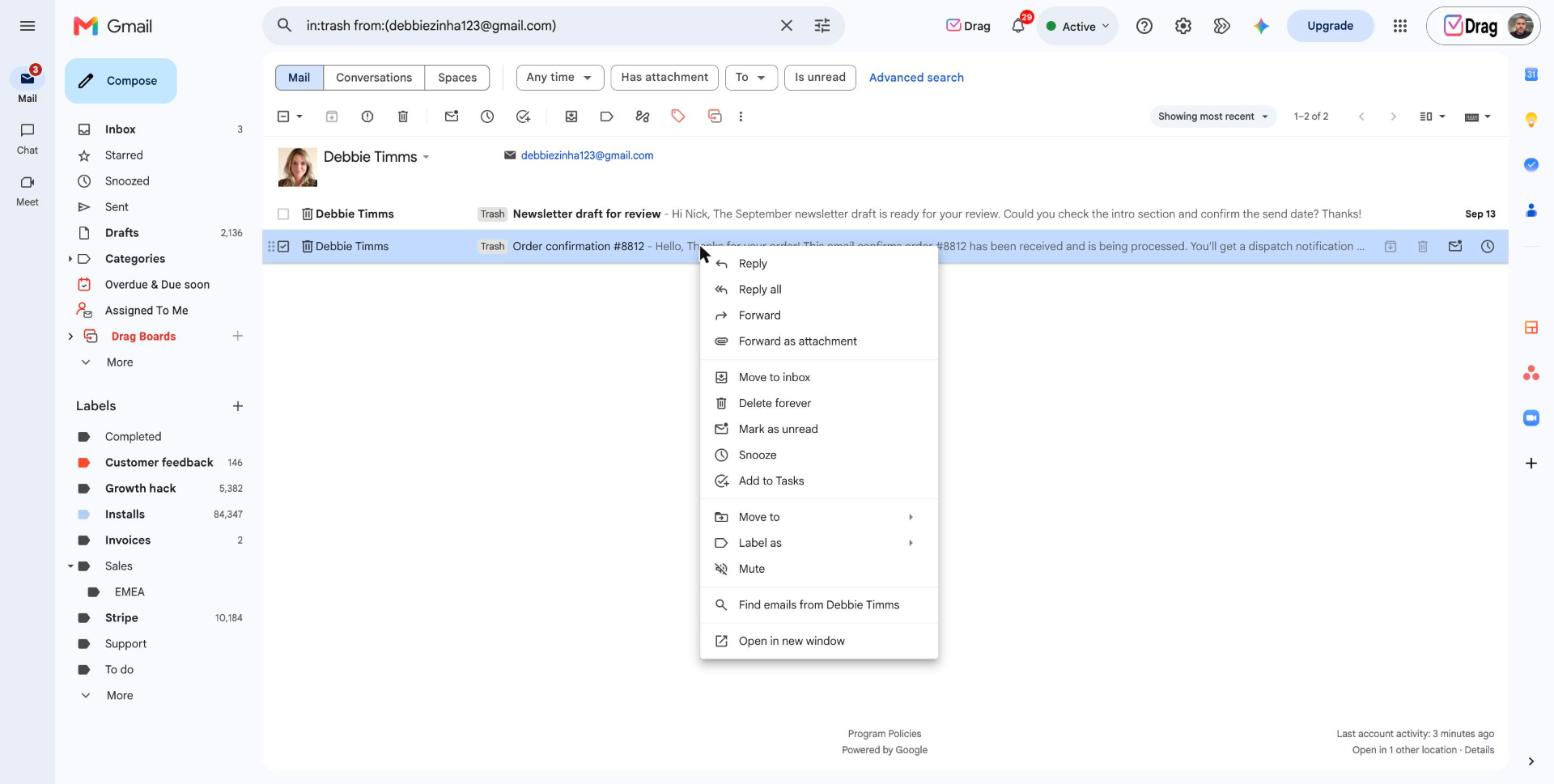
Look into the Trash folder
Sometimes, the emails were just deleted, whether automatically or by accident. In that case, they should stay on your Trash tab for 30 days before being automatically deleted from Gmail's server.
- Log into Gmail
- On the left sidebar, toggle More
- Click Trash
- You can select one or multiple messages, then click the Move to icon

- In the pop-up menu, select which folders you want the email to be viewed in
- Now, when you open your inbox, they'll be there.
Check your filters
The other possibility is that you've accidentally set up a filter that miscategorized an email. That can happen when you create filters for certain keywords, for instance, because unrelated messages may get lost. Solving this concern is very easy, however.
- On Gmail, click Settings > Advanced Settings
- Click on the Filters and Blocked Addresses tab
- Review all the filters on your account, especially ones that include Delete actions
- You can choose to remove or edit filters to change the criteria.
- Click on Update filter and any relevant emails should be visible again.

Use Gmail Message Recovery tool
Google keeps one last door open past the Trash window: the Gmail Message Recovery Tool, a short web form built for mail lost to unauthorized access or suspicious activity. You tell Google roughly when the mail vanished, it reviews the account's history, and if recoverable copies exist server-side they come back to your inbox, usually within a day or two. Be honest about its shape: it is designed for compromise and sync failure, not for mail you deleted on purpose, and Google makes no promises either way. It costs two minutes and is always worth trying before giving a message up for lost.
Recovering deleted or missing emails after 30 days
The only accounts that can recover deleted or missing emails after the standard 30-day period are Google Workspace accounts. That's because, for security and data reasons, Gmail won't store your messages. However, if they are part of a company's directory, they are likely to keep longer archives. Still, there's a higher success rate the earlier you start the process.
Google Workspace admin console
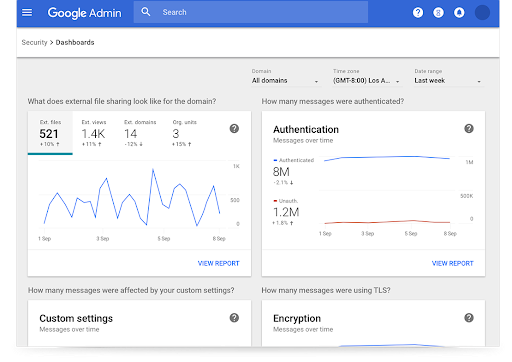
- If you own the Google Workspace admin account, log in and open the Workspace dashboard
- If not, ask the company's admin to follow this process
- Go to Menu > Directory >Users
- You'll see all the Users that are part of your workspace
- Select the right account, then click More options > Restore data
- You can pick the date range and the type of data you want to recover
- In this case, select recover deleted or missing emails by including Gmail
- Click Restore
- To confirm the process, open the user's inbox to check if the messages are there.
Related: Best security tips for Google Workspace admins
Google Vault
Some organizations opt to include Google Vault in their digital workspace. This is a backup solution that helps administrators save months of data into one accessible space. 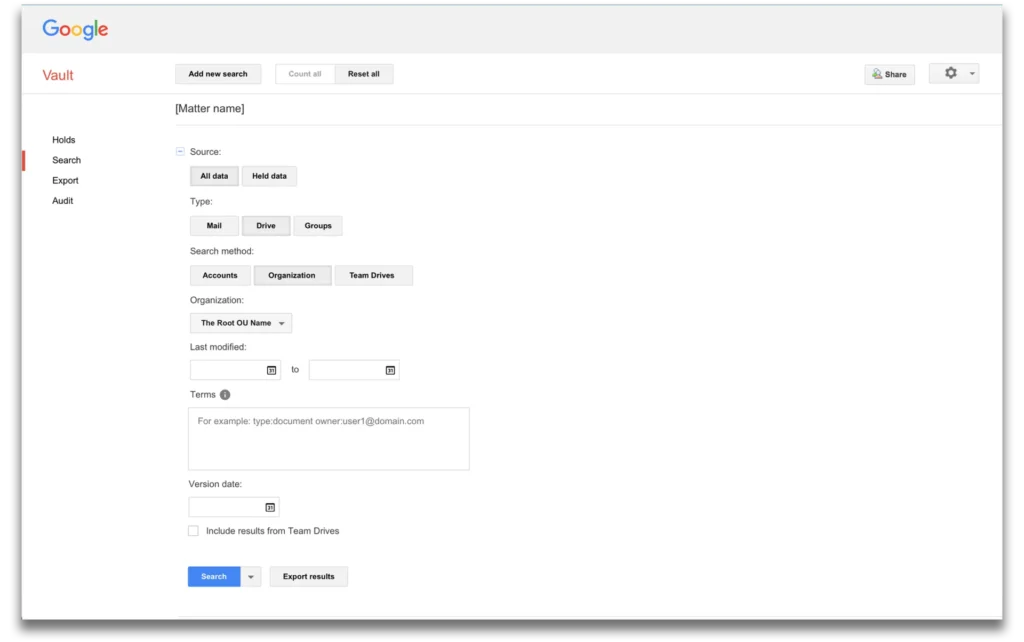 If this resource is available, here's how to recover deleted or missing emails:
- Open Google Vault via your Google Workspace admin account
- Click on Create > Matter
- A Matter is a type of data folder you can use to specify searches and export results. You can also name them according to each specific need for later reference
- Now that you have a Matter, there's going to be a Search bar you can use for your query
- Pick the Google Workspace service you want to include
- So, if you need to recover deleted or missing emails, select Gmail
- As with your inbox, you can search by key phrases, sender's address, subject line, category, and so on
- Click Search to receive all the data that fits the criteria.
With these results, there are two main things you can do. First, save the search in case you need it later. Then, you can click View saved queries to reapply the queries in the future to new datasets. However, to actually save the results, you need to export them. Just click Export and Google Vault will start the upload process for you. You can find your files when they're ready on the Exports tab and download them (they are stored for 15 days).
Drag · with Varley
The inbox your team and Varley work in together
Shared inbox and live chat for Gmail teams, with Varley, Drag’s AI, included from $18. Plus an MCP server your own AI tools can drive.
Keep better archives with a shared inbox
There's a better alternative to the standard way to deal with emails: a Gmail shared mailbox. With a shared inbox platform, you and your team can access your Gmail messages with all the productivity resources, all in the same workspace.






Instead of having to log in and out of multiple accounts, forwarding email-based tasks and having the risk of deleting or missing important emails that give your team context for their work, you can keep the entire pipeline accessible. Our solution, DragApp, offers custom inbox views, including Kanban Boards, that allow teams to follow their workflow visually. Each new message that arrives in your inbox becomes a card you can move through the steps, avoiding the need to recover deleted or missing emails. Drag also includes automation rules and filters you can use to make the process run smoothly. Instead of manually sending a task to a specific department or team member, you can use workspace routing to automate card distribution based on workflow rules.
Another key benefit of Drag is that users can check the activity log. This is another way to avoid needing to recover deleted or missing emails, because each time there's a change on a card, everyone assigned to it can monitor the movement.
What to do after you recover deleted or missing emails
The best way to avoid running into missing emails in the future is to keep track of any inbox changes. If you find senders repeatedly in the spam folder, make sure you let Gmail know it's an error and save the contact to your list. If the folders are causing inbox confusion, deactivate them or create your own categories. If your filters encompass too many emails and create issues, pick more specific criteria. More importantly, create the habit of checking your Trash folder before you permanently delete your emails. That way, you can preemptively avoid having to recover deleted or missing emails through additional steps.
Deleted or missing emails: FAQs
- Where are my missing emails?
They might have been filtered incorrectly, flagged as spam or sent to trash. Check all Gmail folders to recover them.
- My emails have been deleted permanently. Can I still recover them?
If it's been less than 30 days, maybe. Use Gmail Message Recovery Tool. And don't forget to update your security measures.
- How can I recover deleted or missing emails on my work Gmail?
If you're part of a company directory on Google Workspace, the admin account might be able to recover emails through their server.
- Is it possible to recover deleted or missing emails after 30 days?
Only if you have backups on Google Vault.
- How can a shared inbox help with email management?
A shared inbox takes recovery off any one person's shoulders: team addresses like support@ live in a space everyone can see, so mail doesn't vanish when someone leaves, deletes carelessly, or loses account access. With Drag on top of Gmail, conversations sit on shared boards with assignment and history, and the Workspace admin window covers the account behind it.

